Workspace Settings — Teams
Workspace Settings — Teams⚓︎
This section explains how to create, manage, and join workspace teams.
For a list of all guides on the TCAT Wiki, refer to the Guides List.
Open Teams⚓︎
- Open a workspace from the Dashboard
- Open Workspace Settings
- Select Teams
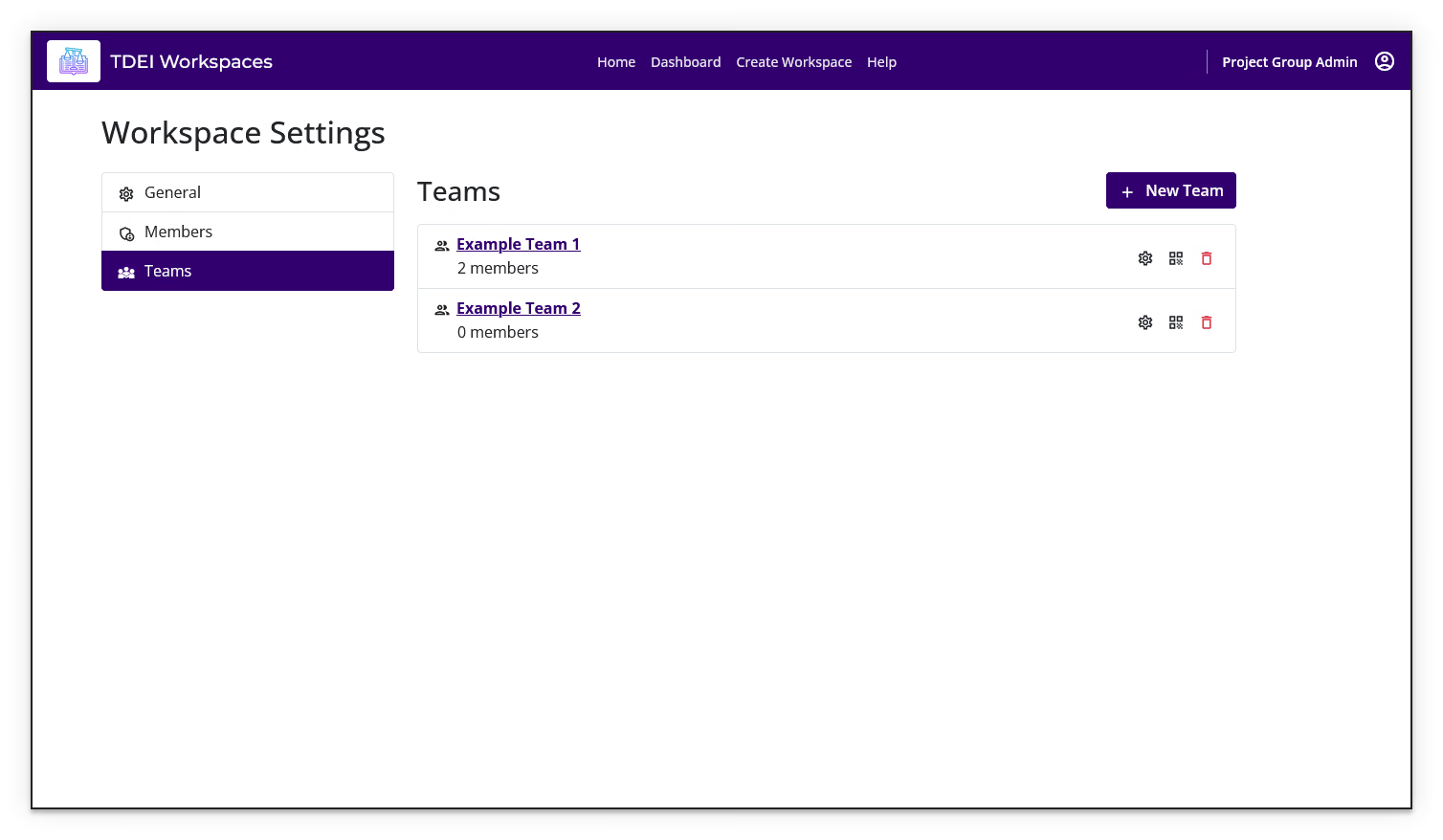
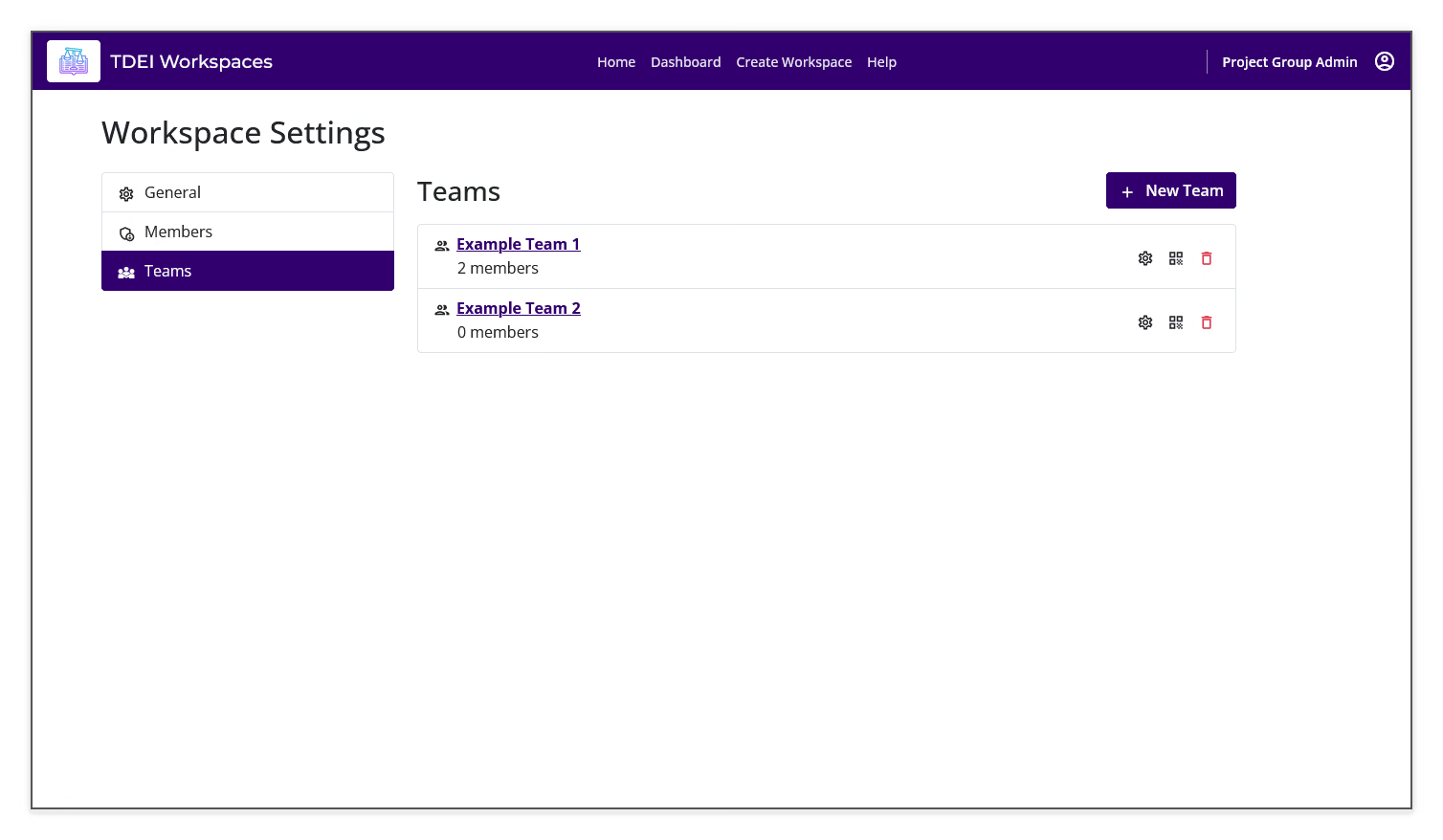
The Teams page lists each team's name and member count. Each team row can include controls to open team settings, view the team's invitation QR code, and delete the team. Use New Team to create a team when team management is available for your account.
Create a team⚓︎
- Select New Team
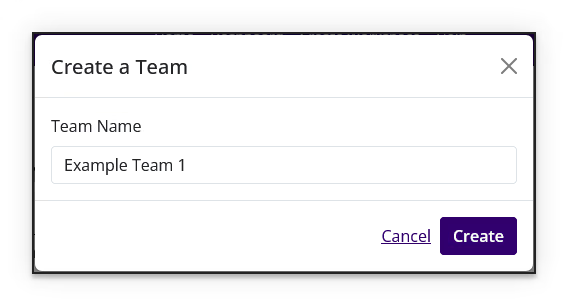
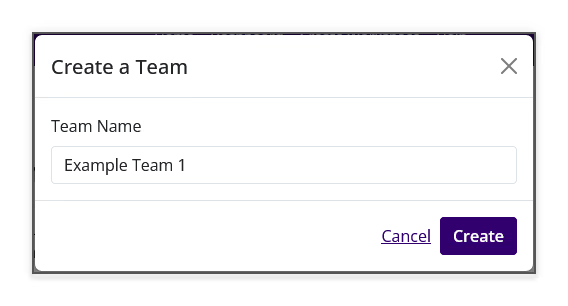
- Enter the team name in Team Name
- Select Create
The new team appears in the list on the Teams page.
Rename a team⚓︎
- Find the team you want to rename
- Select Open Team Settings
- Replace the value in Team Name
- Select Update
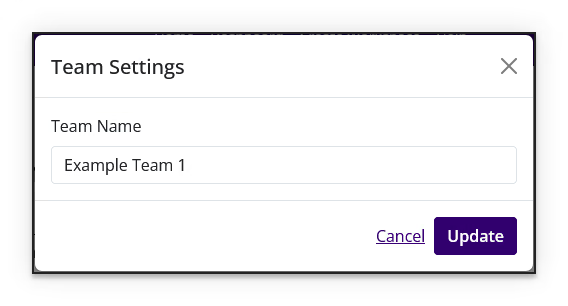
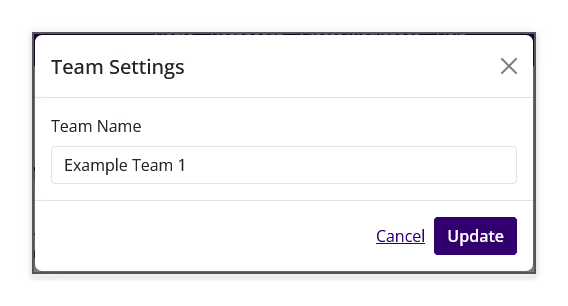
The updated team name appears in the team list.
Review team members⚓︎
- Find the team you want to inspect
- Select the member-count control
- Review the Team Members dialog
- Select Close when you are finished
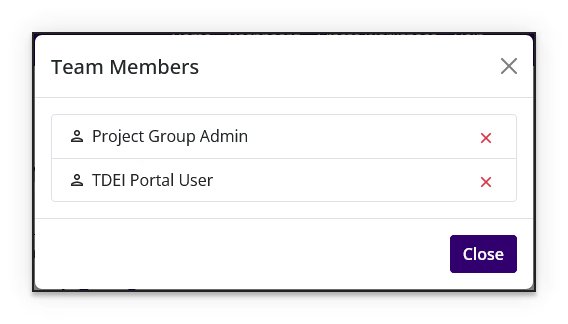
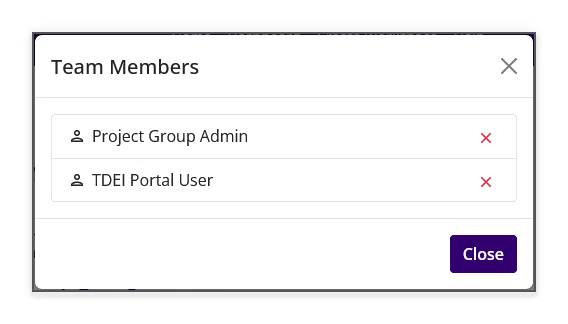
The Team Members dialog lists the people currently associated with the team. Use the remove control next to a member when you need to remove that member from the team.
Share a team invitation⚓︎
- Find the team you want to share
- Select View QR Code
- In the Join this Team dialog, share the displayed QR code or shareable link
- Select Download QR Code when you need a saved copy of the QR code
- Select Close when you are finished
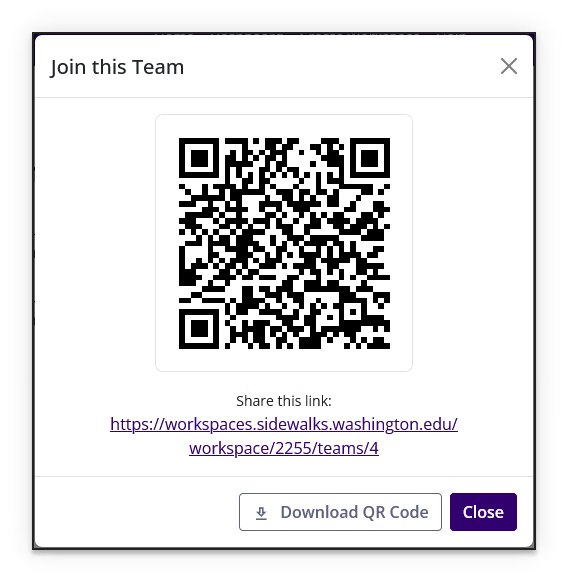
People who open the invitation can review the team and workspace before joining. Teams associate subsequent edits with the selected team for attribution.
Teams and permissions
Teams are workspace-scoped attribution labels for edits. They do not grant or revoke workspace permissions and are separate from TDEI project groups.
Join a team⚓︎
- Open the shared invitation link or scan the team's QR code
- Review the Join Team page, including the invited team and workspace
- Select Join Team
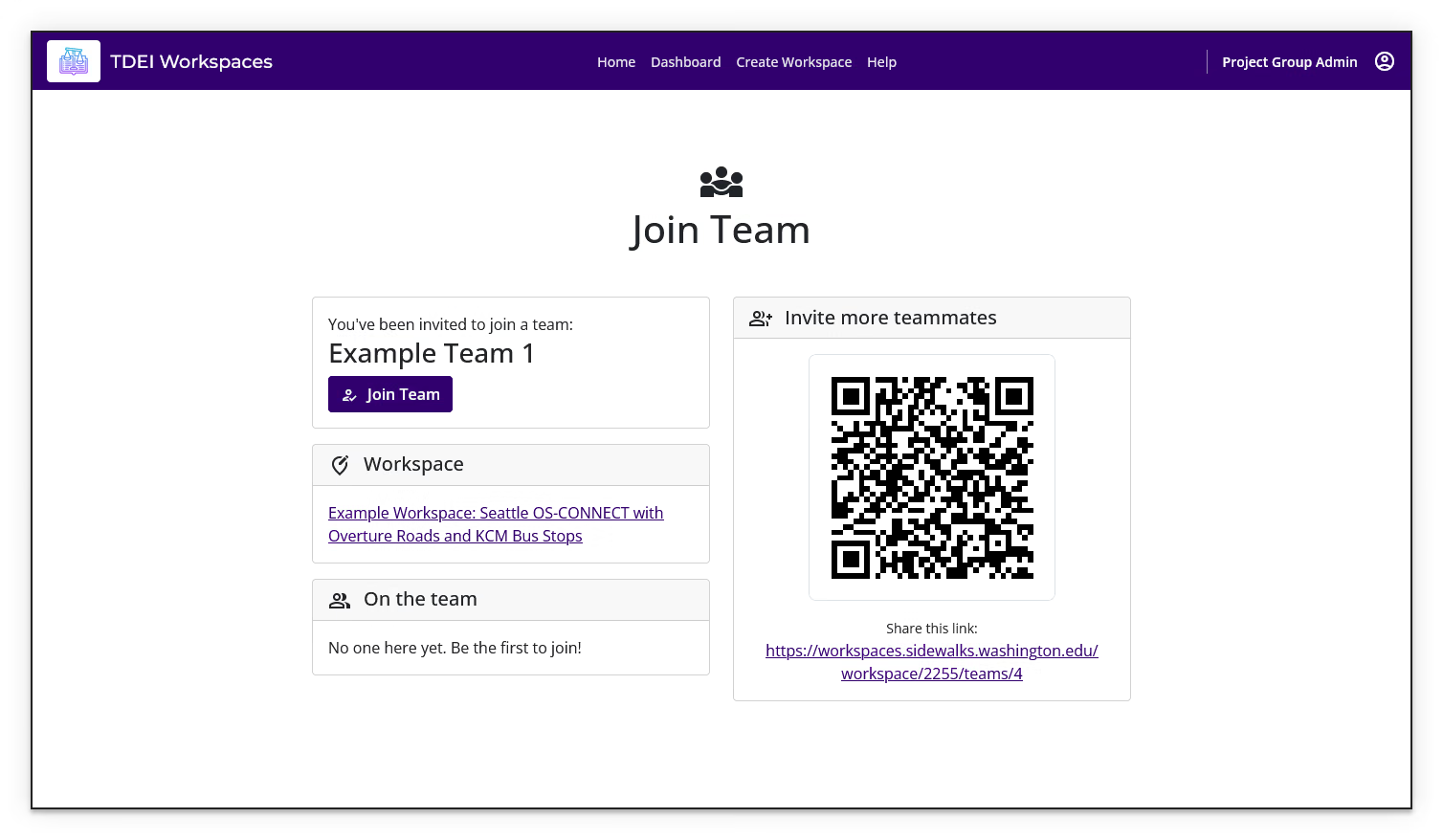
The Join Team page identifies the team and workspace and shows the current On the team list. Joining associates your subsequent edits with that team for attribution; it does not change your workspace role.
Delete a team⚓︎
- Find the team you want to delete
- Select Delete
- Check the team name in the Delete Team confirmation dialog
- Select Delete to confirm, or Cancel to keep the team
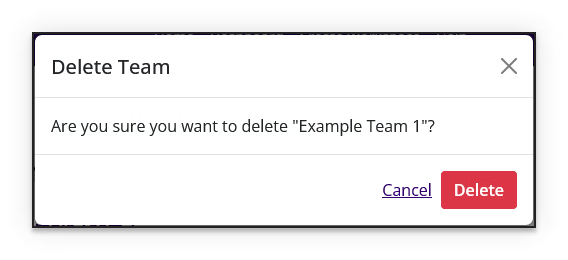
Confirm the deletion only after checking that the dialog names the intended team. If a required team-management control is unavailable, contact a workspace administrator.
Previous: Workspace Settings — Members | Next: Workspace Projects