Contribute to a Project
Contribute to a Project⚓︎
This section explains how to select a project task, make and submit mapping edits, or release a task without submitting it.
For a list of all guides on the TCAT Wiki, refer to the Guides List.
Select and map a task⚓︎
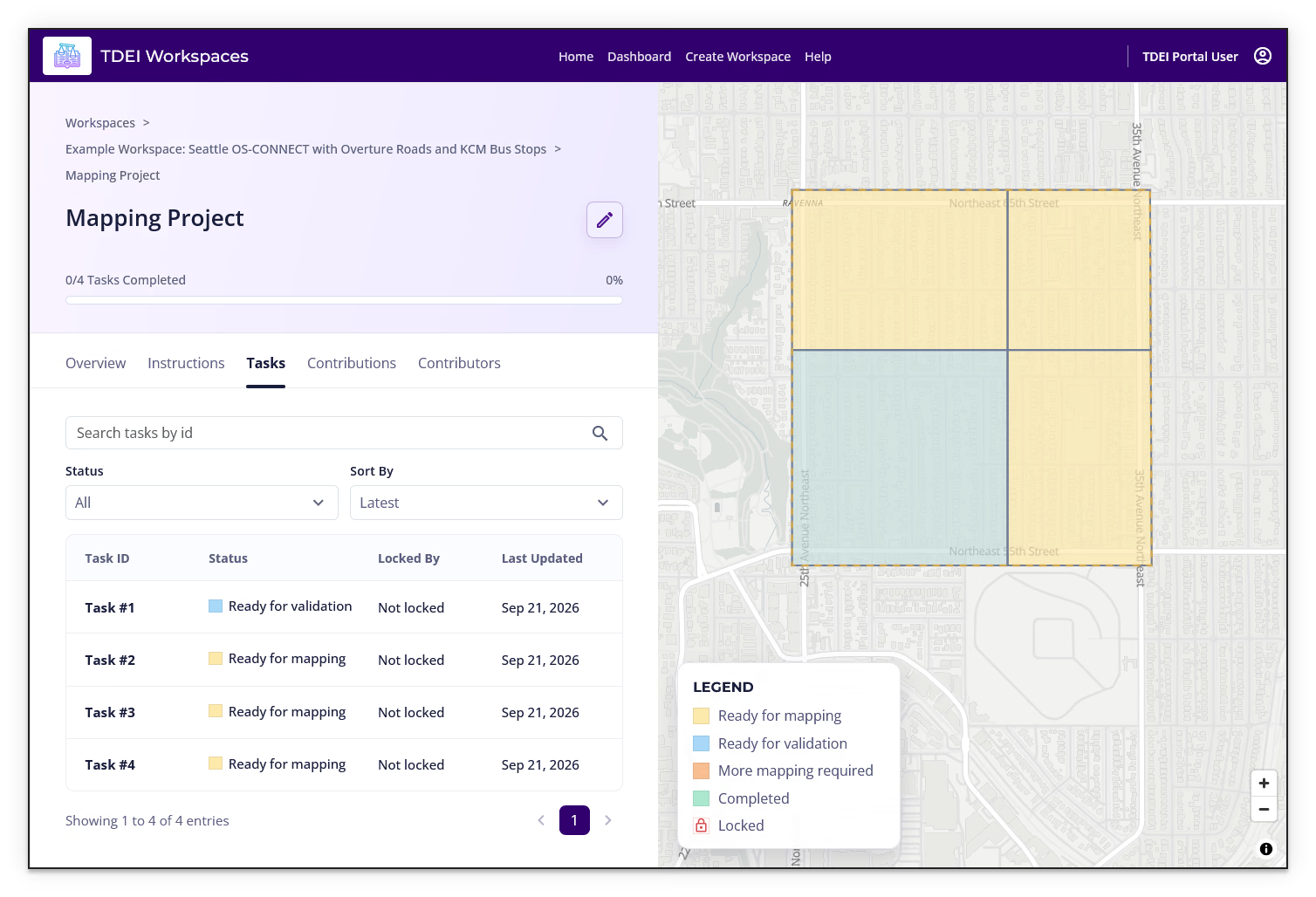
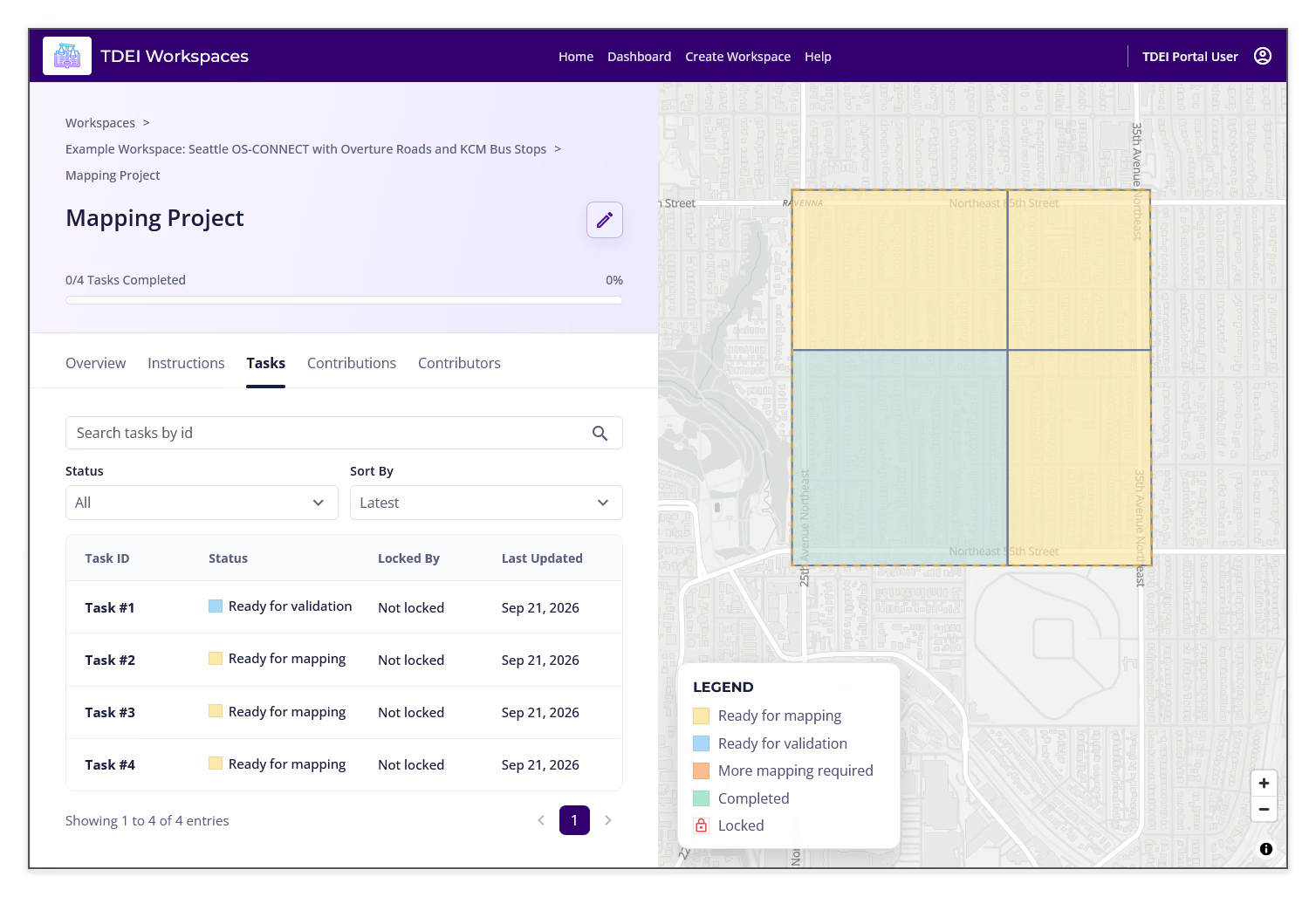
- Open the project's Tasks tab
- Select a task ID or select a task area on the map
- Review the selected task and its current status in the bottom action panel
- Select Map a Task when you are ready to open the mapping workflow
- Select Close to leave the selected-task view without opening the mapping workflow
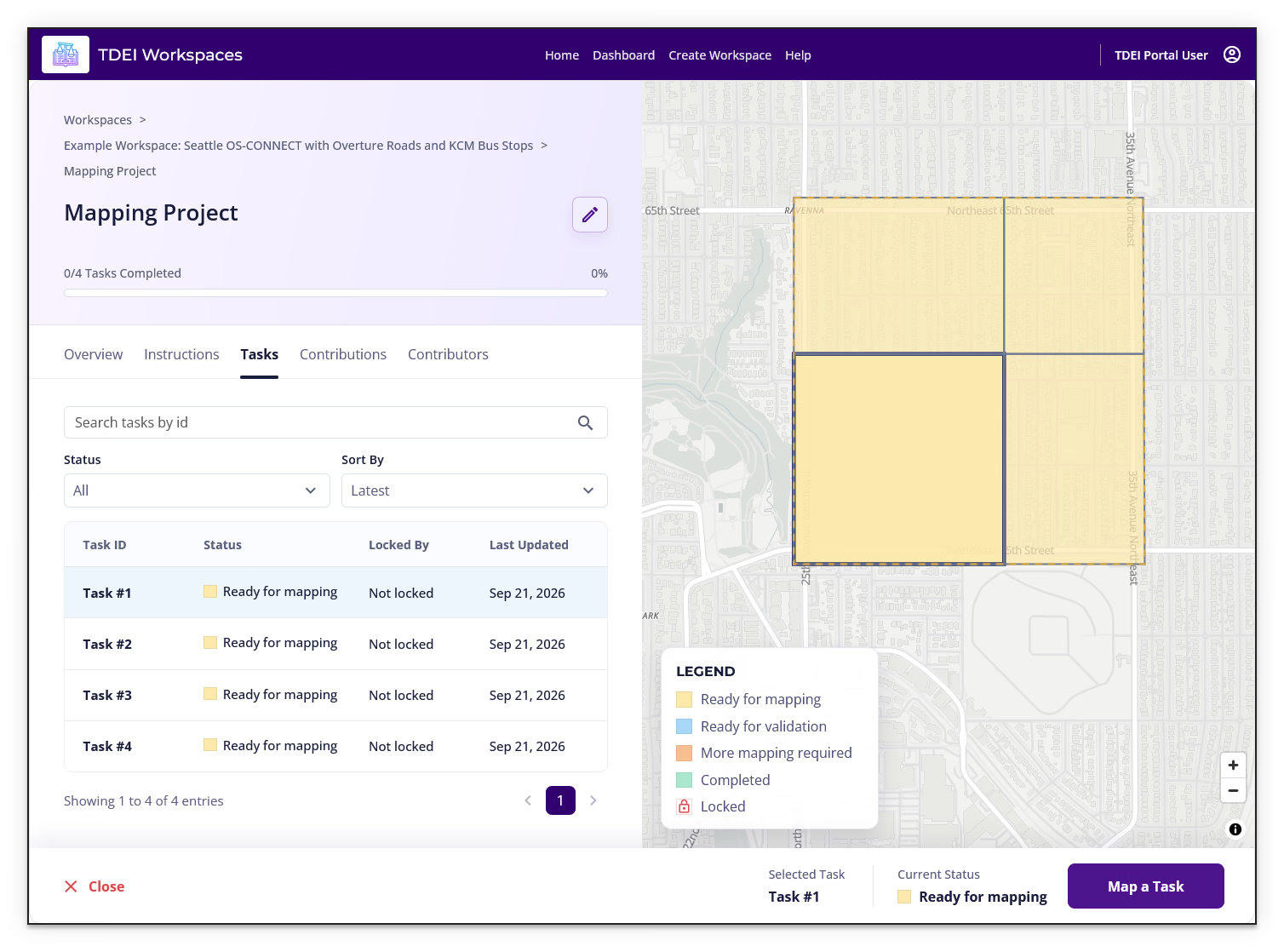
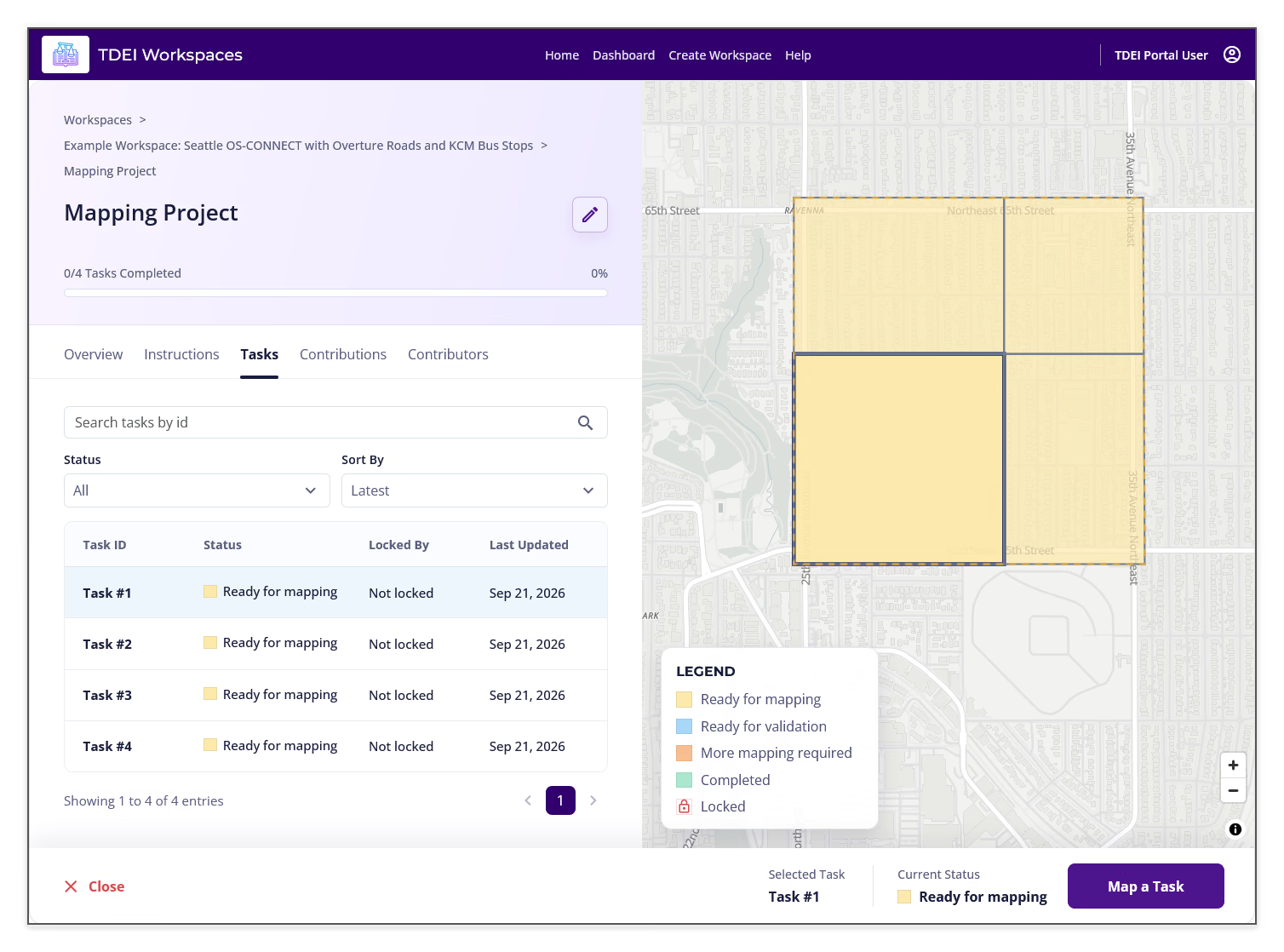
The selected task remains highlighted on the map, and the task table shows its status. For example, a task can show Ready for validation after mapping.
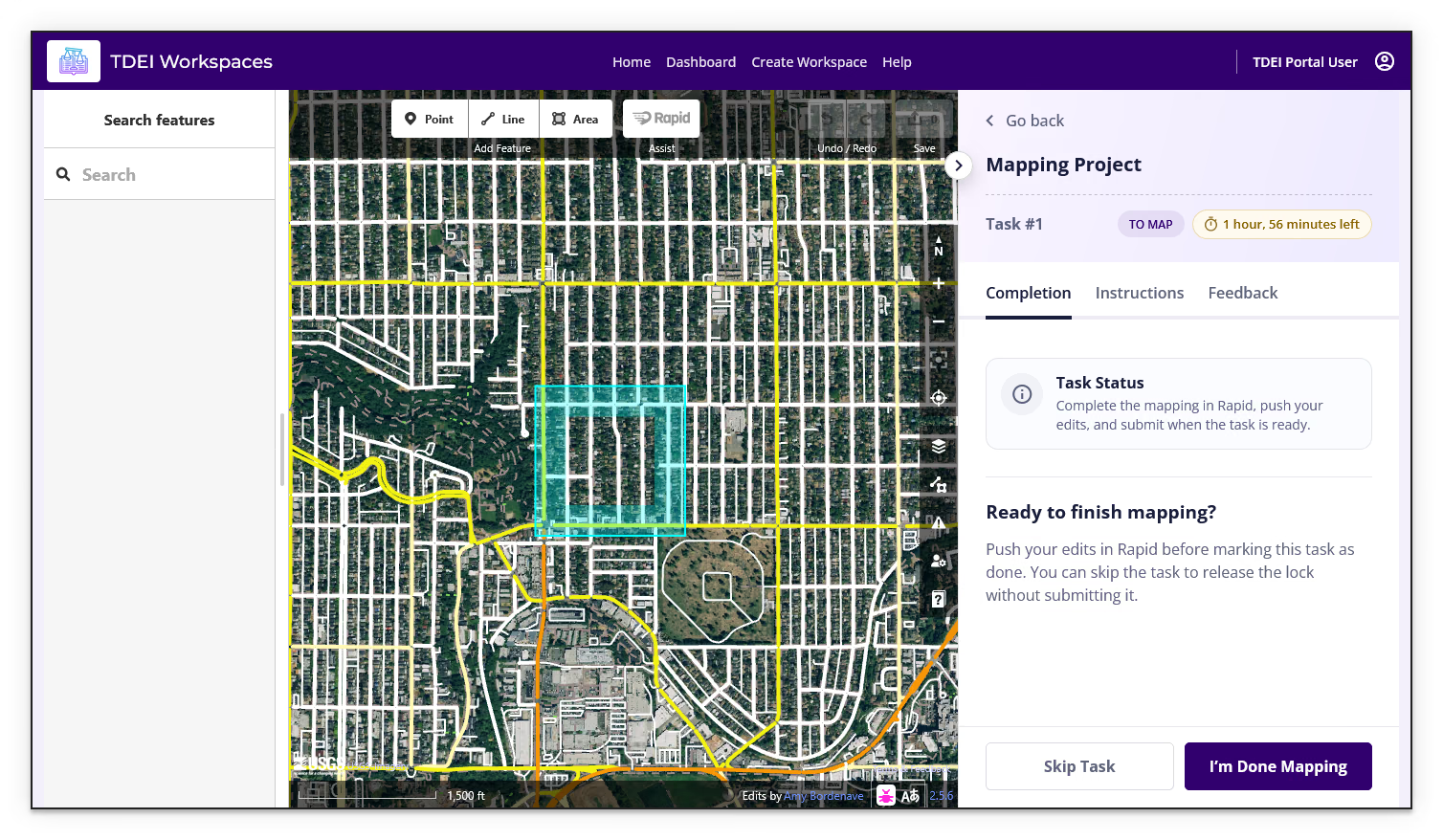
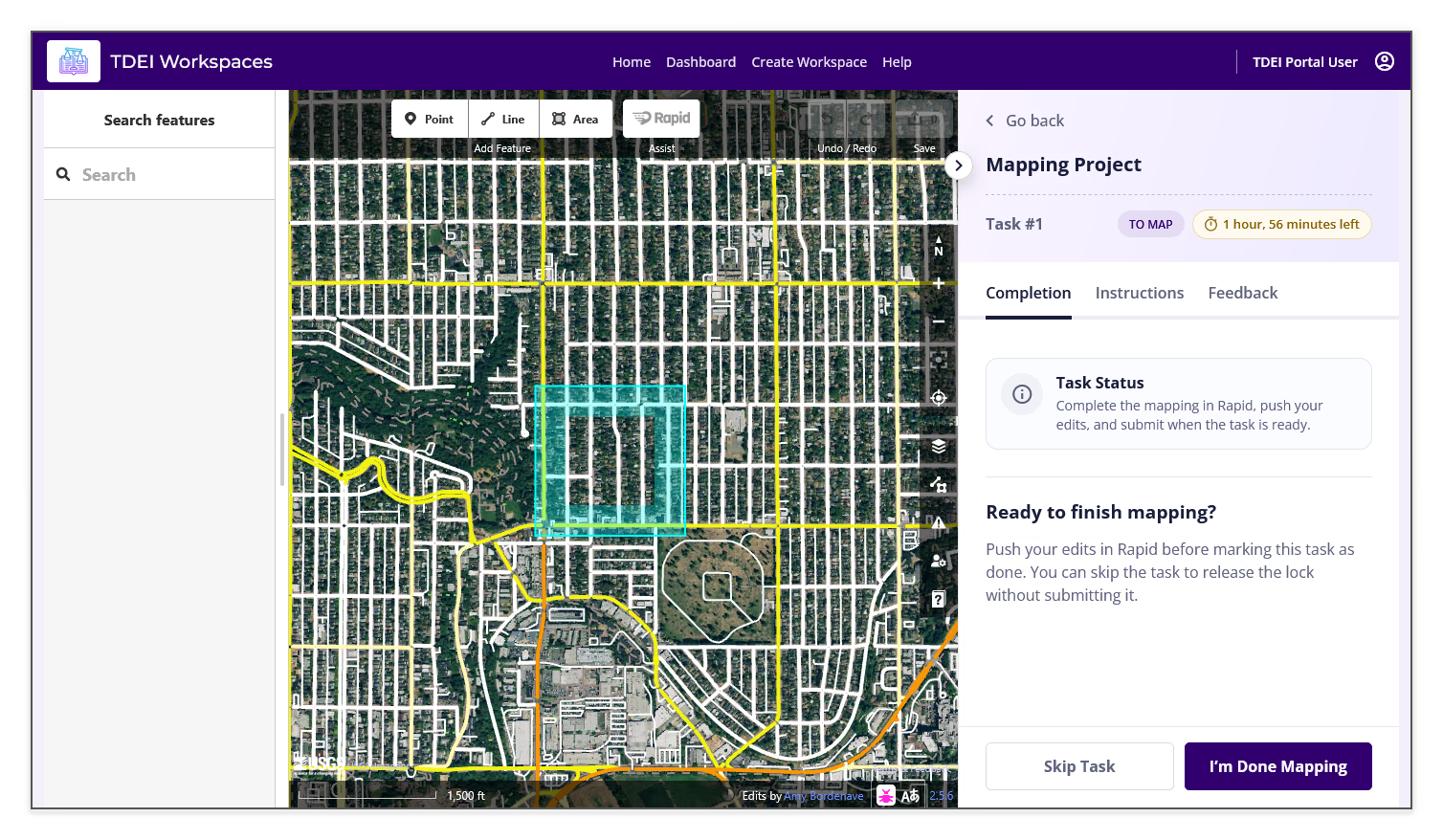
Selecting Map a Task opens the mapping editor. Use the mapping editor to make and save edits, then return to the task panel:
- Review the task status and remaining lock time
- Make edits in the mapping editor
- Push or save your edits before submitting the task
- Select I'm Done Mapping when the task is ready
- Select Skip Task when you need to release the task without submitting it
Previous: Edit a Project | Next: Validate for a Project