Dashboard
Dashboard⚓︎
This section explains how to select a project group, find a workspace, and review workspace information on the Workspaces Dashboard.
For a list of all guides on the TCAT Wiki, refer to the Guides List.
Select a project group⚓︎
- Open Dashboard from the navigation bar
- Open the Project Group selector
- Select the project group that contains the workspace you want to open
The workspace list updates to show workspaces in the selected project group.
Find and select a workspace⚓︎
- Optionally, enter a workspace name in Search Workspaces to filter the list
- Select a workspace in the Workspaces list
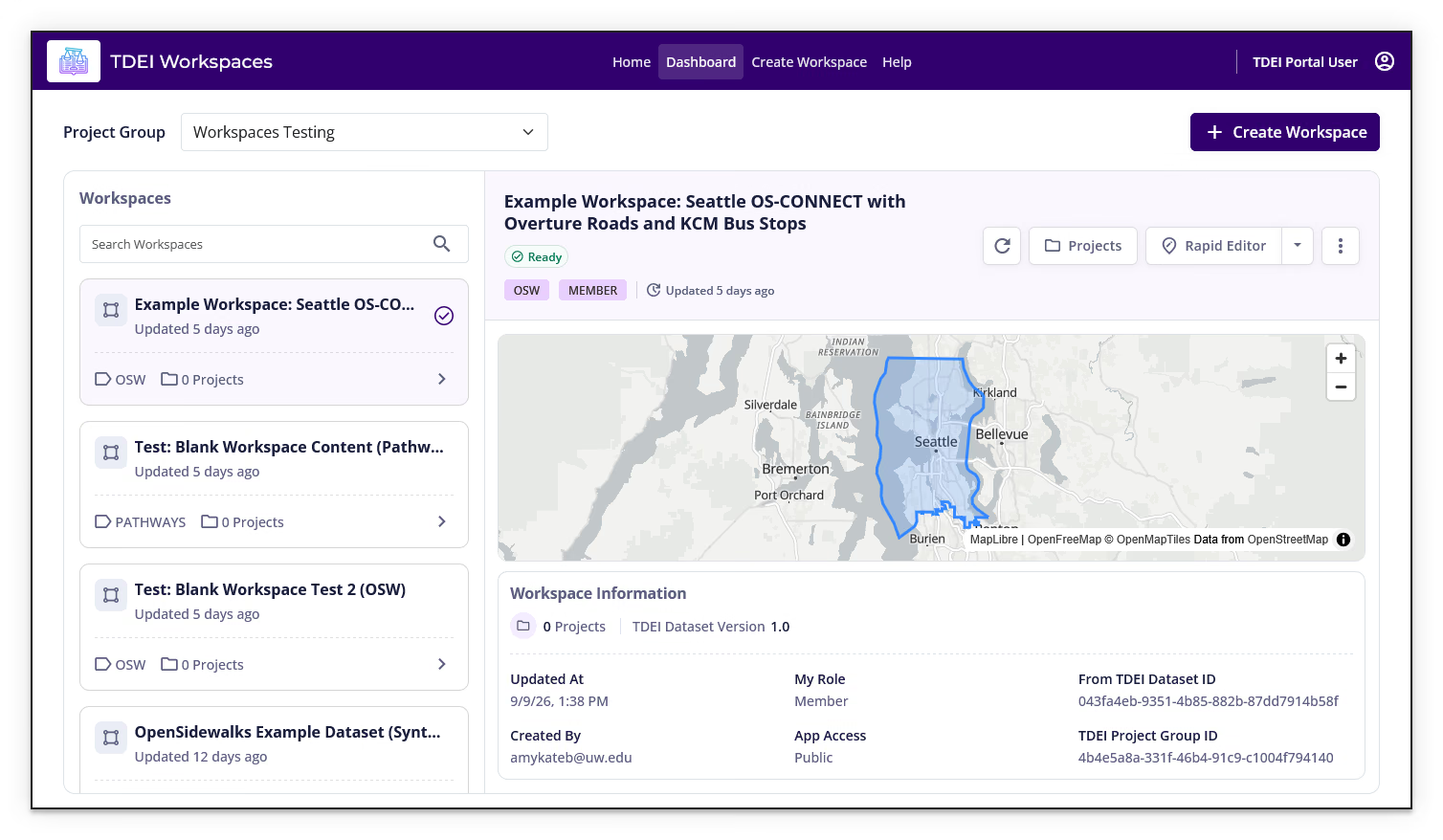
- Review the selected workspace's status, dataset type, project count, update time, and available actions
The selected workspace appears in the main panel with its map preview and workspace information.
Review workspace information⚓︎
The Workspace Information panel includes:
- Projects — the number of projects in the workspace
- TDEI Dataset Version — the version associated with the workspace
- Updated At — the most recent update time
- Created By — the user who created the workspace
- My Role — your role in the workspace
- App Access — whether application access is enabled or disabled
- From TDEI Dataset ID — the source TDEI dataset identifier, when applicable
- TDEI Project Group ID — the TDEI project group identifier
Use workspace actions⚓︎
The available actions depend on the workspace status and your role. The dashboard may provide controls to:
- Refresh workspace status
- Open Projects
- Open Rapid Editor
- Open the workspace actions menu
When a workspace is still setting up, workspace actions may be disabled until setup finishes.
Open More workspace actions to access:
- Review — open the workspace review interface
- Export — open workspace export options
- Settings — open workspace settings
The My Role value in Workspace Information helps explain why some actions are unavailable. A Member can work with workspace data, but role-restricted actions such as reviewing changesets, changing settings, or uploading an export to TDEI require the appropriate workspace or TDEI project-group role.
Previous: Create a Workspace | Next: Workspace Settings