Editor Overview
Editor Overview⚓︎
This section introduces the Quest Definition Creator panels and explains the global definition settings.
For a list of all guides on the TCAT Wiki, refer to the Guides List.
Main Panels⚓︎
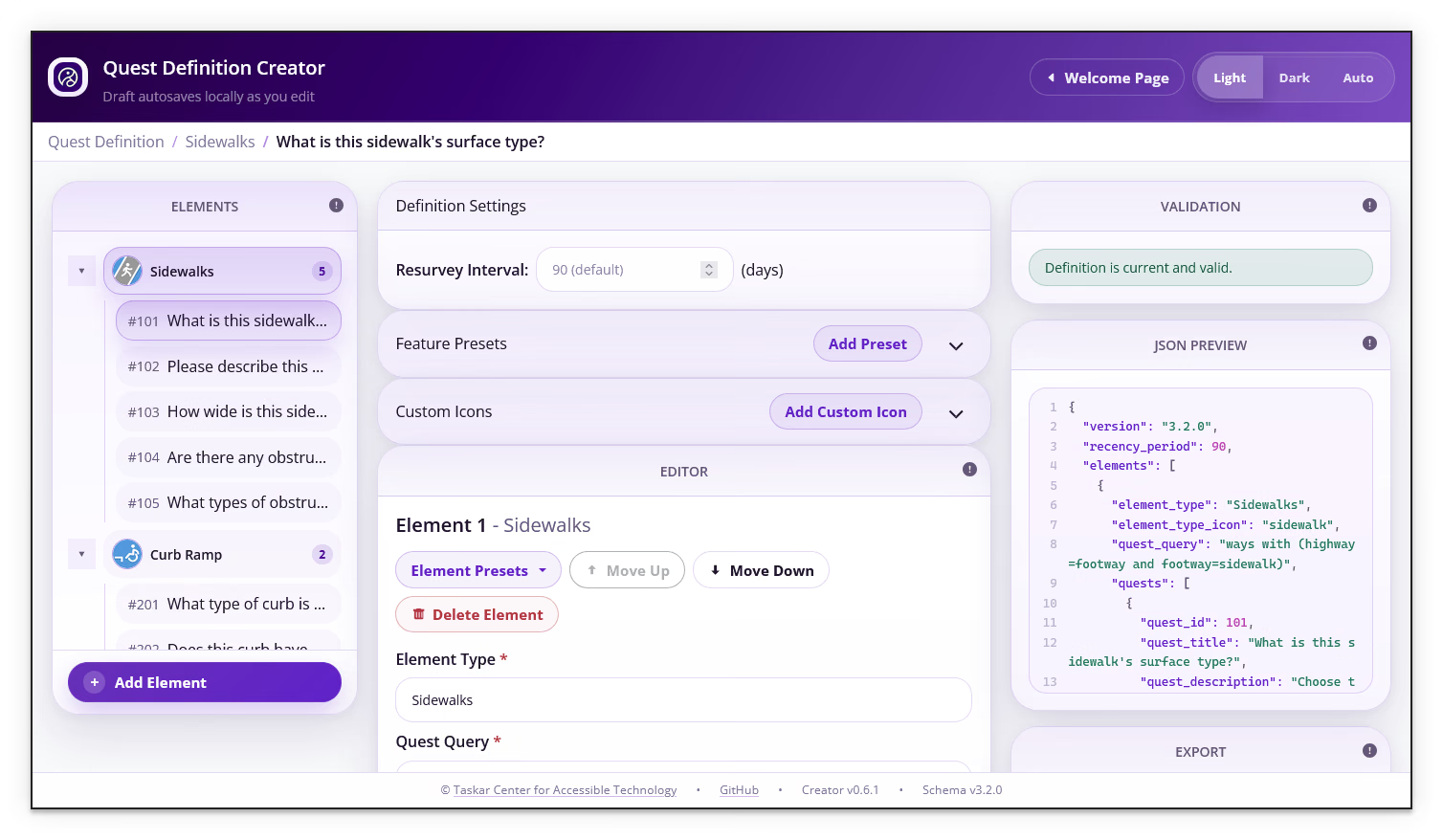
The editor uses the following panels:
| Panel | Purpose |
|---|---|
| Elements | Lists the element types in the definition and the quests under each element |
| Definition Settings | Sets the global resurvey interval |
| Feature Presets | Adds optional presets for creating predefined point features |
| Custom Icons | Adds optional URL-based icons for quests or feature presets |
| Editor | Provides the fields for the selected element and quest |
| Validation | Reports errors and warnings in the current definition |
| JSON Preview | Shows the definition as machine-readable JSON while you edit |
| Export | Sets the output filename and downloads or copies valid JSON |
Navigate a Definition⚓︎
- Select an element in the Elements list to focus its editor
- Select a quest under an element to focus that quest
- Collapse an element's quest list when you need a shorter navigation list
- Review the breadcrumb trail to confirm the selected definition, element, and quest
Use Move element up, Move element down, Move quest up, and Move quest down to control the order of items. The order is reflected in the JSON Preview.
Set the Resurvey Interval⚓︎
The Resurvey Interval field sets the global recency_period value in days. It controls quest visibility; it does not delete, invalidate, or clear answers already stored on an element.
- Locate Resurvey Interval under Definition Settings
- Enter a whole-number interval in days for the project
- Review the
recency_periodvalue in the JSON Preview
New definitions currently show a default of 90 days. Quest Definition Creator version 0.12.0 supports Long Form Quest Definition schema version 3.2.1, which accepts a whole-number recency_period of 0 or greater; schema version 3.2.0 required at least 1 whole day. Setting recency_period to 0 makes quests immediately eligible for resurvey, even when all applicable questions have answers. Previously submitted answers remain on the element. The interval is measured as elapsed time in days, not as a calendar-date change. For example, an element surveyed at 11:59 PM becomes eligible again at 11:59 PM the following day when recency_period is 1.
The interval applies to the definition as a whole, not to an individual element or quest question. Schema version 3.2.1 does not support fractional days or intervals specified in hours.
How Resurvey Visibility Works⚓︎
An element's quest is visible when either condition is true:
- At least one applicable question is unanswered.
- The elapsed time since the element's
timestampEditedis at least the configuredrecency_period.
Conditional questions that do not apply based on earlier answers do not count as unanswered. Previous submitted answers remain on the element and are prefilled when the quest becomes visible again. Confirming those answers and submitting the quest creates a changeset and updates the element's last-edited timestamp.
Creating a workspace sets the imported elements' timestampEdited values to the import time. The resurvey interval therefore starts from the workspace import time, even when the source data was edited earlier.
Optional Panels⚓︎
The Feature Presets and Custom Icons sections are optional. The Creator keeps those sections out of the exported structure until you add a preset or enable custom icons. See Presets and Custom Icons for details.
Next Steps⚓︎
Continue to Elements to define the features that the quests target, then use Quests to add questions for each element.