Feedback
Feedback⚓︎
This section explains how to report data issues in the OS-CONNECT Data Viewer using the Inspect and Report Issue features.
For a list of all guides on the TCAT Wiki, refer to the Guides List.
Inspecting a Location⚓︎
You can right-click anywhere on the map at any zoom level to open an Inspect popup. This places a red marker at the selected location and displays:
- Latitude and Longitude of the marker
- A Report Issue button
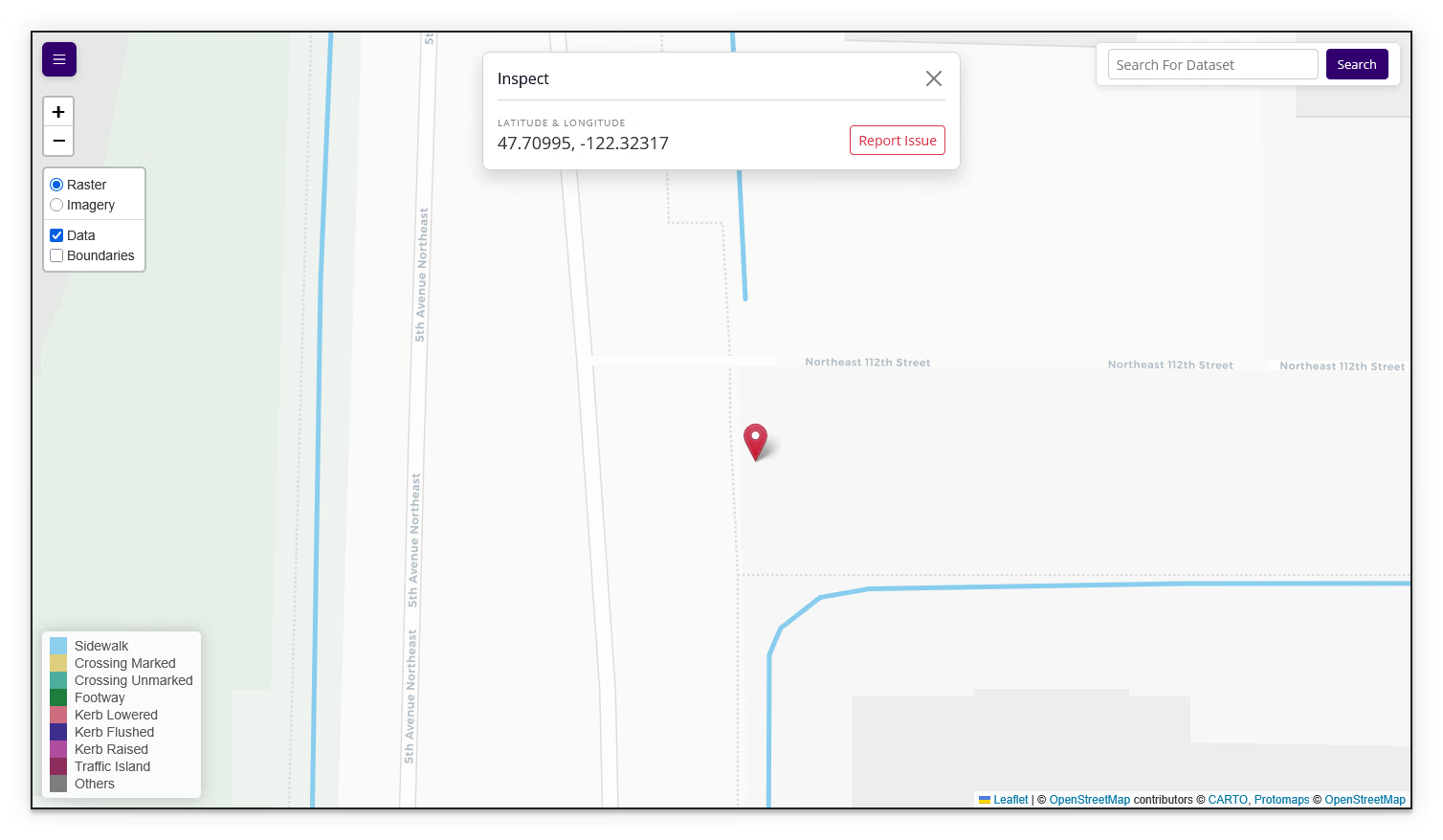
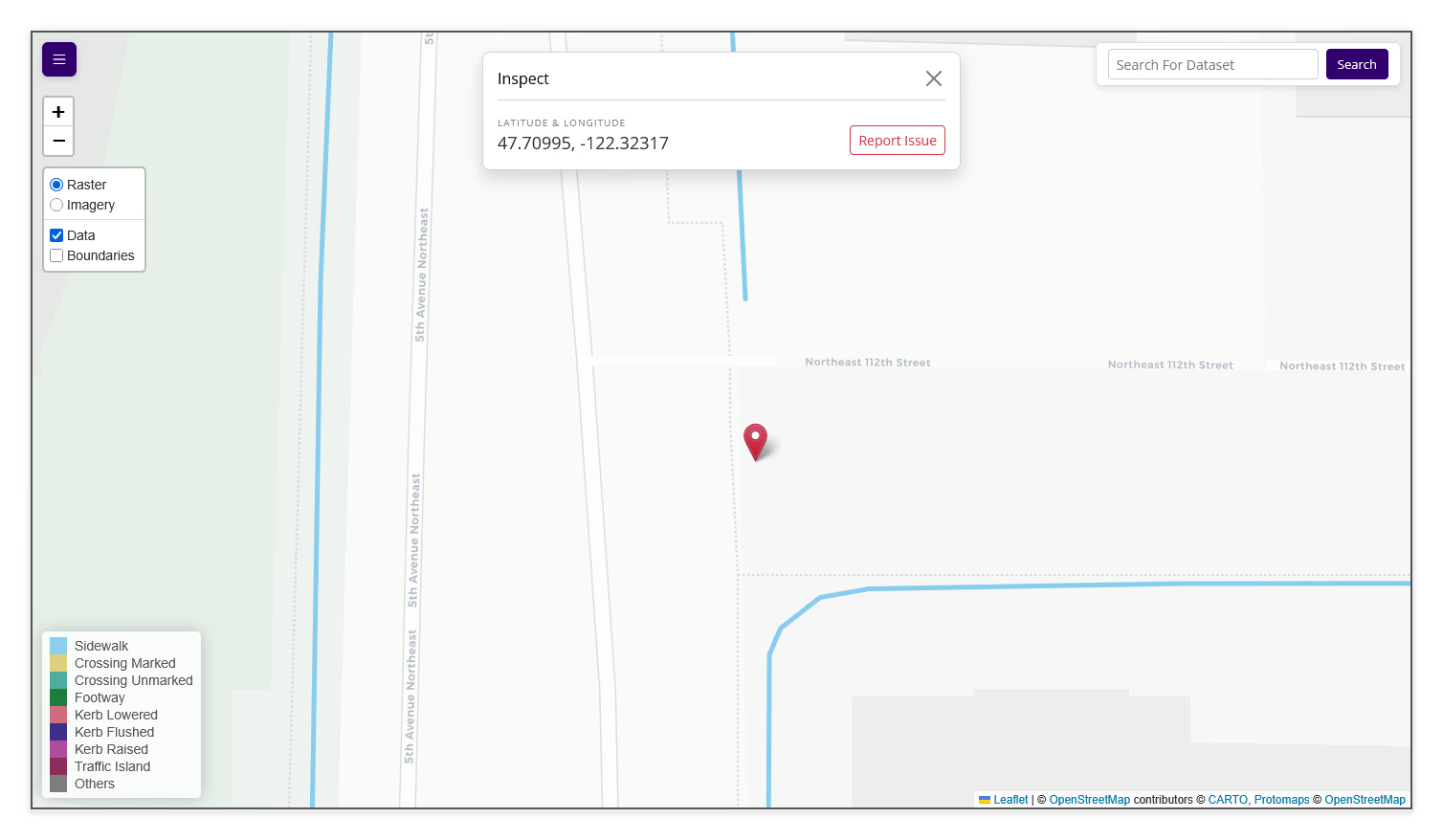
Reporting Issues⚓︎
If you notice a data issue — such as a missing sidewalk, incorrect curb type, or significantly misaligned feature — you can report it directly from the Data Viewer.
How to Report an Issue⚓︎
- Right-click anywhere on the map (at any zoom level) to open the inspect popup
-
A red marker appears at the selected location, showing the latitude and longitude
Note
The coordinates are captured automatically from the marker location and cannot be edited. Focus your description on what is wrong or missing at that location.
-
Select the Report Issue button
-
The Report Issue form opens with the following fields:
Field Description Required Latitude, Longitude The coordinates of the marker (greyed out, non-adjustable) Auto Issue Description A text field to describe the data issue Yes Email ID Your email address, for any follow-up Yes Name Your name (optional) No Writing Effective Reports
Be specific and concise in your description. Good examples:
- "A newly built sidewalk along the west side of this road is missing"
- "This crossing is labeled as unmarked, but it actually has zebra markings"
- "There is a raised curb here that is not shown in the data"
-
Fill in the required fields and select Submit Issue (or select Close to cancel)
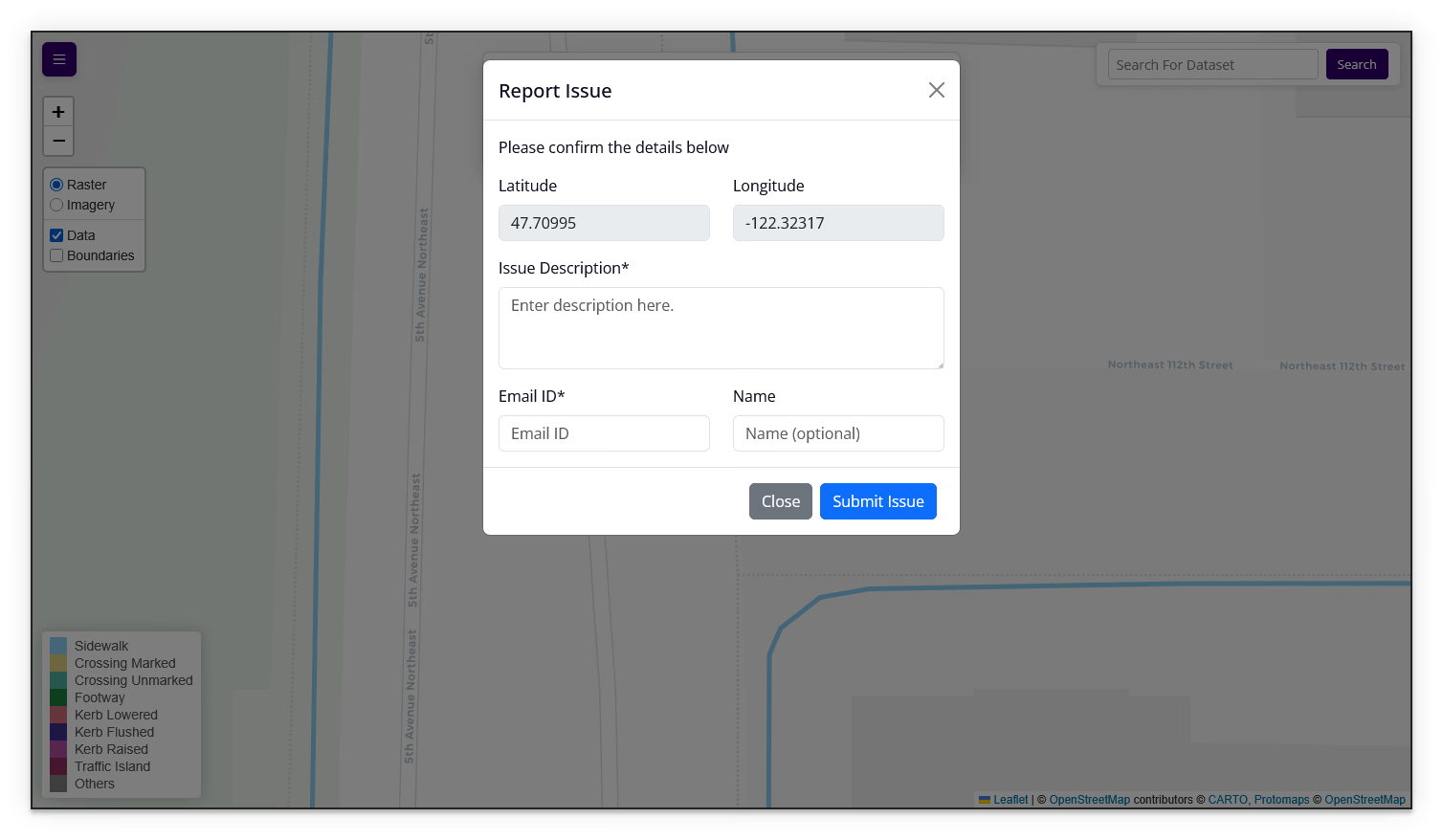
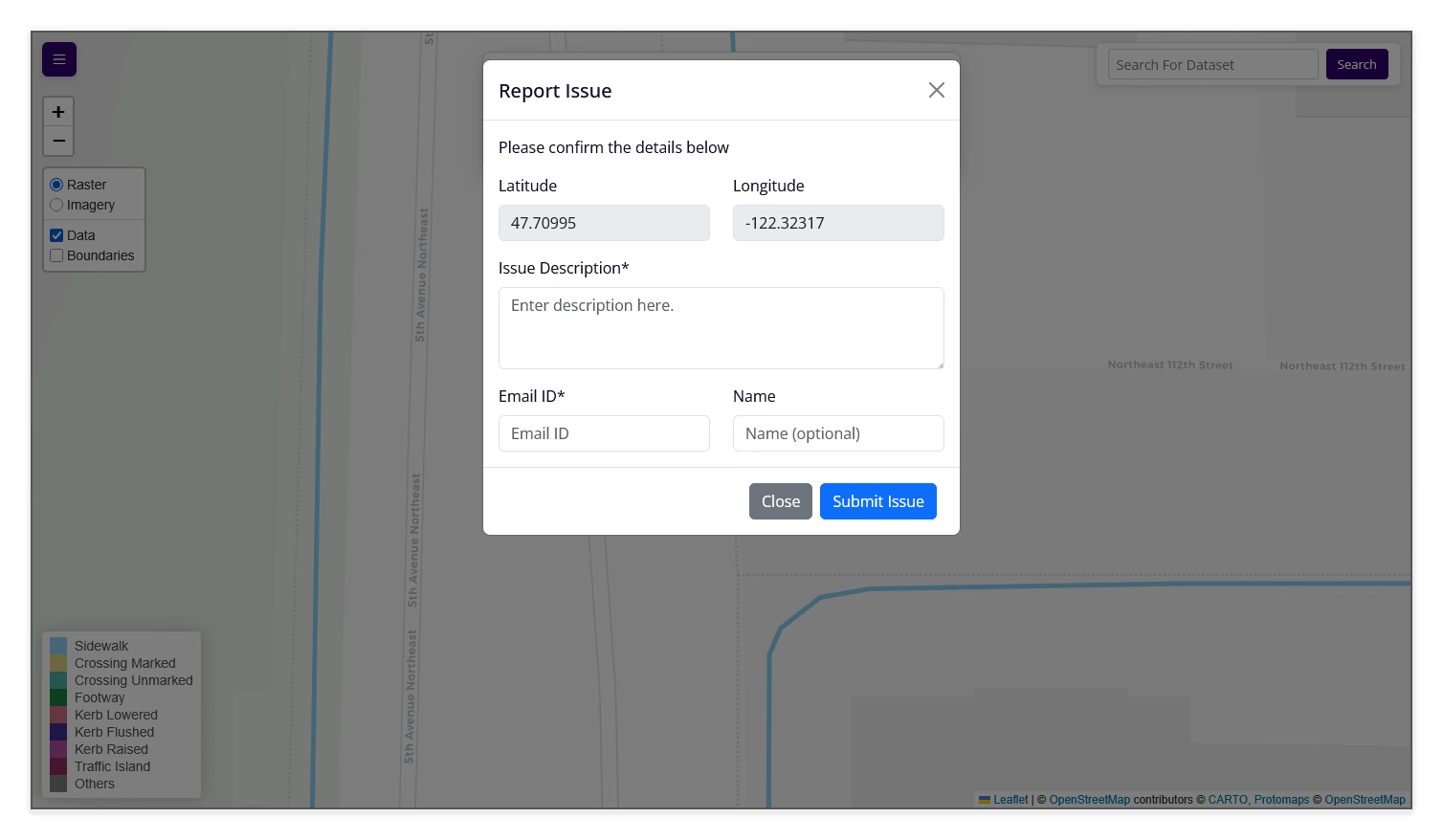
Success! An Issue submitted successfully! popup will appear at the bottom of the screen.