Import OSM Data into Workspaces
Import OSM Data into Workspaces⚓︎
This tutorial explains how to download an area of interest from OpenStreetMap, convert it to the OpenSidewalks format, and upload it to Workspaces.
For a list of all guides on the TCAT Wiki, refer to the Guides List.
Step 1: Download Area of Interest from OpenStreetMap⚓︎
-
Open SliceOSM in your browser.
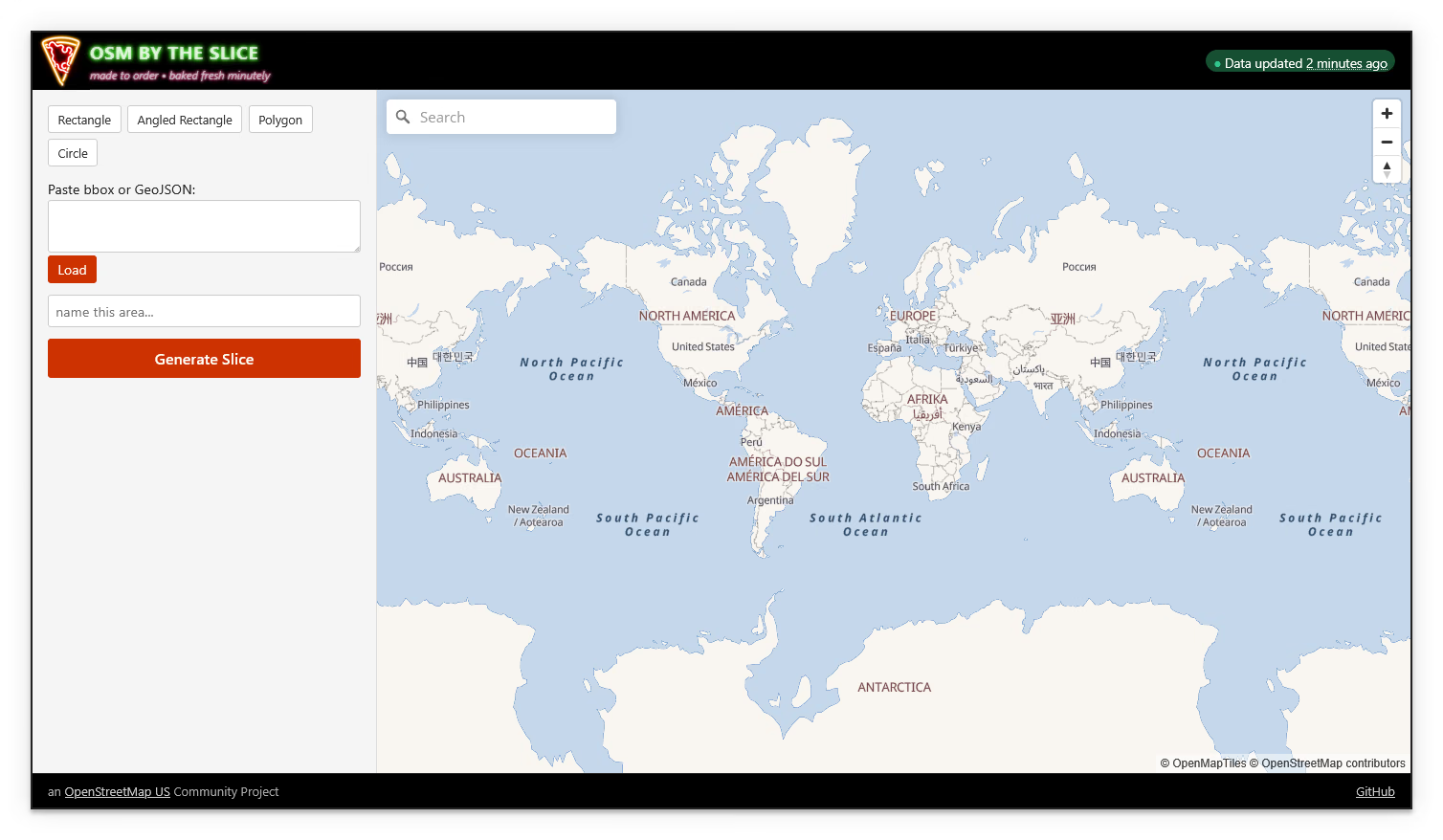
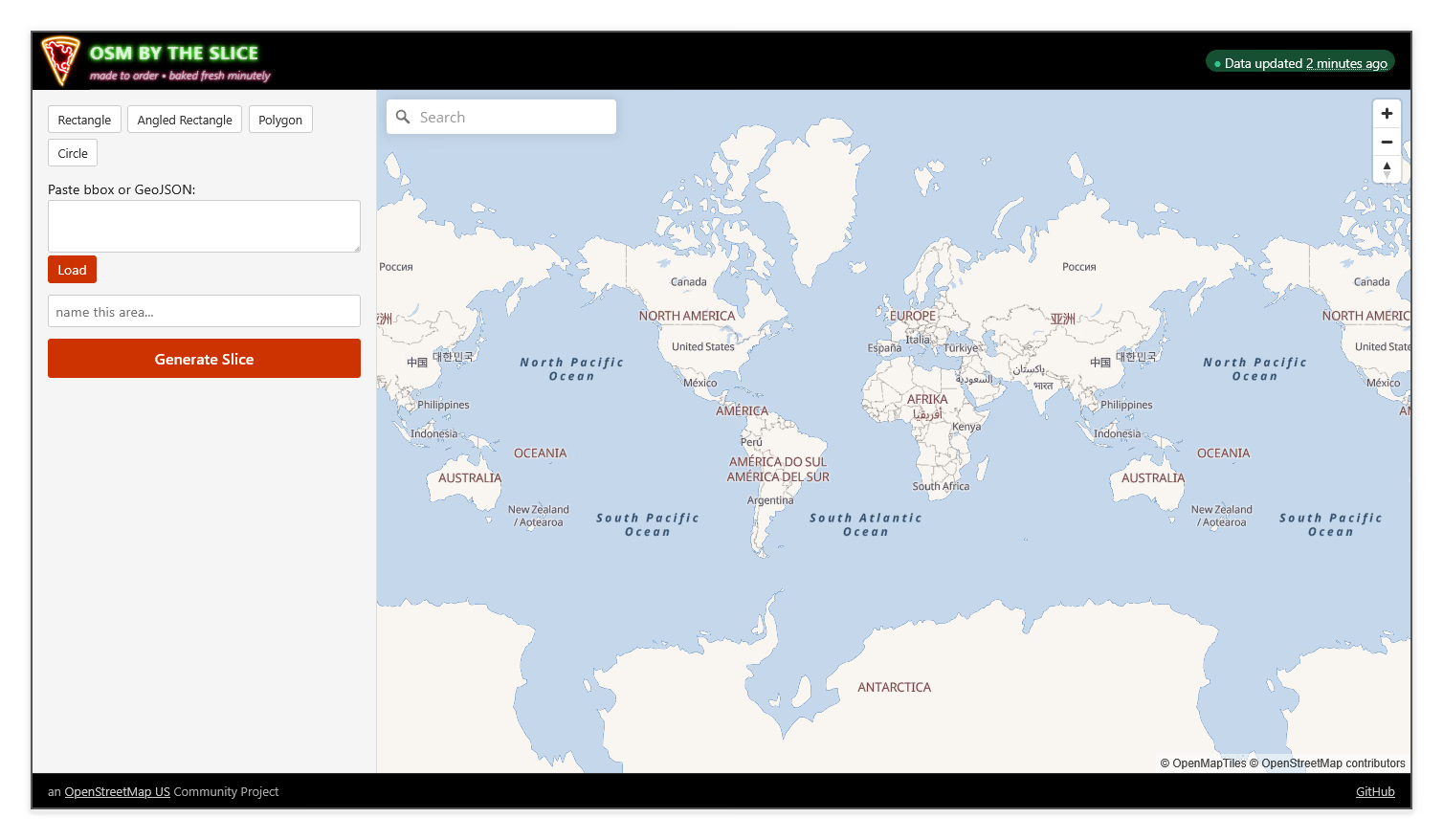
-
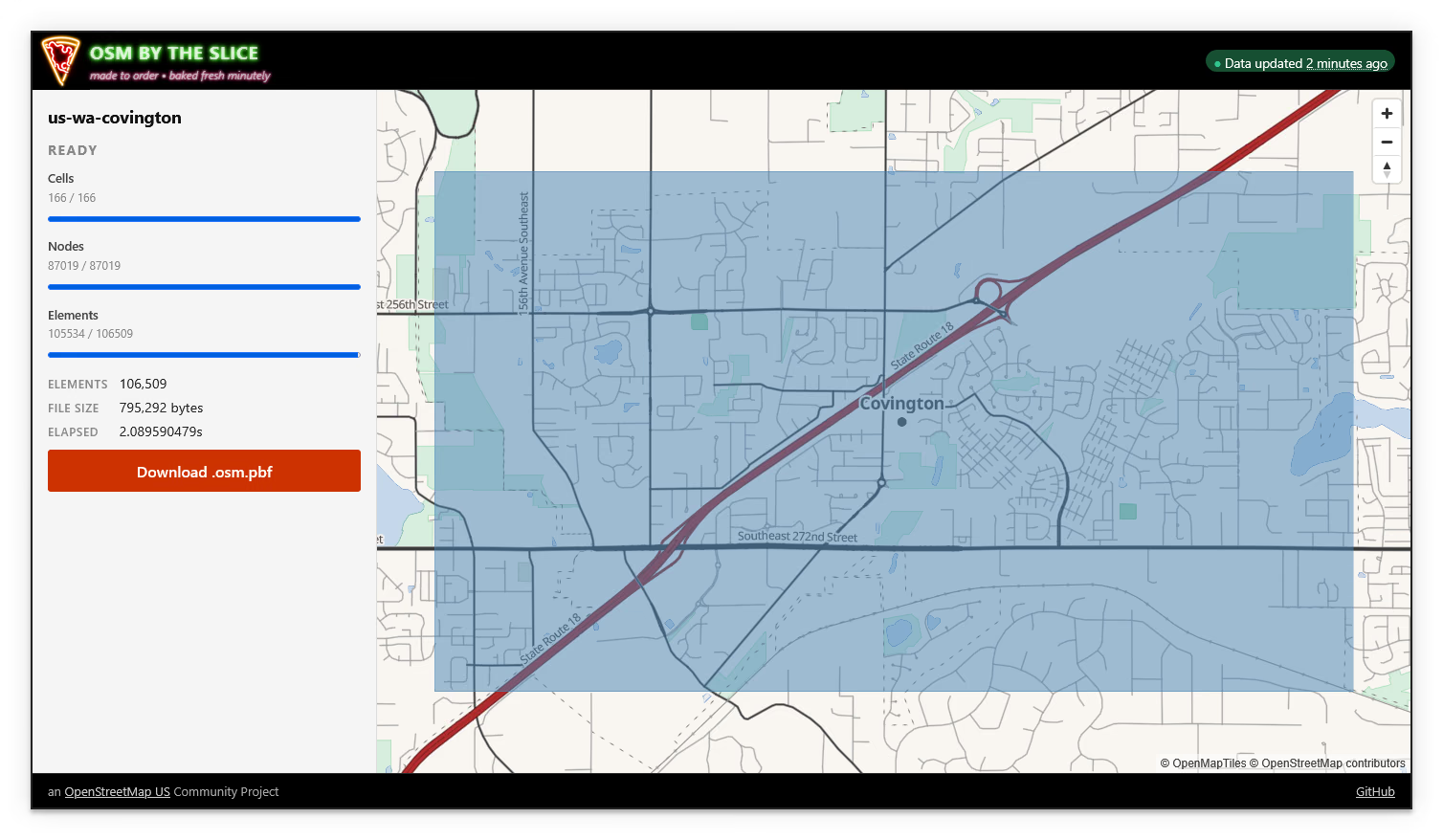
Search for a location or use the map to navigate to your area of interest, draw a bounding box (or other shape) around it, and enter a name for the area.
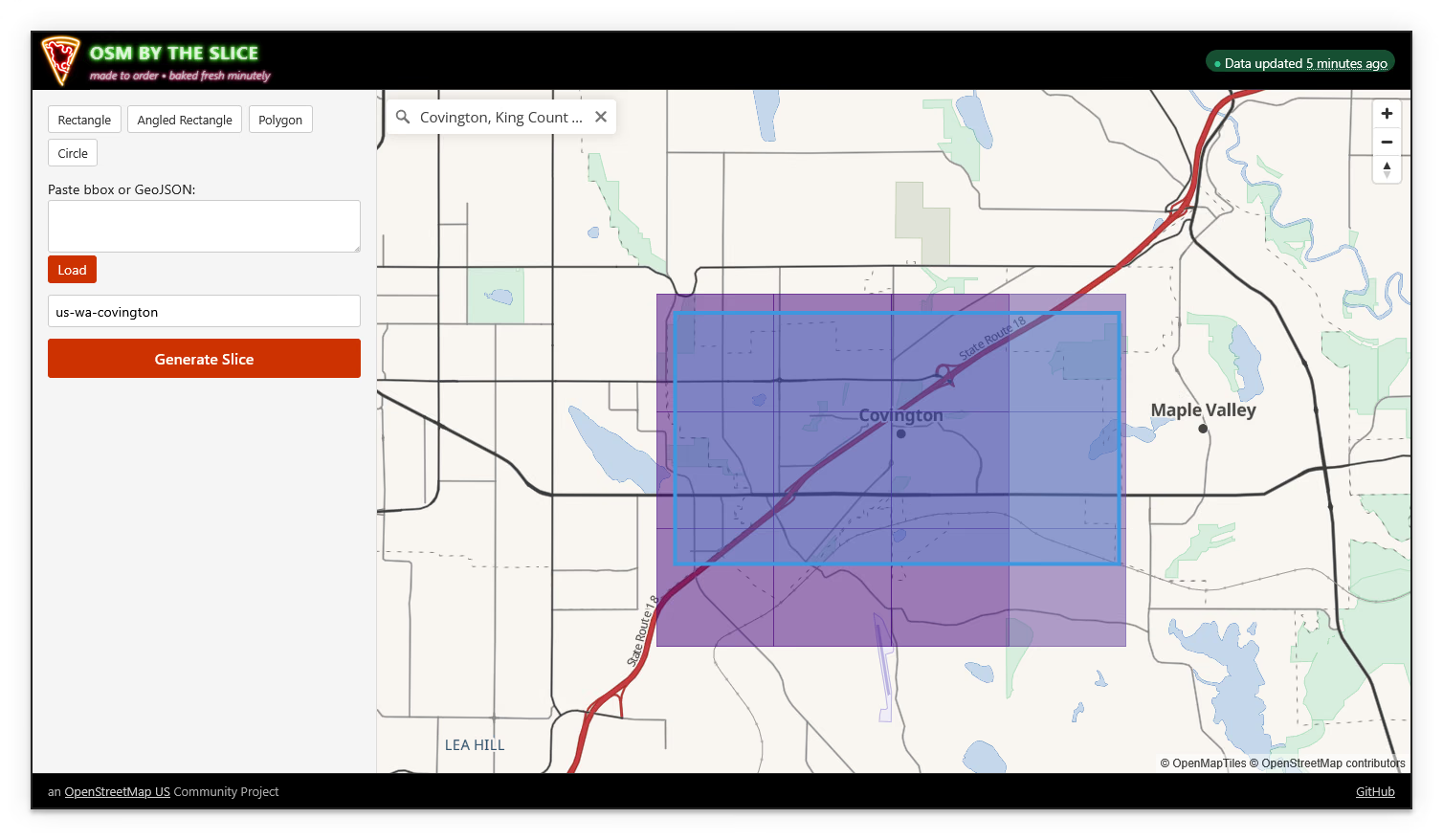
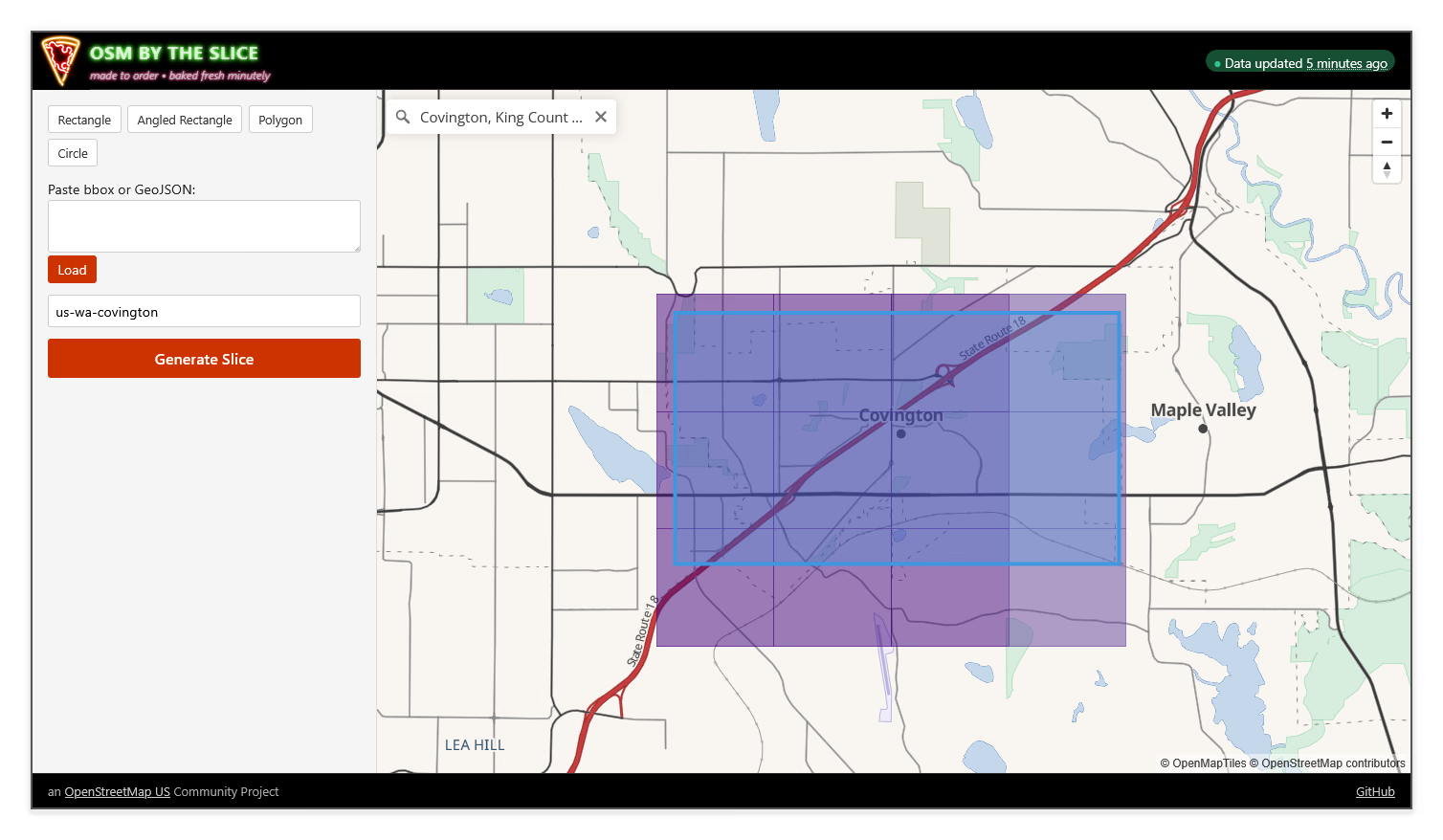
-
Select Generate Slice, then select Download .osm.pbf once the slice is ready.
Step 2: Convert OSM Data to OSW Format⚓︎
Use the TDEI Portal to create and run a new OSW - Convert job to convert the .osm.pbf file to an OSW-format .zip package. For more information, refer to the OSW - Convert guide.
-
Log in to the TDEI Portal.
-
Navigate to Jobs and select Create Job.
-
Set Job Type to OSW - Convert, Source Format to OSM, and Target Format to OSW. Upload your
.osm.pbffile, then select Create.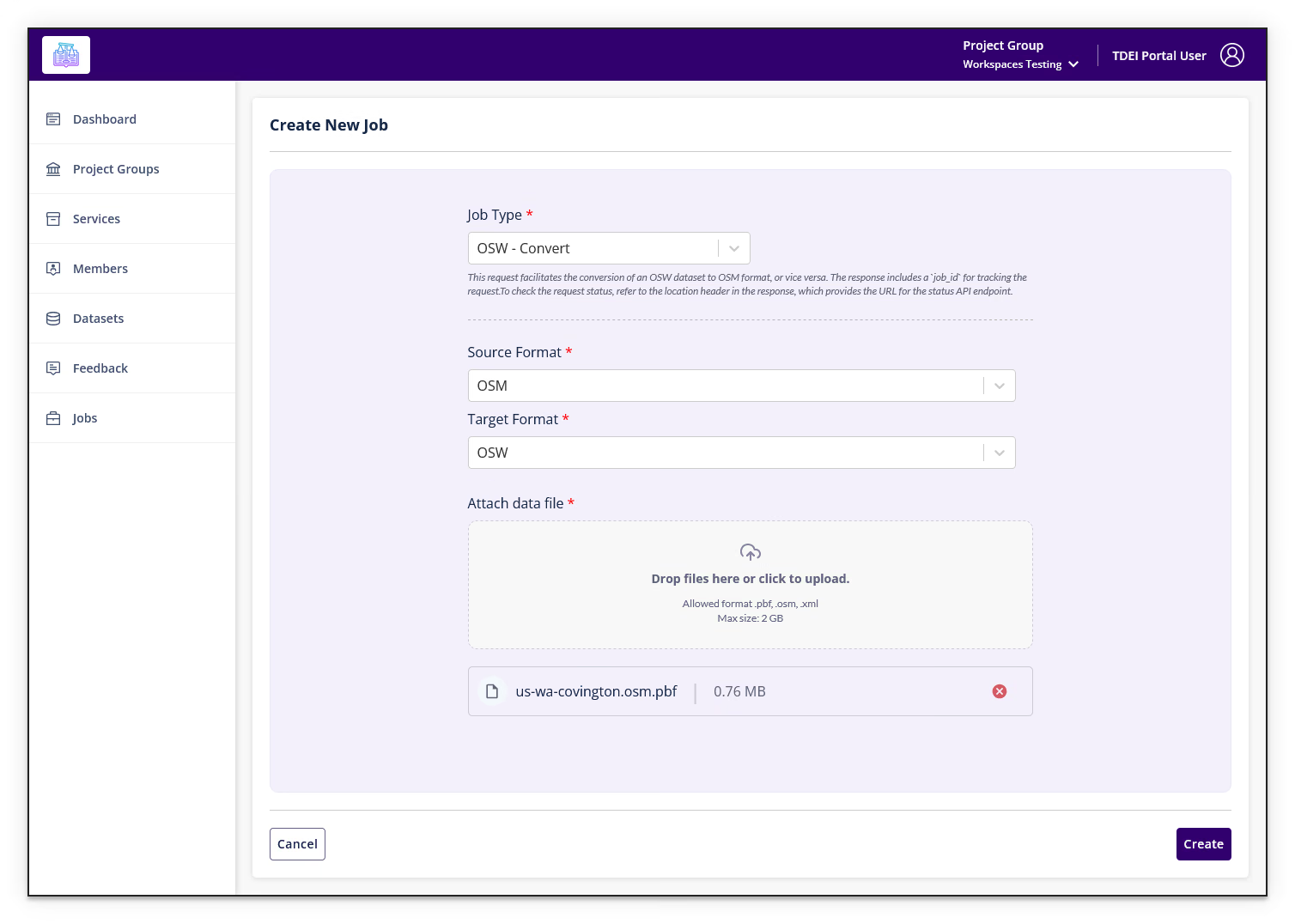
-
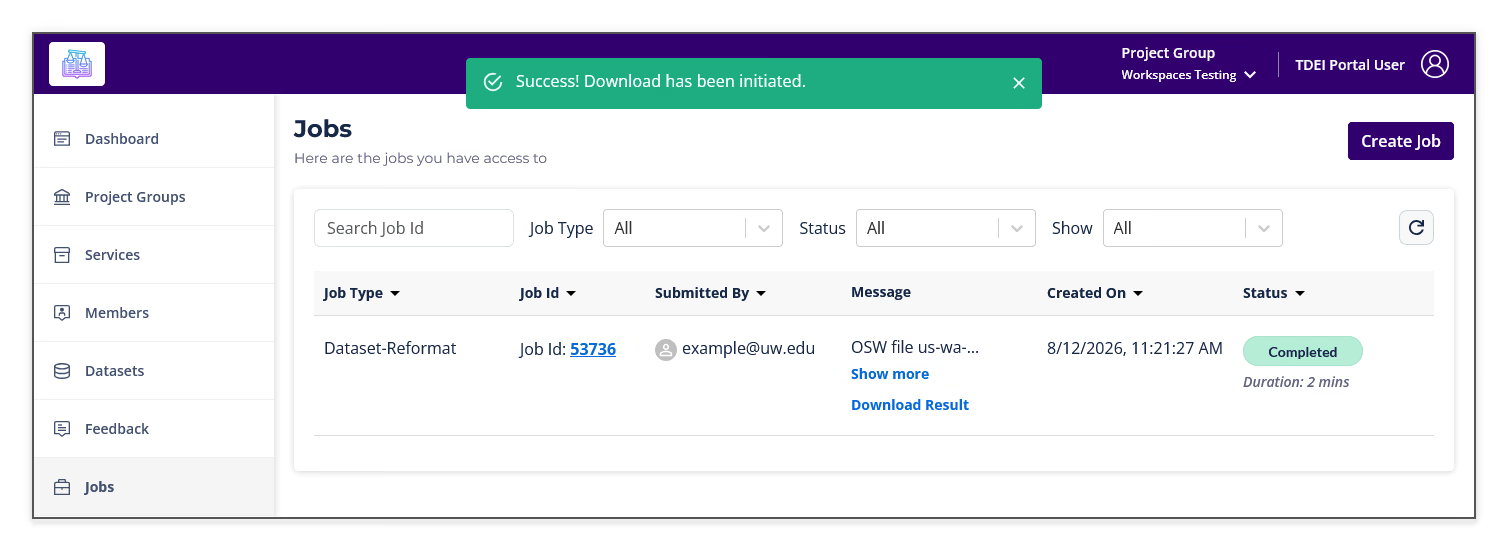
After submitting, a popup will prompt you to navigate to the Jobs page. Go there and find your Dataset-Reformat job at the top of the list. Once it shows Completed, select Download Result to download the output, which will be named
<JobId>.zip.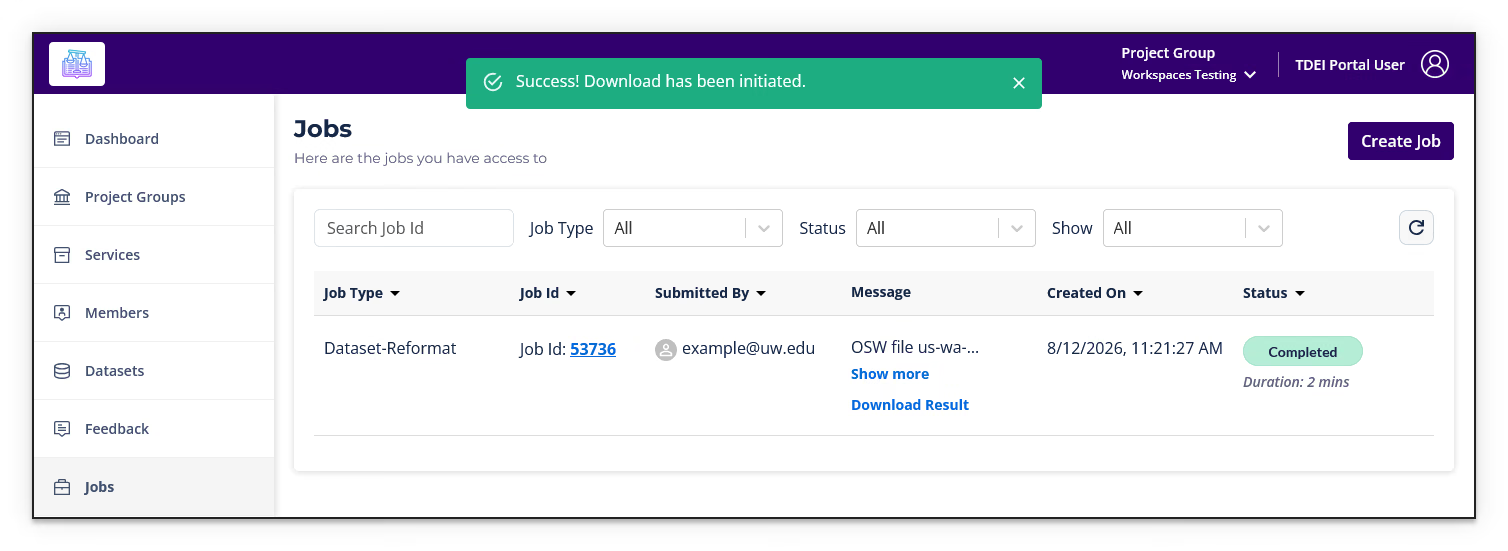
Step 3: Upload to Workspaces⚓︎
-
Navigate to Create Workspace from File and sign in. Alternatively, use the top navigation: Create Workspace > From File > Start.
-
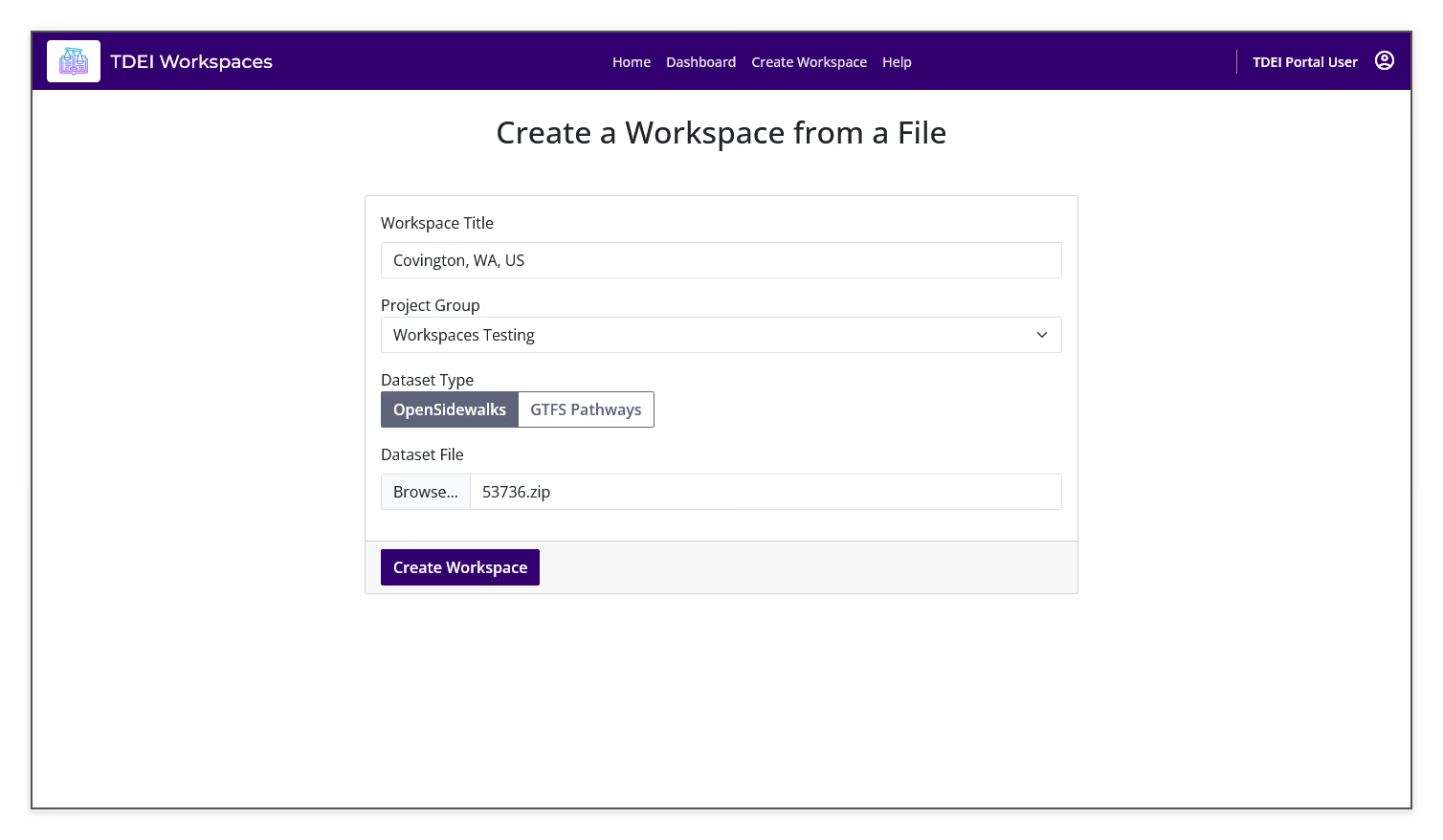
Fill in the Workspace Title and Project Group, set Dataset Type to OpenSidewalks, and upload the
<JobId>.zipfrom the previous step. Select Create Workspace.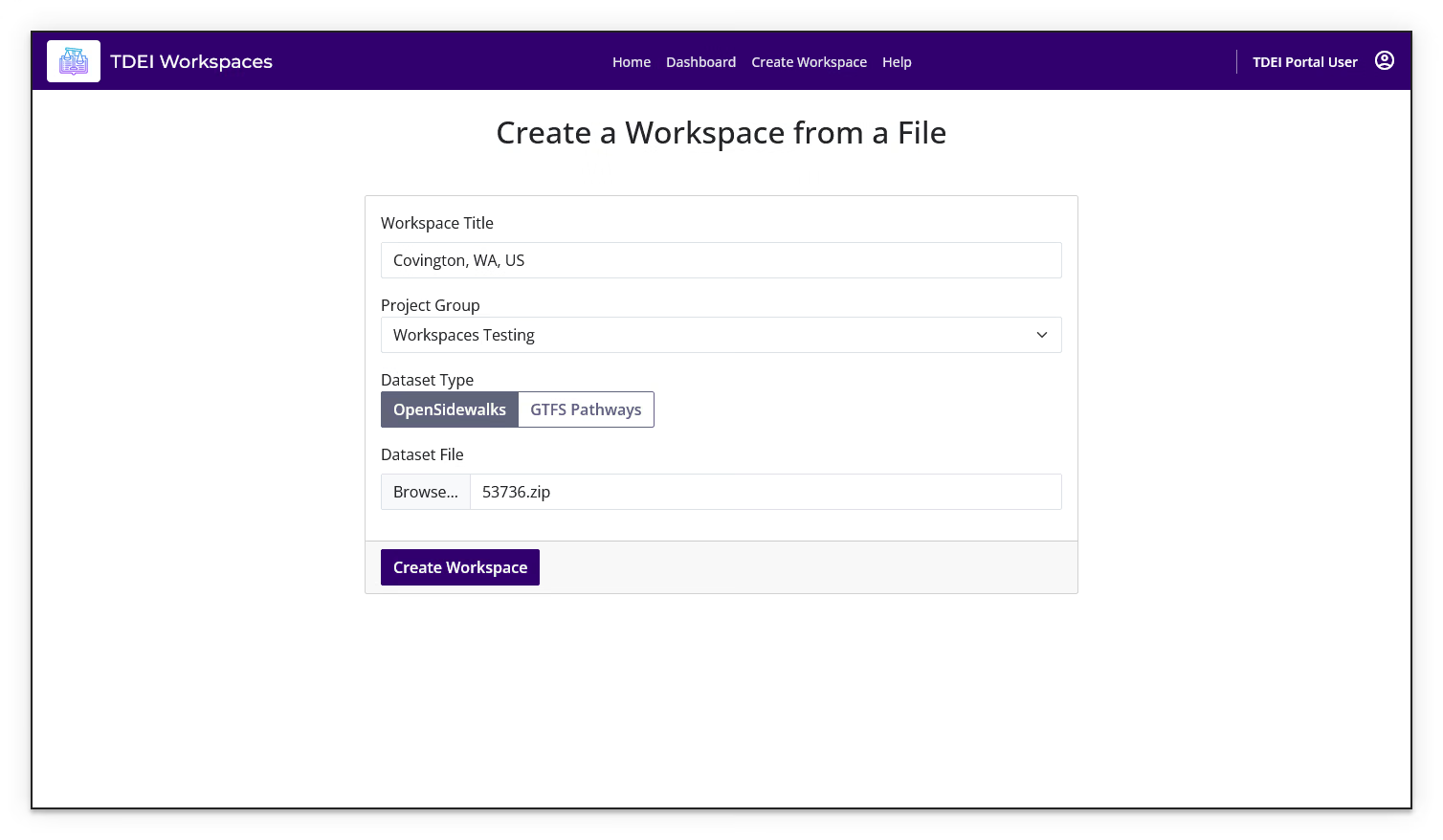
-
The page will show Converting dataset... while the file is processed, followed by Initializing workspace... and then Importing dataset to workspace... before the process completes and the page automatically refreshes.
Taking a while? This process can take anywhere from a few seconds to several minutes, depending on the size of the area and the density of mapped features.
-
Once complete, you will be taken to the dashboard with the newly created workspace selected.
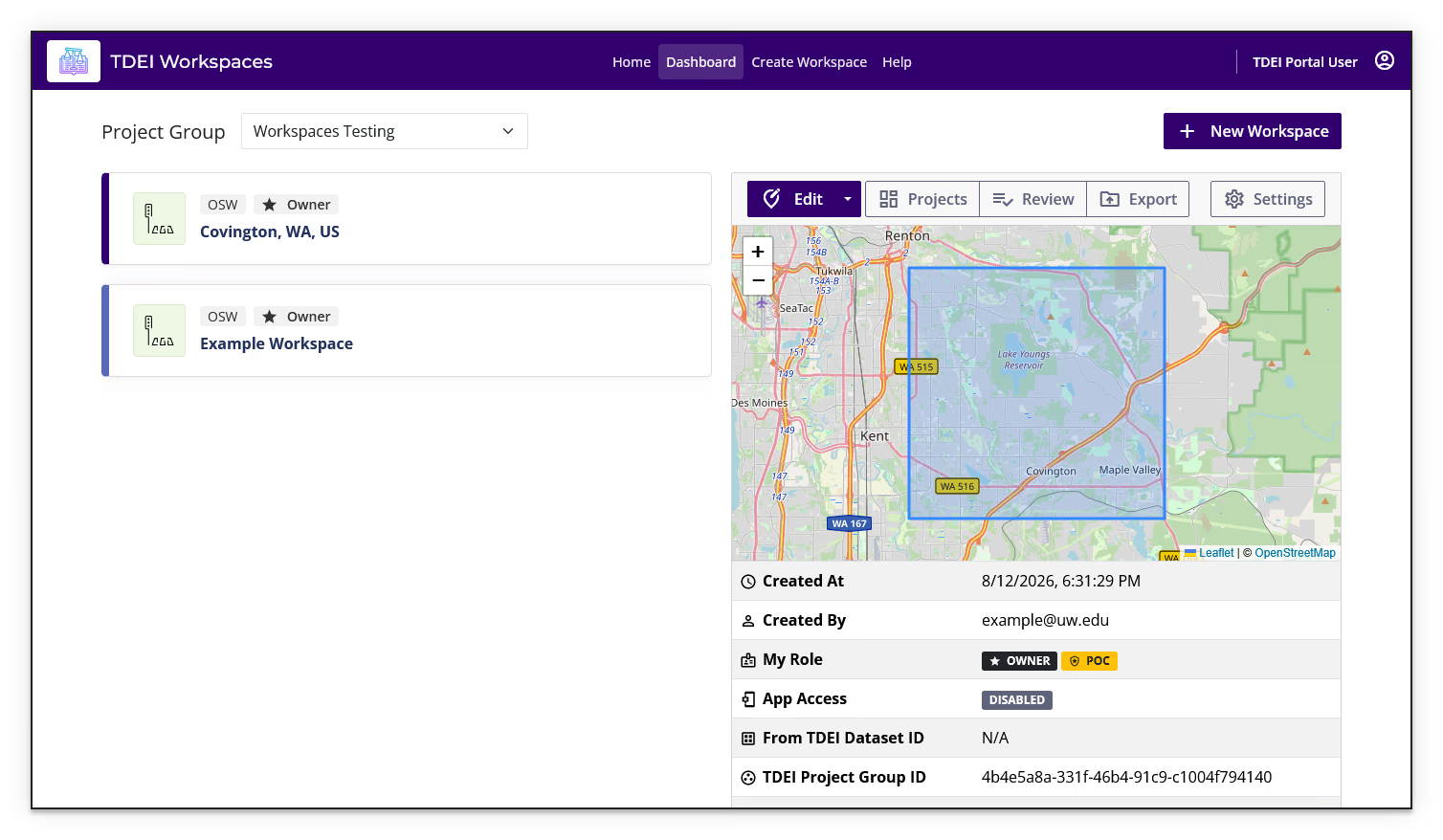
You have now successfully created a new workspace using a copy of the latest OSM data!
For more information on using the Workspaces platform, refer to the Workspaces User Manual.