Datasets
Datasets⚓︎
This section explains how to browse, configure, and download datasets in the TDEI Portal.
For a list of all guides on the TCAT Wiki, refer to the Guides List.
Overview⚓︎
The Datasets section lists datasets available within the TDEI system. It has two tabs:
| Tab | Description |
|---|---|
| My Project Datasets | Datasets belonging to your currently active project group |
| All Released Datasets | All datasets that have been publicly released across the entire TDEI system |
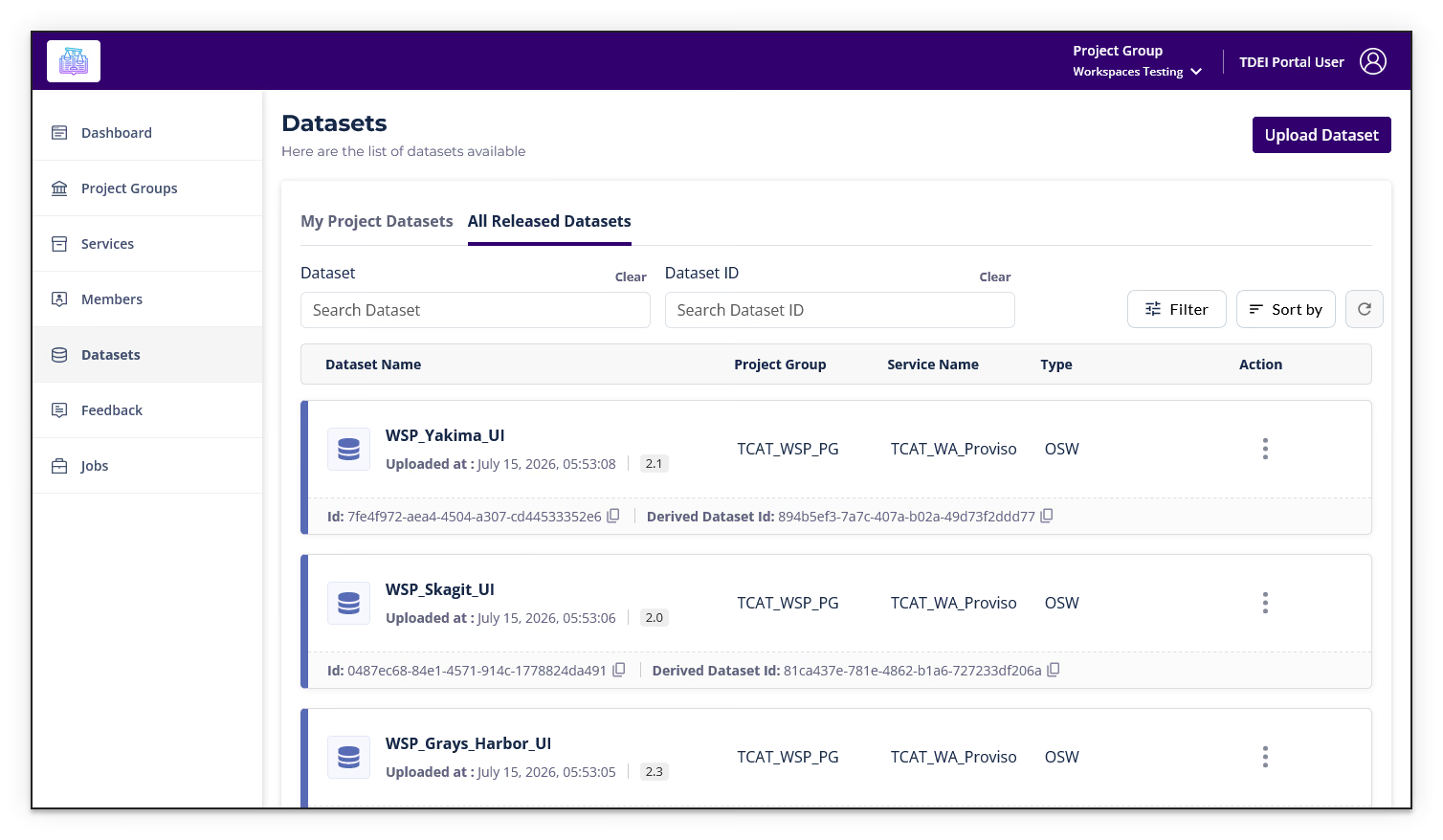
Each dataset entry displays:
| Field | Description |
|---|---|
| Dataset Name | The name of the dataset, with upload timestamp and version number |
| Project Group | The project group the dataset belongs to |
| Service Name | The service the dataset is associated with |
| Type | The data type: OSW, Flex, or Pathways |
| Id | The unique dataset ID; select the copy icon to copy it to your clipboard |
| Derived Dataset Id | The ID of the dataset from which this one is derived; select the copy icon to copy it |
| Action (⋮) | Opens the action menu for the dataset (refer to Action) |
Filtering Datasets⚓︎
Use the Dataset field to search by dataset name or the Dataset ID field to search by a specific dataset ID.
Select the Filter button to open the expandable filter section for additional filtering. The section includes the following fields:
| Filter | Description |
|---|---|
| Type | Filter by dataset type (All, OSW, Flex, or Pathways) |
| Project Group | Filter by project group name |
| Service | Filter by service name |
| Valid From | Filter to datasets valid from a given date |
| Valid To | Filter to datasets valid up to a given date |
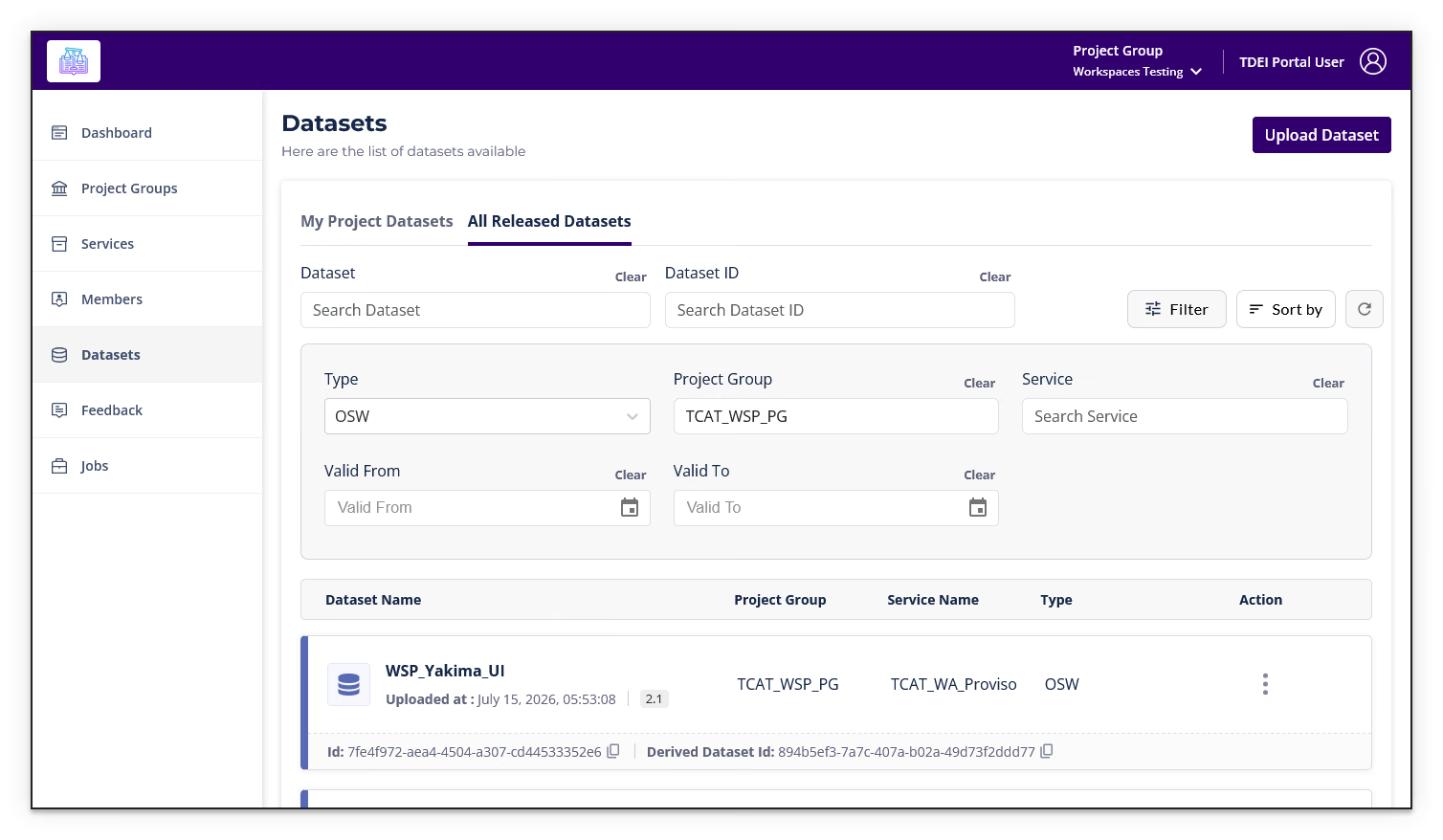
Select Clear next to any field to reset that filter, or use Sort by to change the sort order. Select the Refresh (↻) button to refresh the list.
Double-check the dataset name!
The Dataset filter returns every dataset whose name contains the text you entered, not just exact matches.
For example, searching for "Spokane" returns WSP_Spokane_Valley_City, WSP_Spokane_UI, WSP_Spokane_City, and WSP_Spokane_County.
If the dataset you want isn't the first result, scroll through the list to find the one with the exact name you need.
For more information about OS-CONNECT dataset names, refer to OS-CONNECT > Dataset Name Suffixes.
Action⚓︎
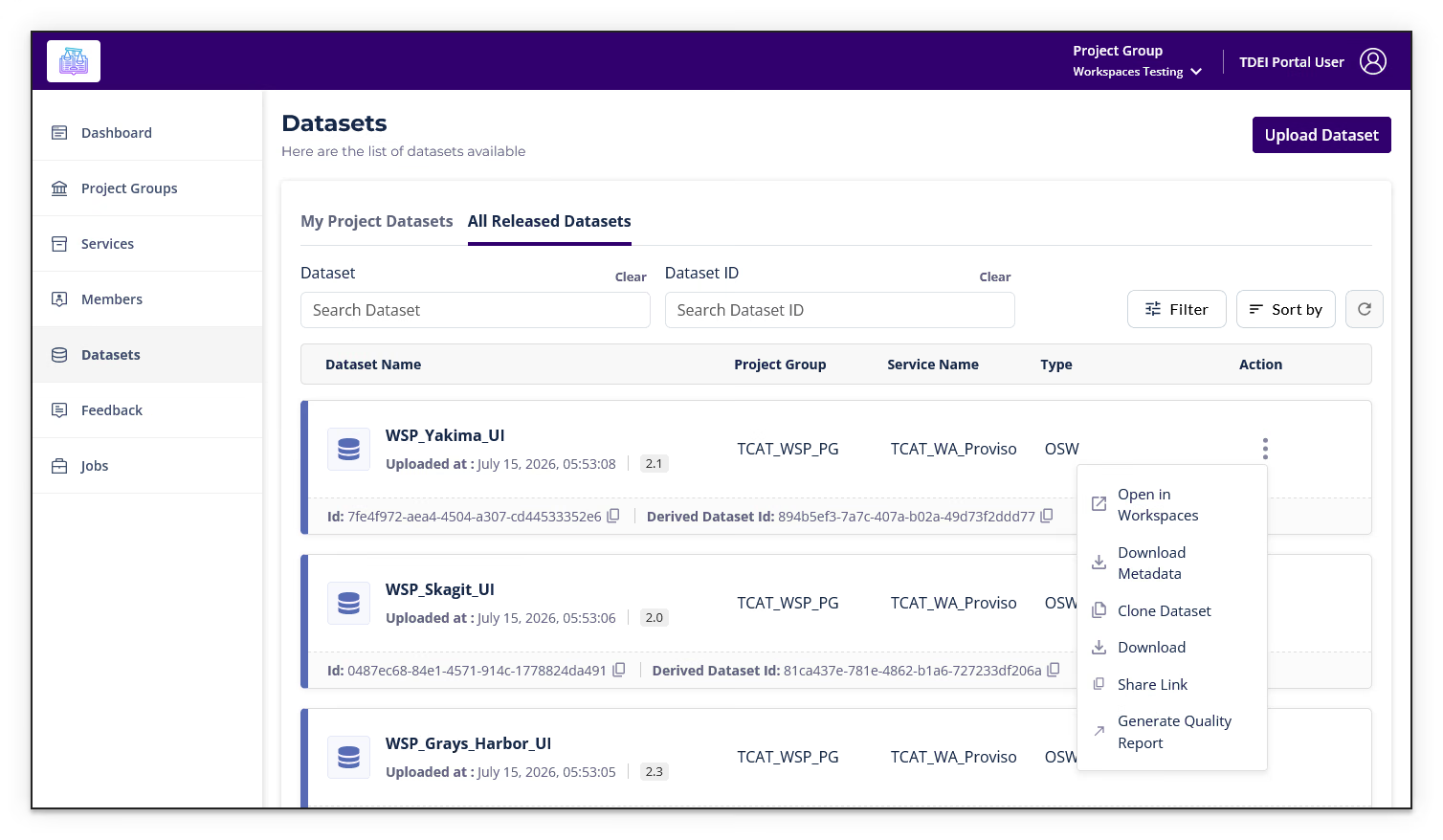
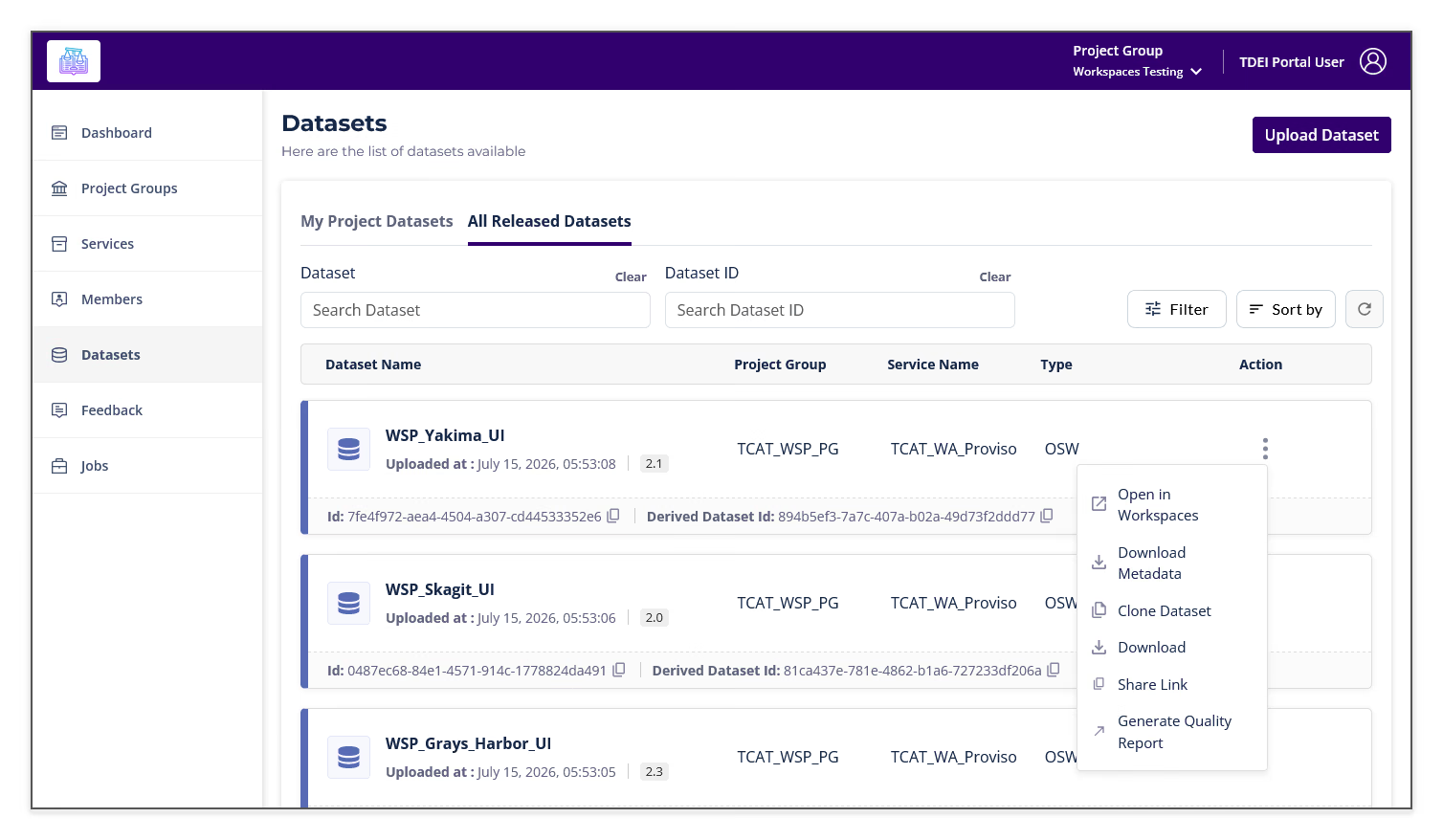
Select the action menu (⋮) on the right side of any dataset row to access the following actions:
| Action | Description |
|---|---|
| Open in Workspaces | Opens a copy of the dataset in the Workspaces editing platform |
| Download Metadata | Downloads the metadata associated with the dataset |
| Clone Dataset | Creates a copy of the dataset in the TDEI, allowing you to make changes without affecting the original |
| Download | Downloads the dataset files in a chosen format (see Downloading a Dataset below) |
| Share Link | Provides a link to share the dataset |
| Generate Quality Report | Generates a QA/QC quality report for the dataset |
Downloading a Dataset⚓︎
-
Locate the dataset you want to download in the list
-
Select the action menu (⋮) on the right side of the dataset row
-
Select Download from the menu
-
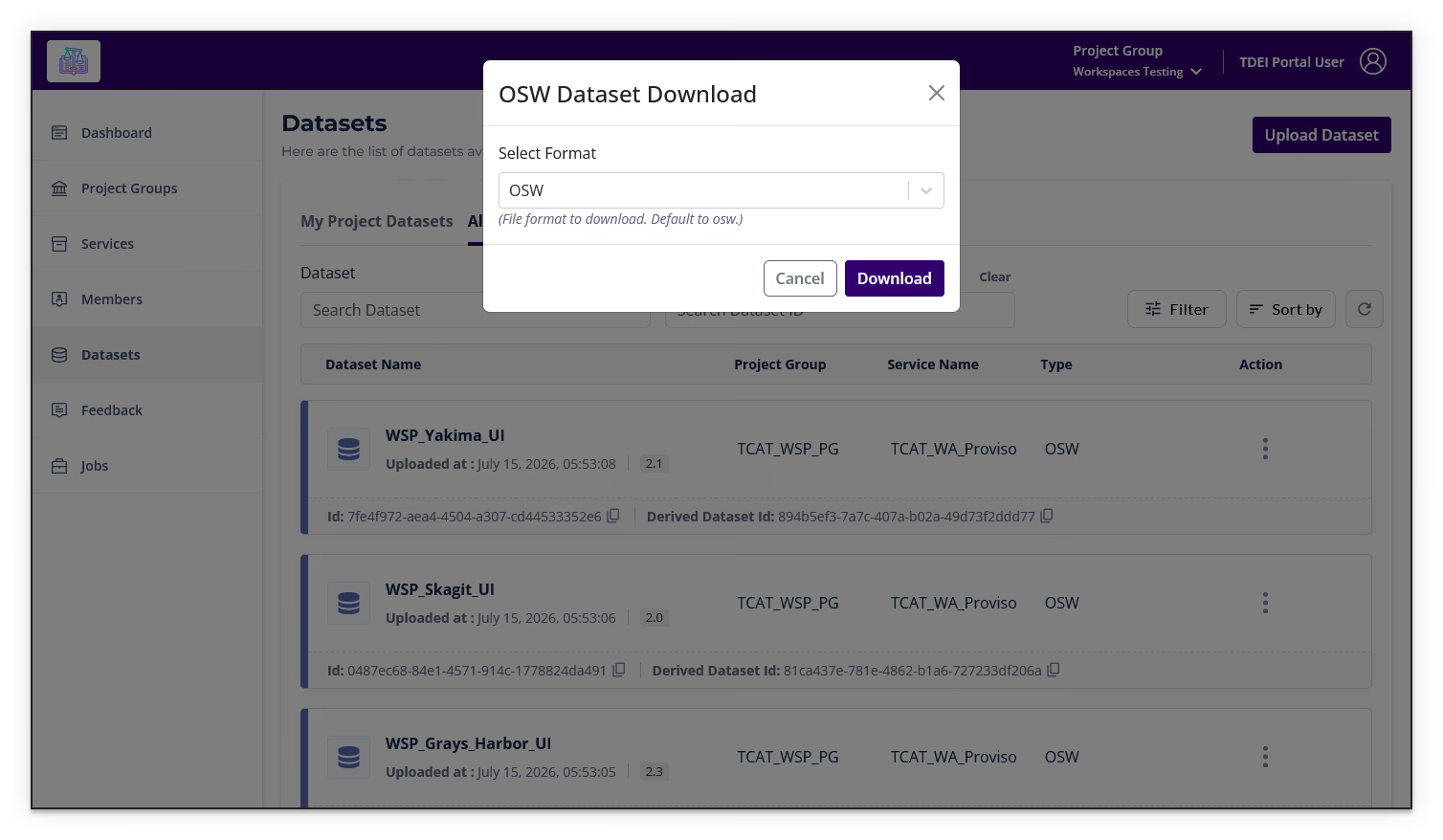
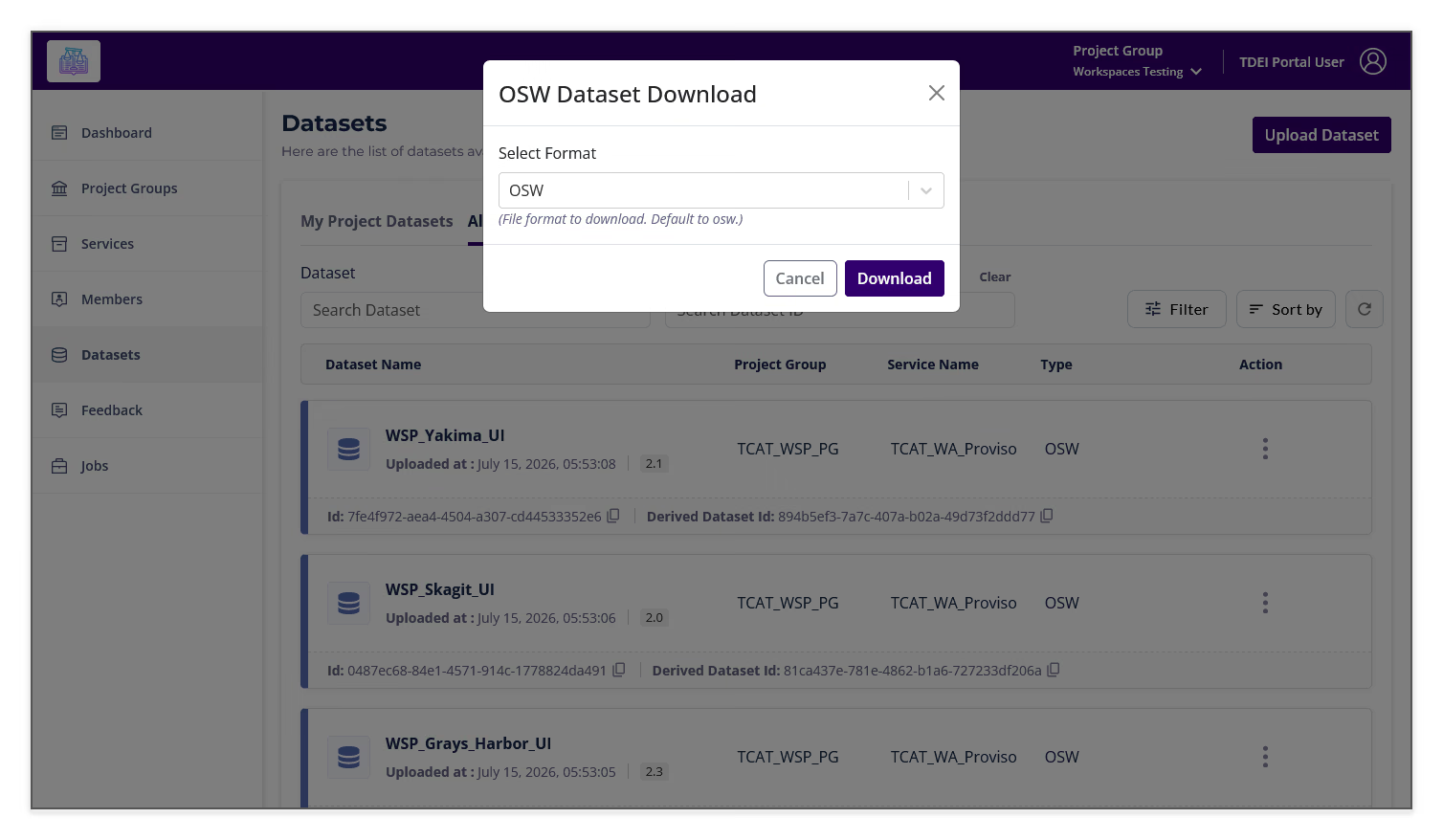
In the download dialog, use the Select Format dropdown to choose your preferred file format, then select Download
Looking for OS-CONNECT datasets?
For a step-by-step walkthrough of downloading OS-CONNECT datasets specifically, refer to the Download OS-CONNECT Data from the TDEI Portal tutorial.
Previous: Members
Next: Feedback