Validation and Export
Validation and Export⚓︎
This section explains how to resolve validation issues, review the JSON preview, upgrade compatible definitions, and export a file.
For a list of all guides on the TCAT Wiki, refer to the Guides List.
Read the Validation Panel⚓︎
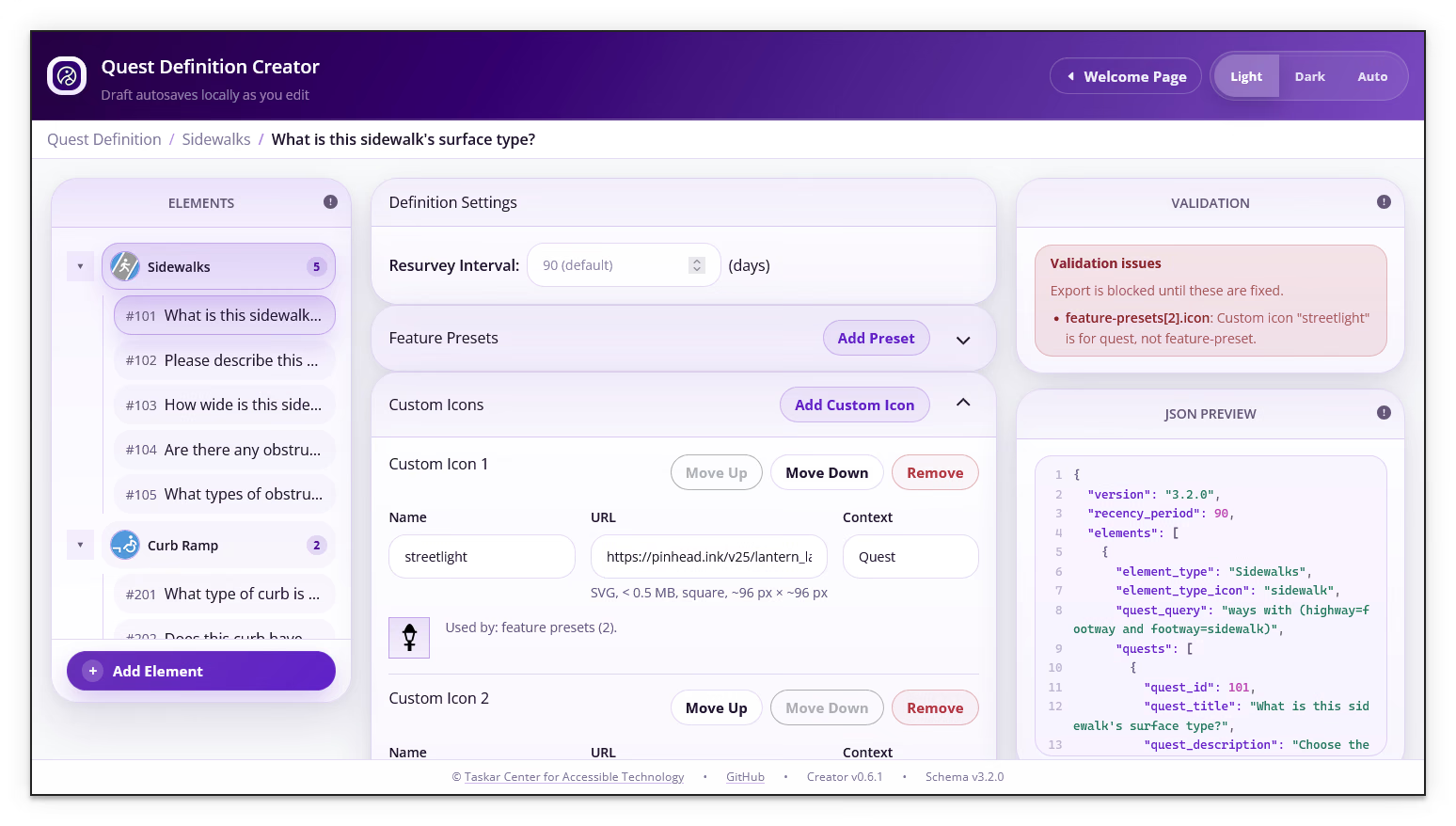
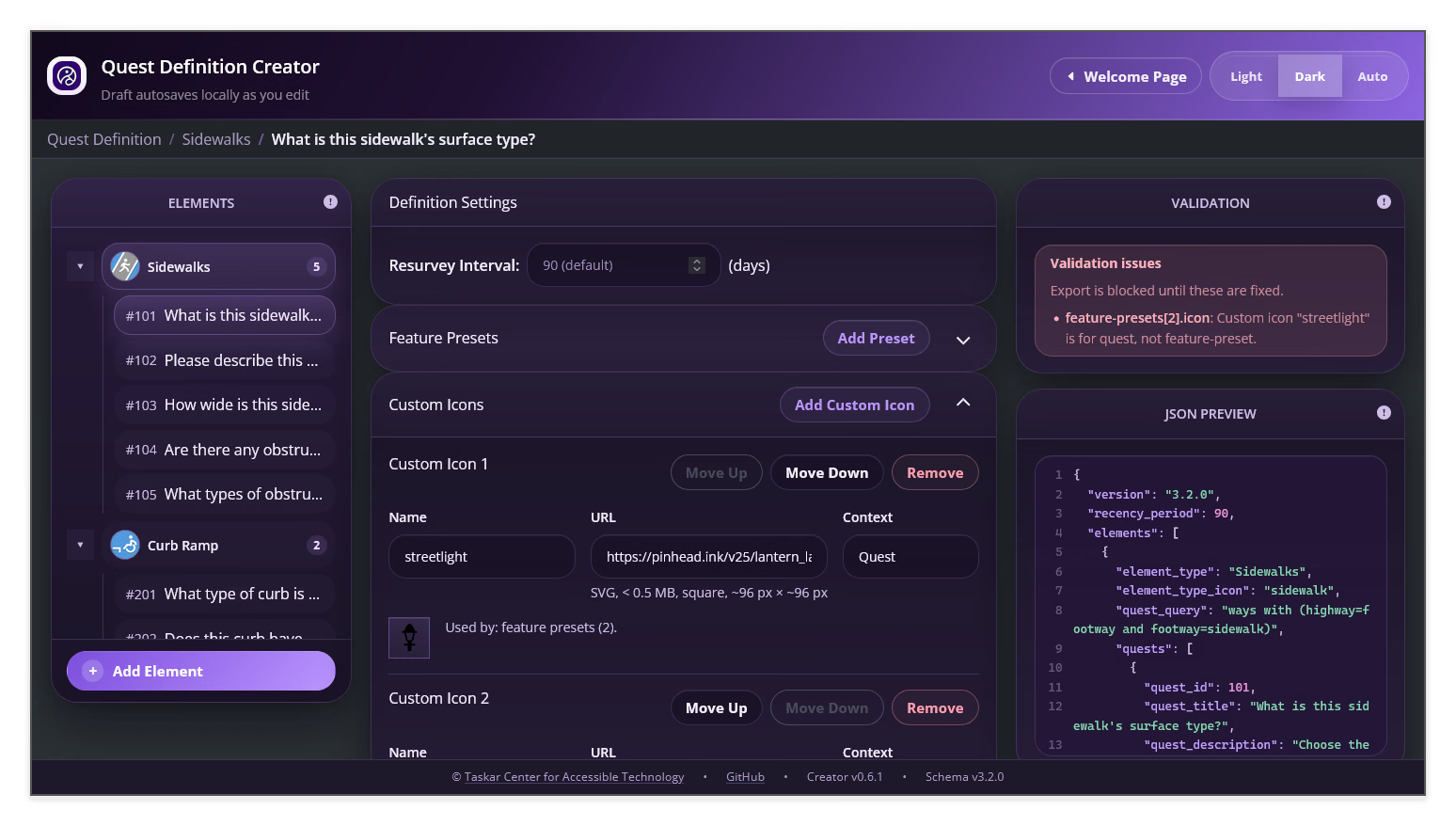
The Validation panel checks the current definition while you edit it.
- Review the status after each major change
- Read each listed path and message when the panel reports an issue
- Return to the field named by the path and correct the value
- Confirm that the panel reports the definition is current and valid
Validation errors block Download and Copy to Clipboard. Warnings do not block export, but review them before sharing the definition.
Review the JSON Preview⚓︎
The JSON Preview is a live, machine-readable representation of the definition that AVIV ScoutRoute reads.
- Check the
versionandrecency_periodvalues - Check the element order, element types, icons, and queries
- Check each quest ID, type, tag, choices, numeric validation, and dependency
- Check optional
feature-presetsandcustom-iconssections when you enabled them
Use the Long Form Quest Definition guide and the JSON Schema when a field's structure is unclear.
Upgrade a Compatible Definition⚓︎
The Creator may offer an upgrade when a loaded definition uses an older schema version that the current release can upgrade.
- Keep the original JSON file as a backup
- Load the definition in the Creator
- Compare the loaded version with the supported schema version shown in the footer
- Select the upgrade control when the Creator identifies a compatible upgrade
- Review the changed definition in the editor, Validation panel, and JSON Preview
- Export the upgraded definition only after reviewing project-specific questions, dependencies, icons, and tags
Do not replace an unavailable upgrade operation by changing only the version string. An upgrade also does not update a workspace automatically.
Export the Definition⚓︎
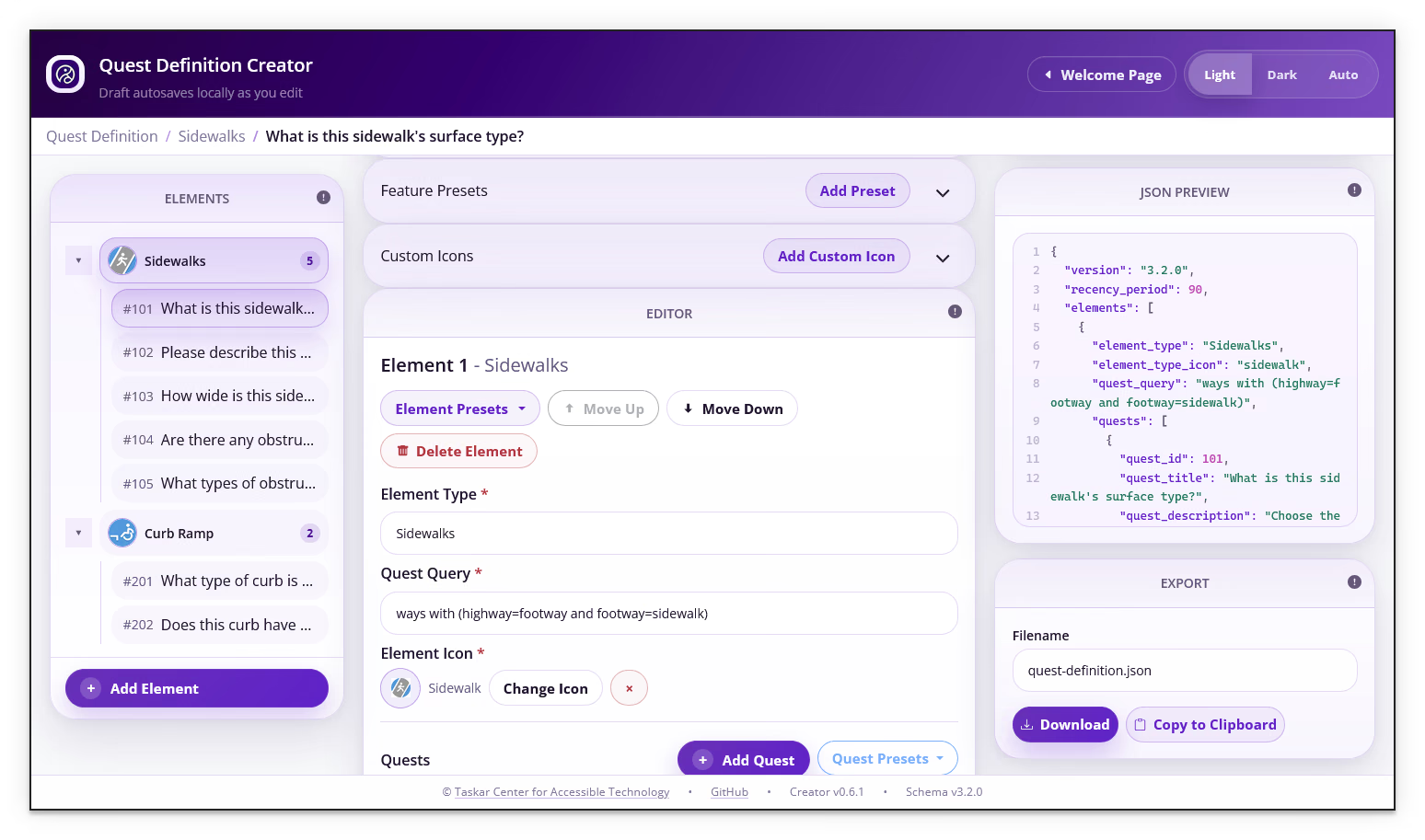
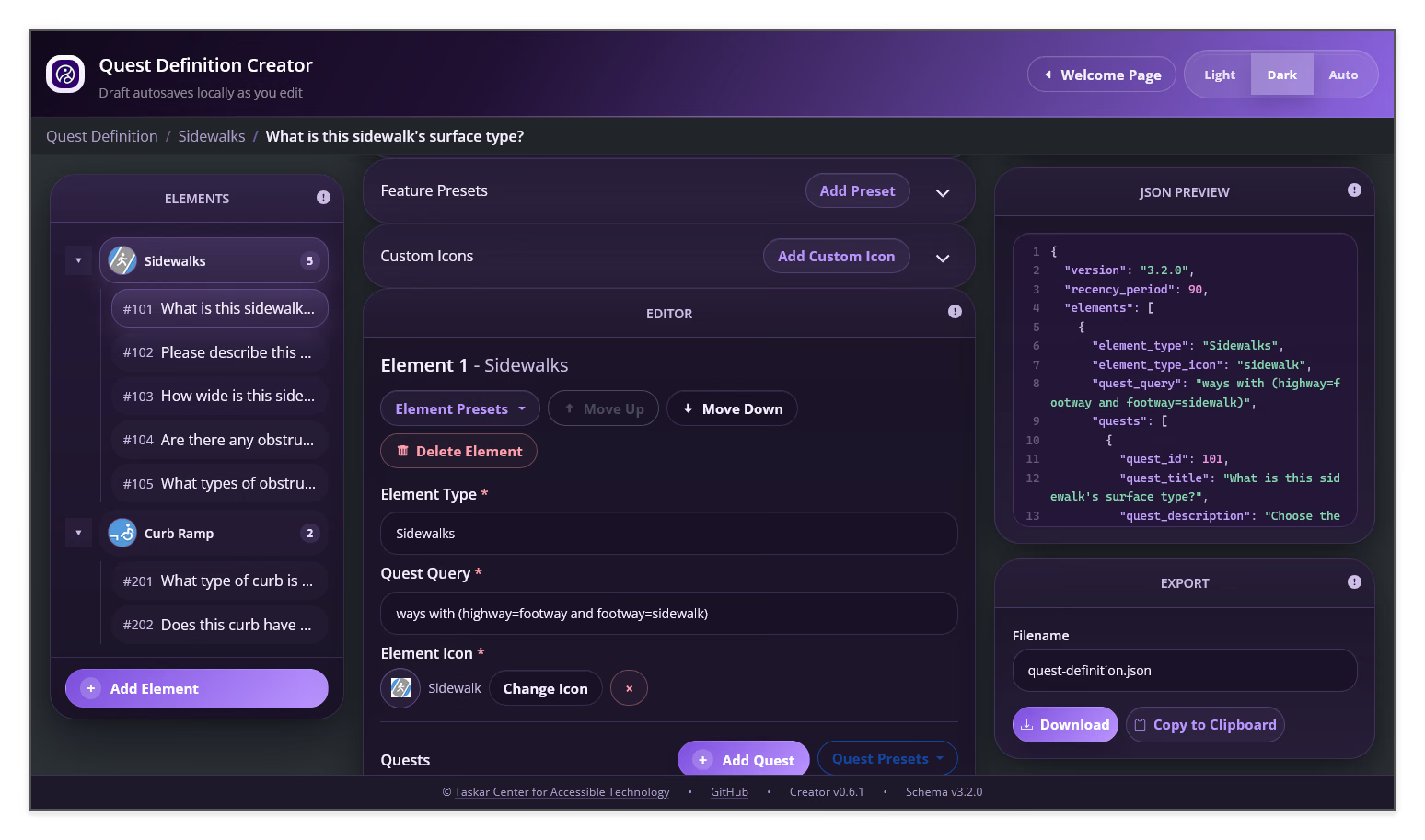
- Enter a filename ending in
.jsonin Filename, or keep the suggested name; a new, empty definition defaults toquest-definition.json - Confirm that the Validation panel reports no blocking errors
- Select Download to save the JSON file
- Select Copy to Clipboard when you need to paste the JSON into another tool
- Open the downloaded or pasted JSON and review it before sharing or applying it
Apply and Test the Exported Definition⚓︎
Export is the end of the Creator workflow, not the deployment step.
- Update the intended workspace configuration with the exported definition using your project's established process
- Reload the configuration in the target application when required
- Test the element queries, question types, choices, dependencies, images, and icons in AVIV ScoutRoute
- Record the Creator version, schema version, definition version, and test result
For contributor-facing app behavior, refer to the AVIV ScoutRoute User Manual.
Next Steps⚓︎
Return to the Quest Definition Creator User Manual or review the Long Form Quest Definition guide for the underlying JSON structure.