Edit a Project
Edit a Project⚓︎
This section explains how to update project details, instructions, imagery, team members, configuration, and project actions.
For a list of all guides on the TCAT Wiki, refer to the Guides List.
Edit project settings⚓︎
- Open the project
- Select the edit control next to the project name
- Select a section from the project settings navigation
- Select Save after making changes, or Cancel to leave without saving
The edit page includes Project details, Instructions, Imagery, Team Members, Configuration, and Actions.
Project details⚓︎
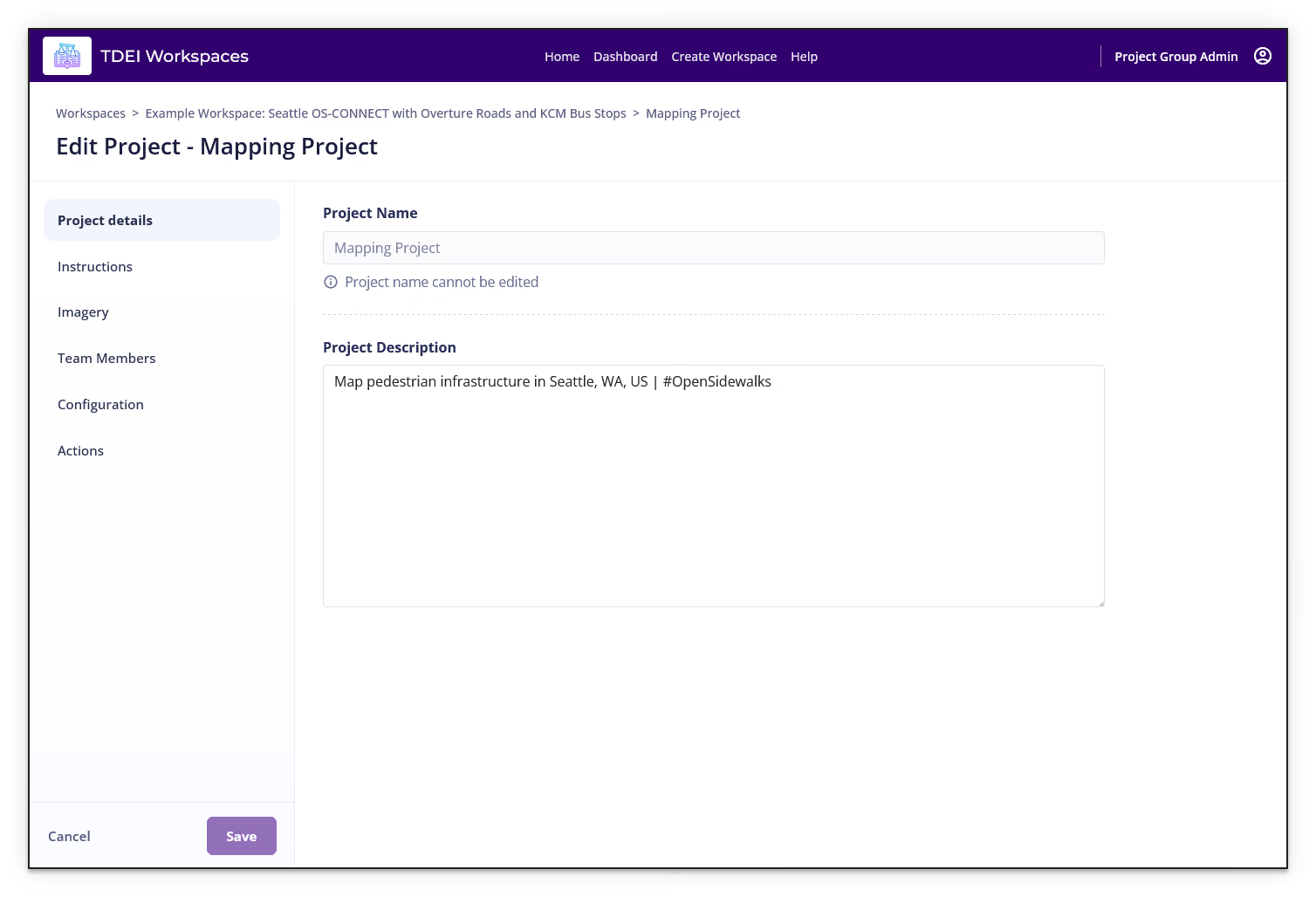
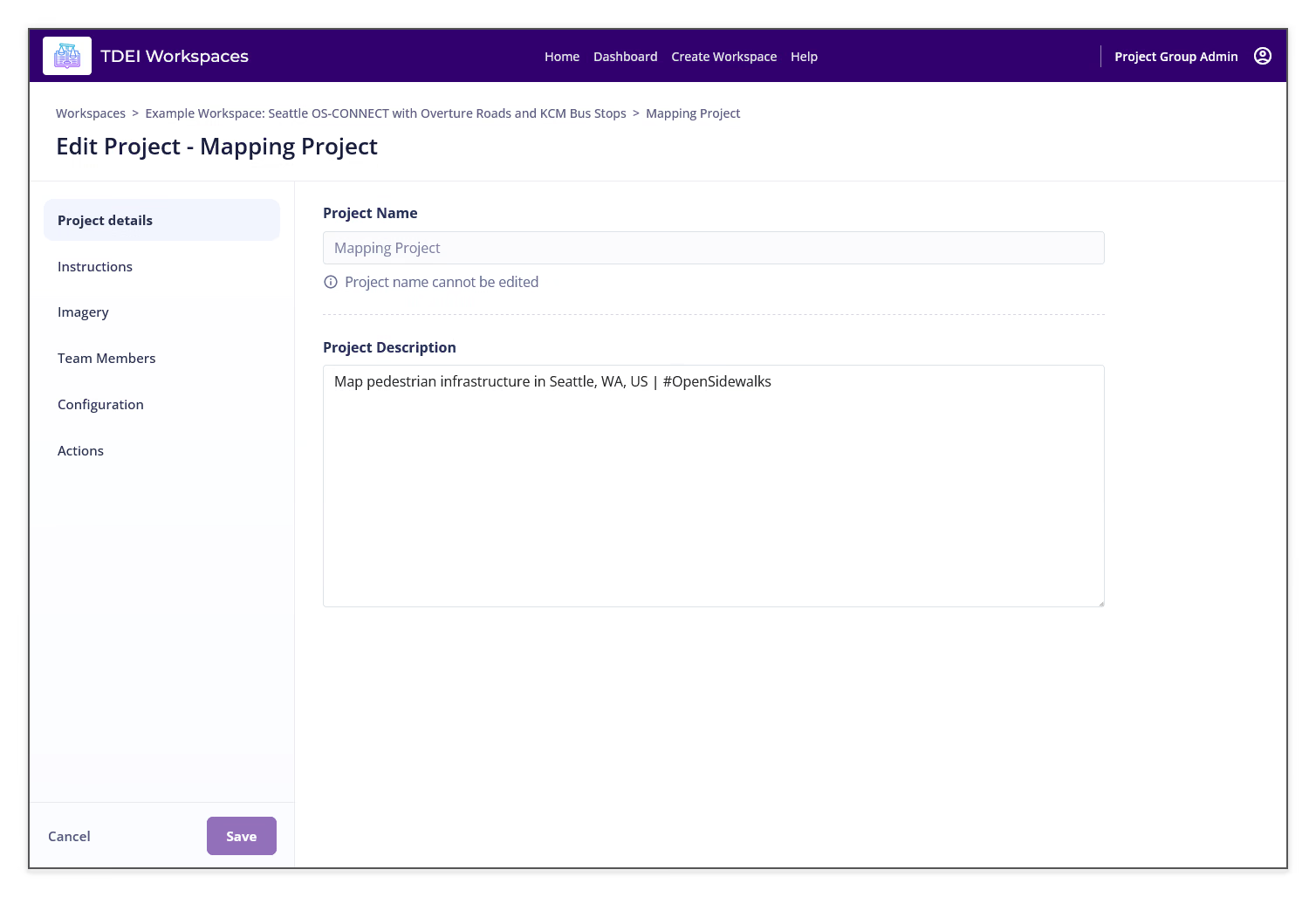
The Project details section displays the project name and description. The project name field can be disabled with the message Project name cannot be edited. Update the Project Description, then select Save.
Instructions⚓︎
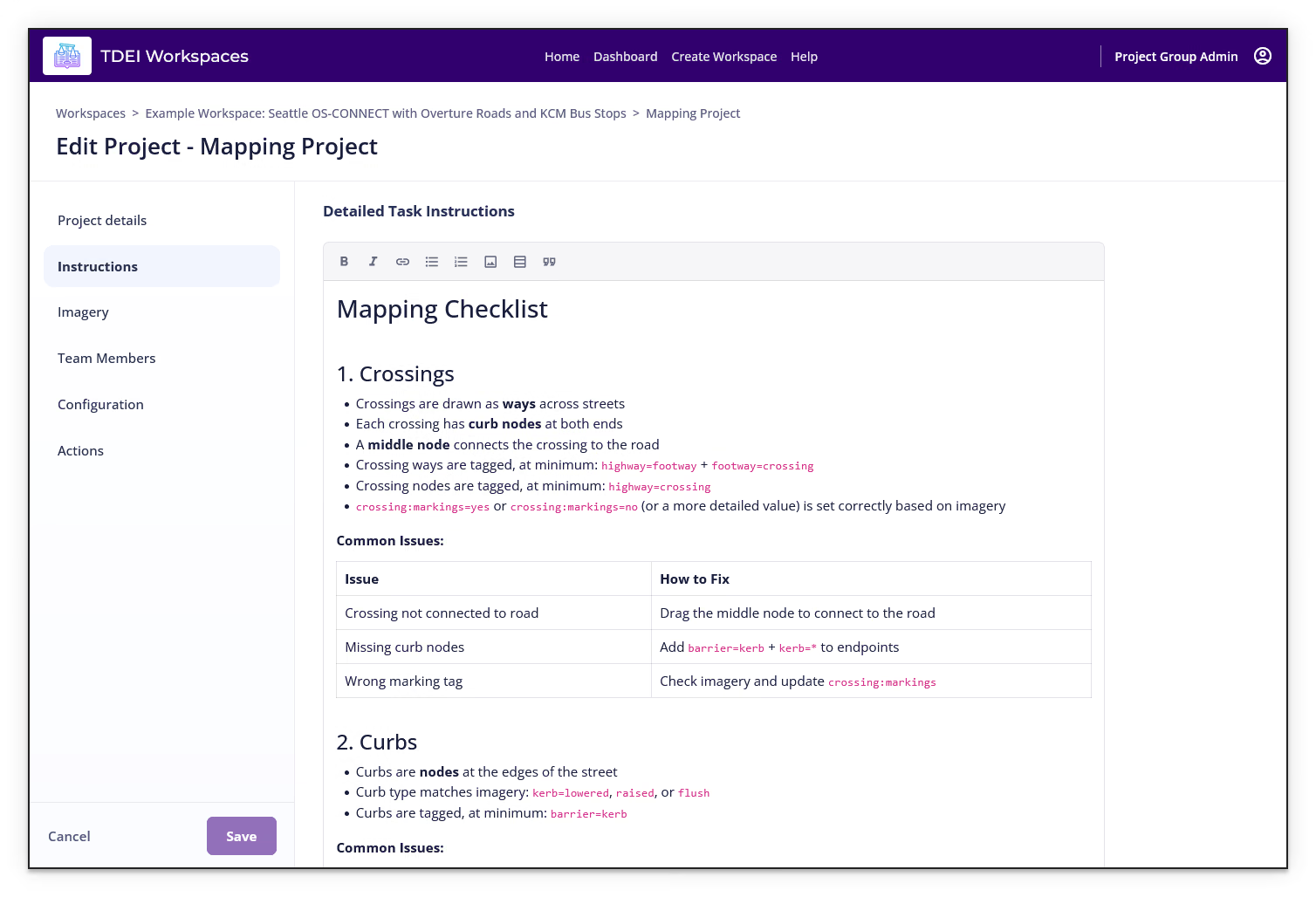
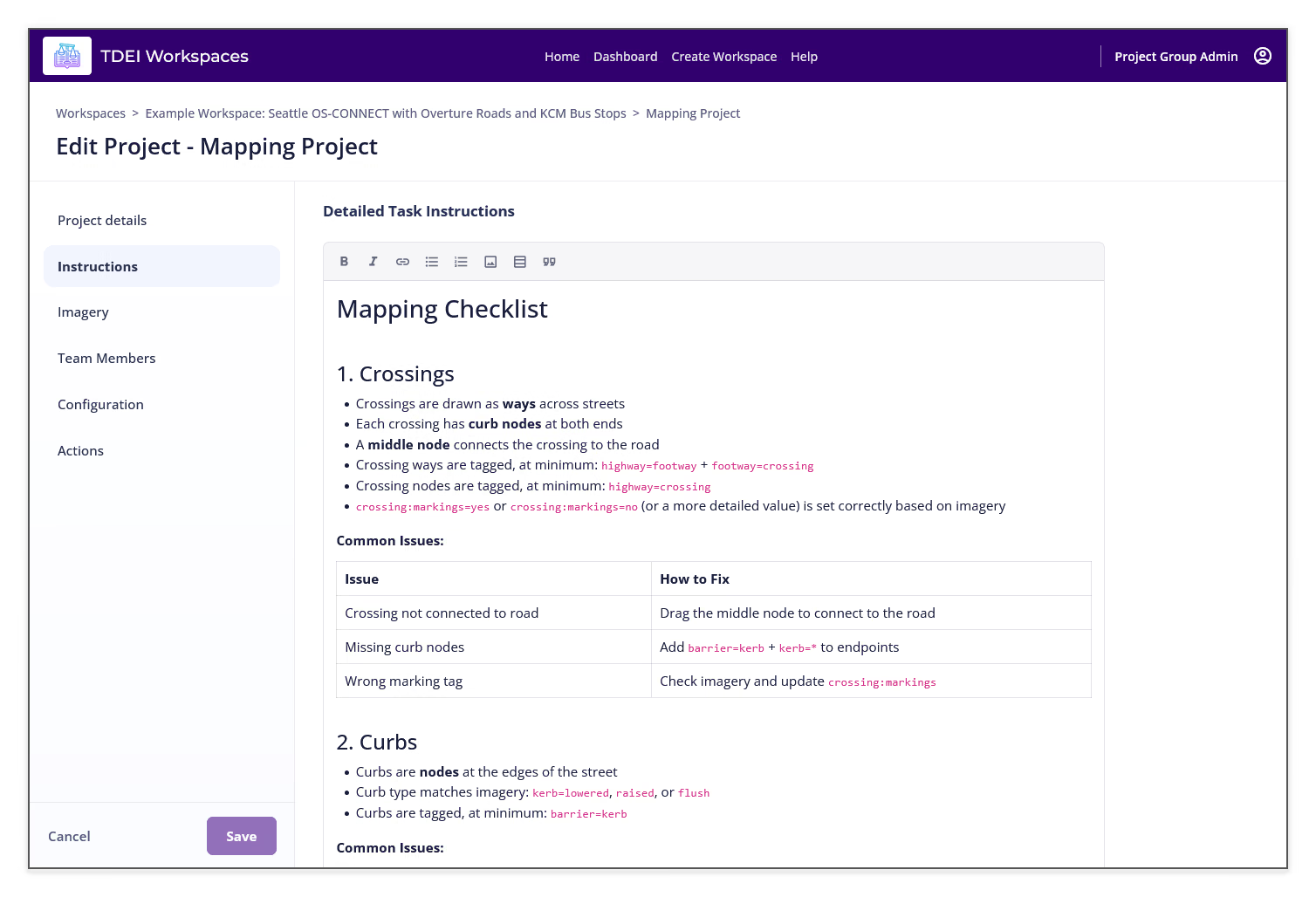
Use the Instructions section to update Detailed Task Instructions in the rich-text editor, then select Save.
Imagery⚓︎
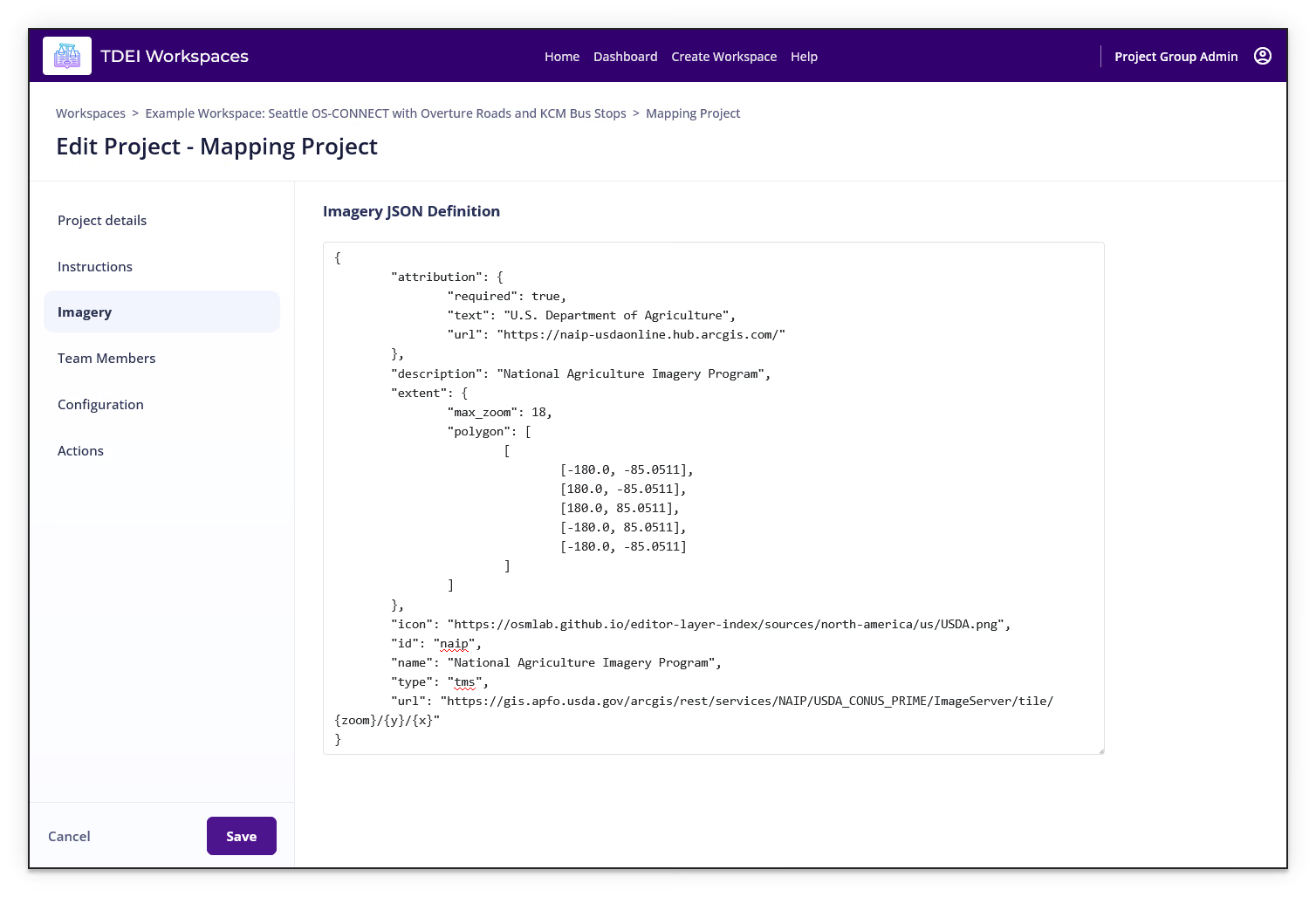
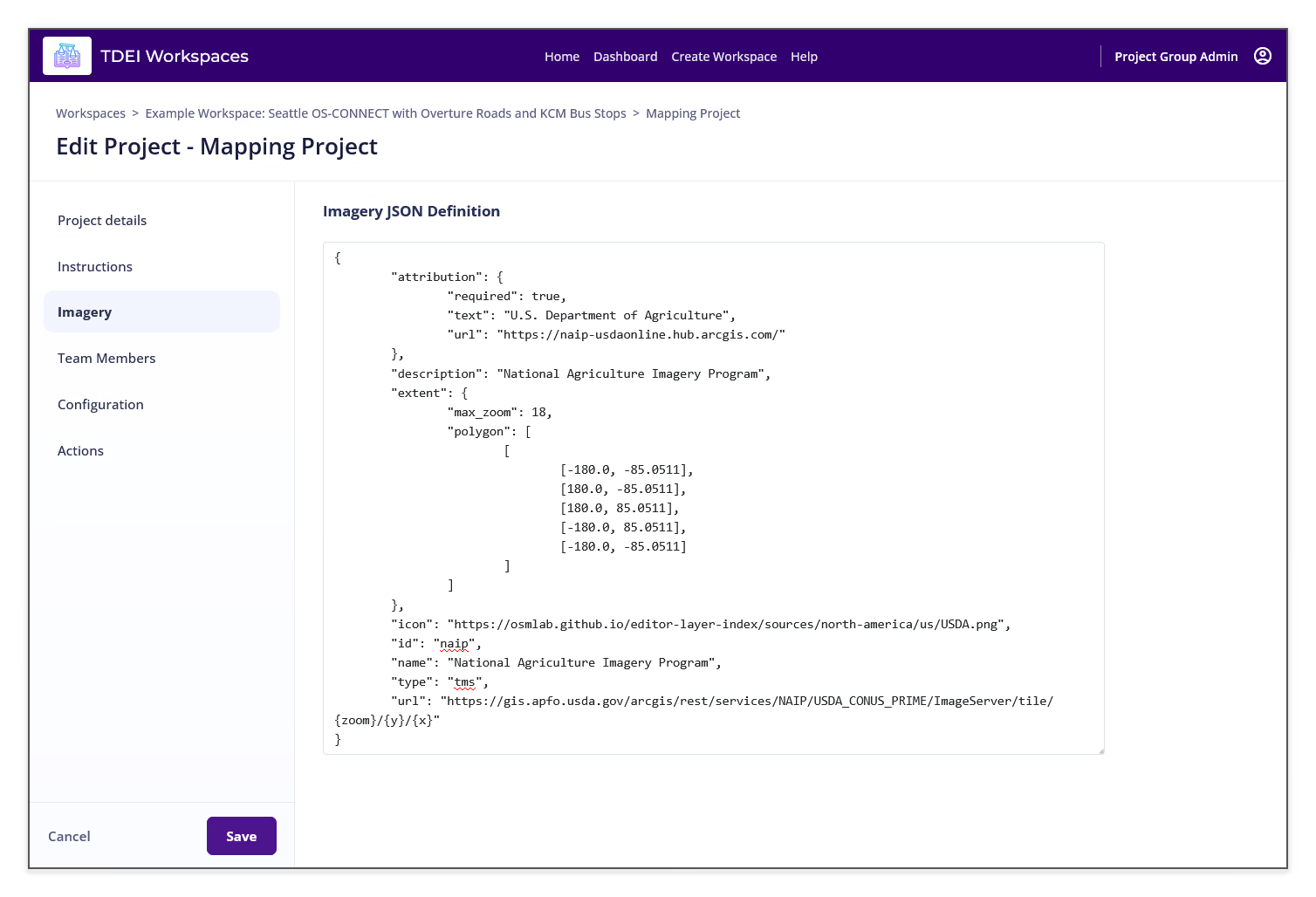
Use the Imagery section to review or update the Imagery JSON Definition, then select Save.
Team Members⚓︎
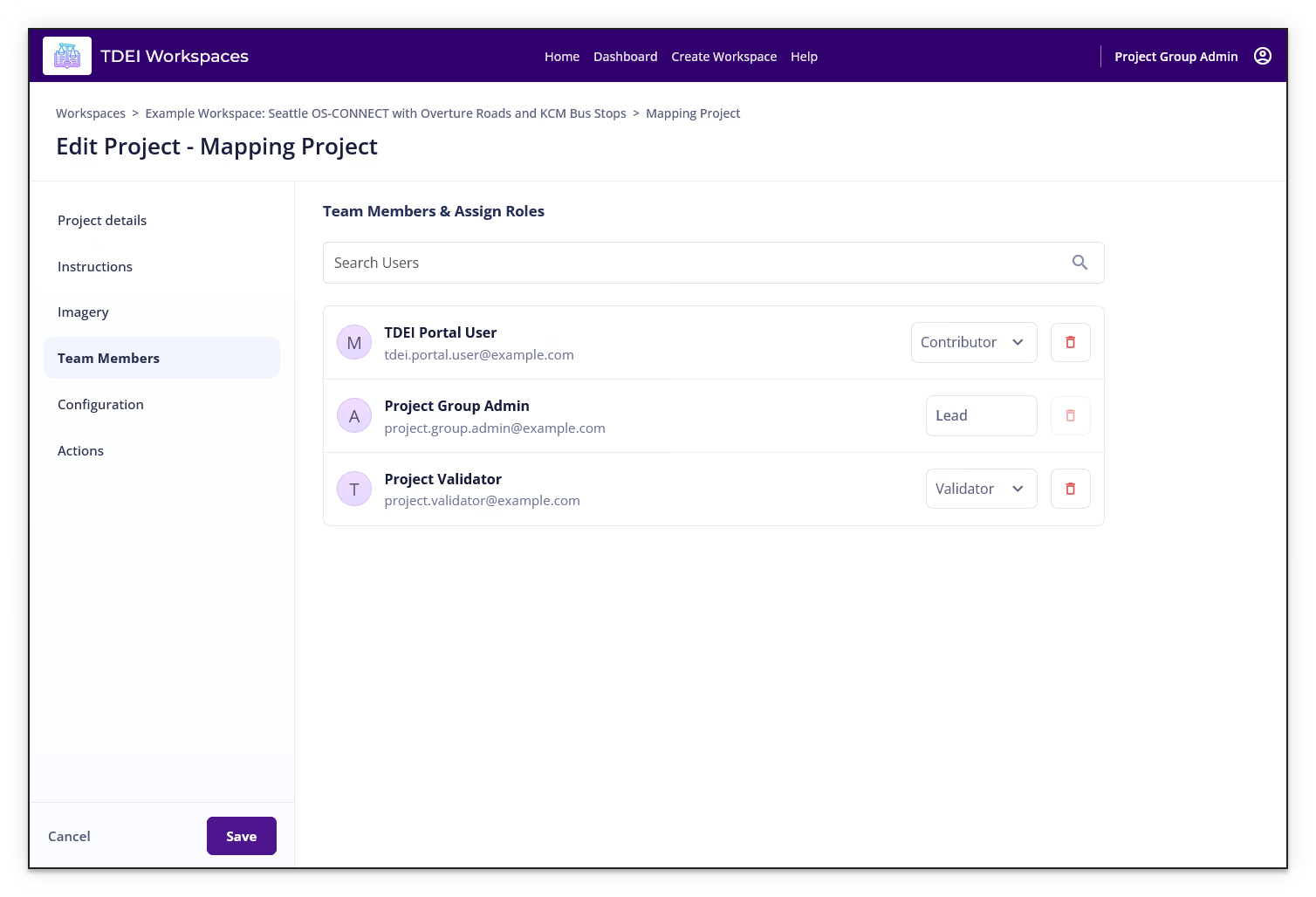
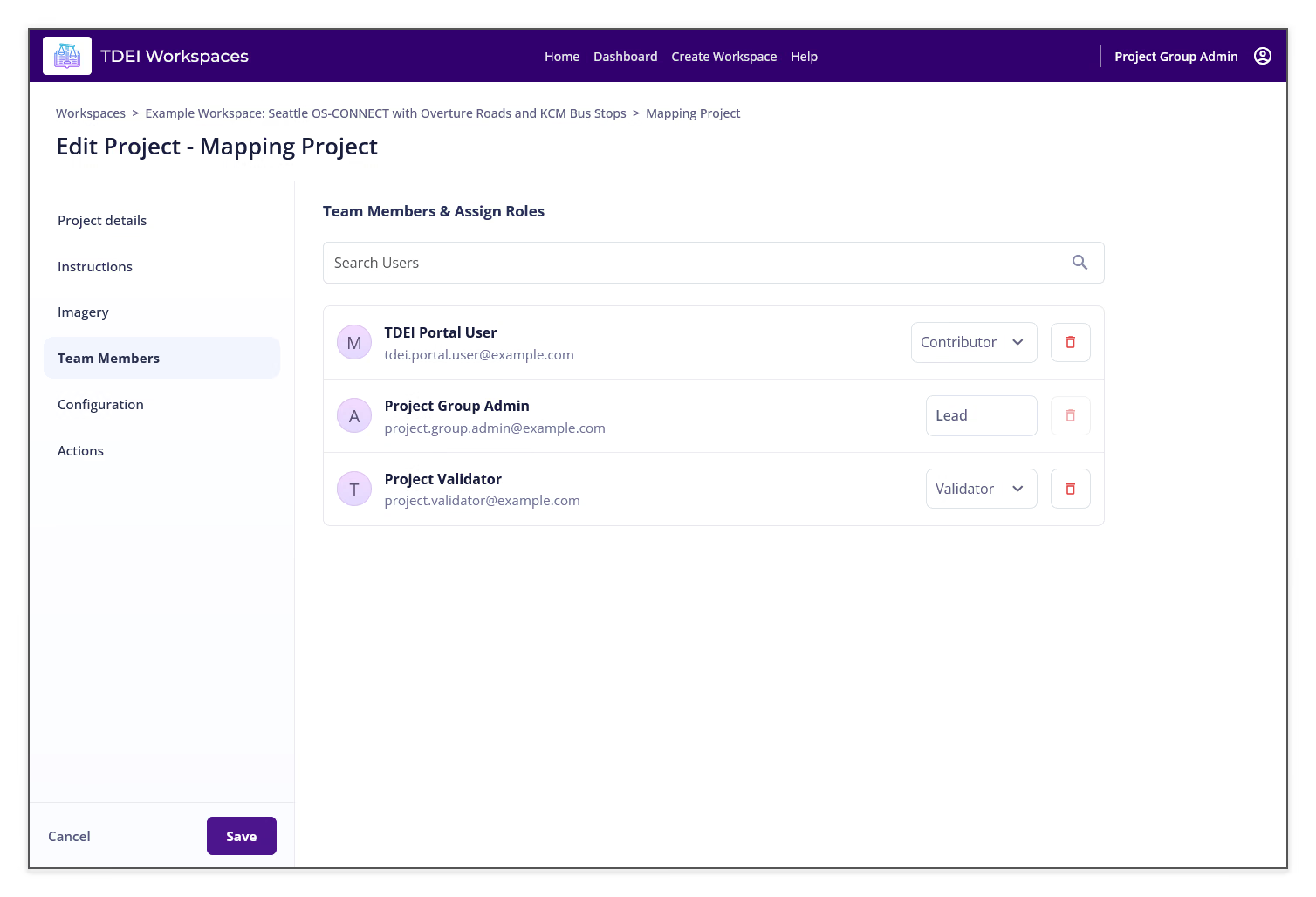
Use the Team Members section to search users and review the project role shown for each member. Available roles in the list include Contributor, Lead, and Validator. Remove controls are shown for removable members.
Configuration⚓︎
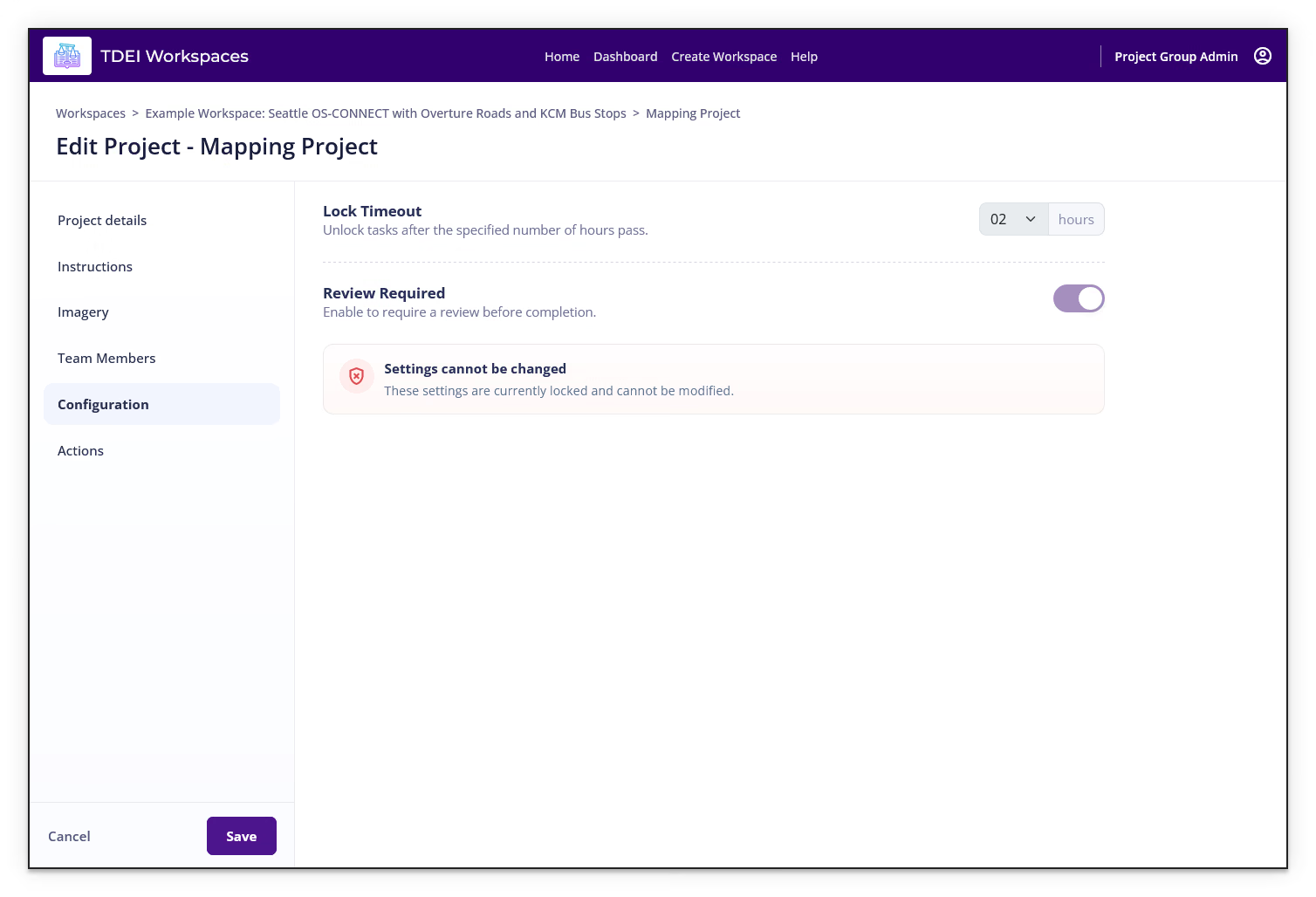
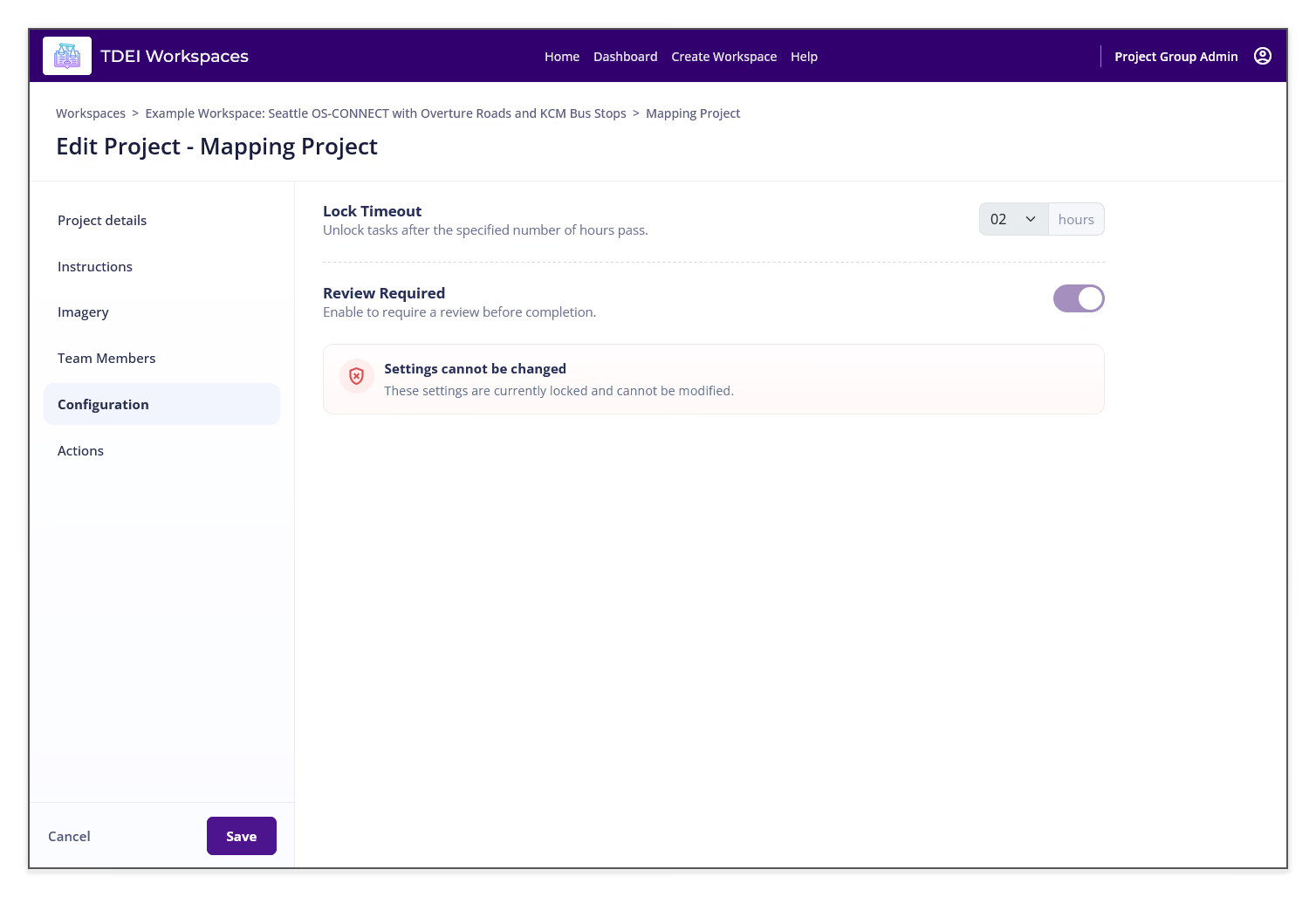
The Configuration section displays Lock Timeout and Review Required. If the configuration is locked, Workspaces displays Settings cannot be changed and explains that the settings cannot be modified.
Actions⚓︎
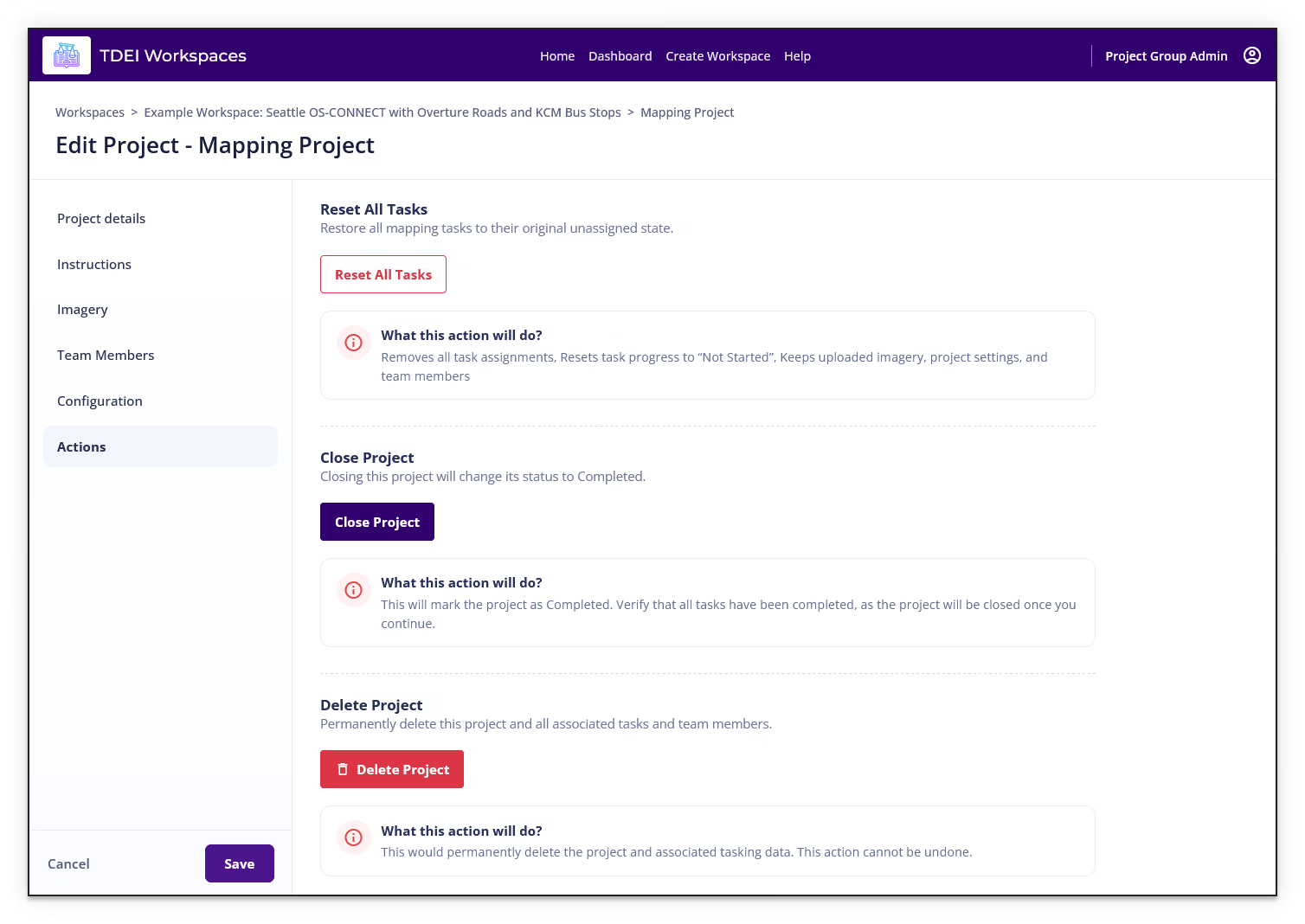
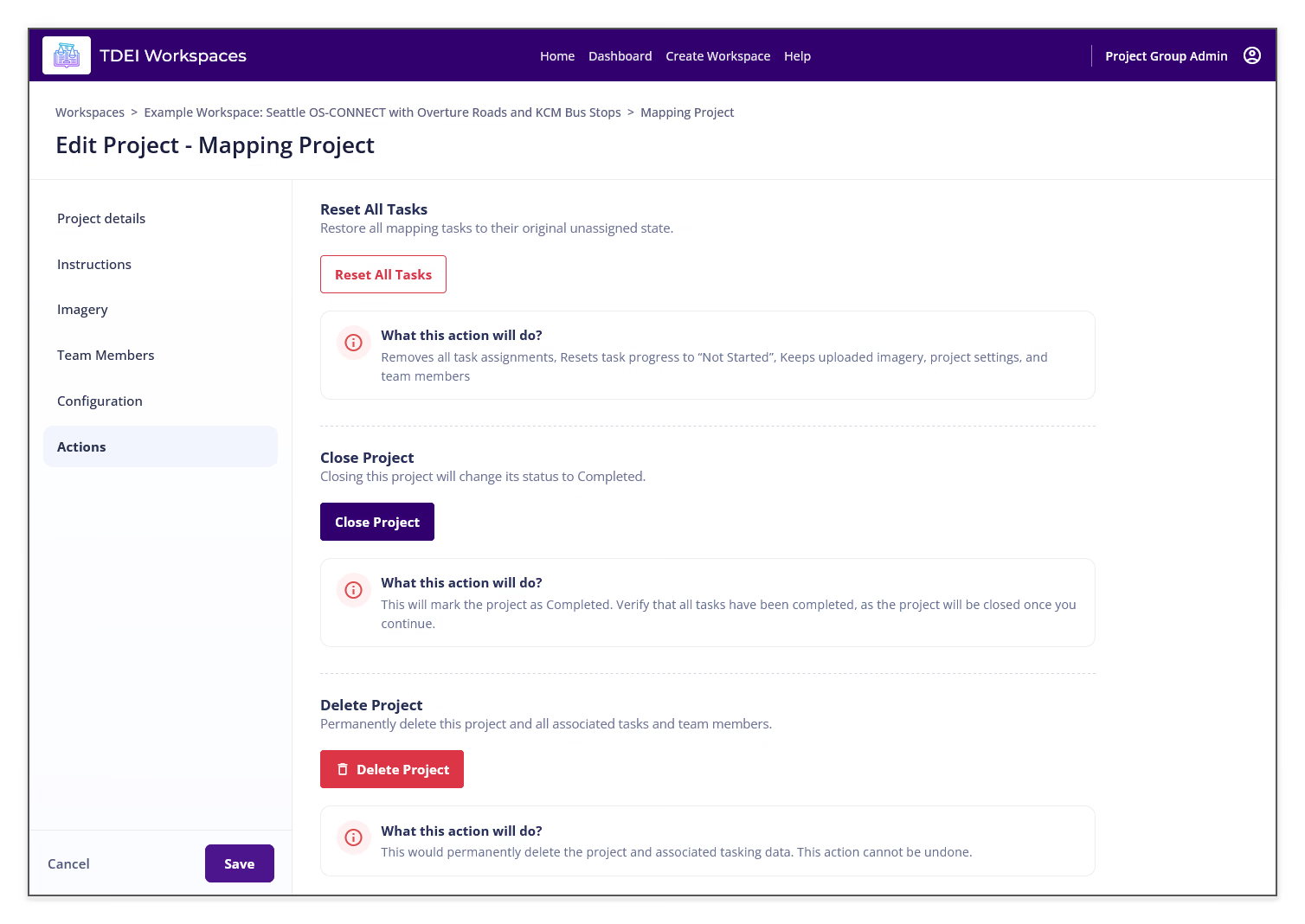
The Actions section provides:
- Reset All Tasks — removes task assignments and resets task progress to Not Started while keeping uploaded imagery, project settings, and team members.
- Close Project — changes the project status to Completed.
- Delete Project — permanently deletes the project and its associated tasks and team members. This action cannot be undone.
Review the explanation shown below each action before selecting a button.
Previous: View a Project | Next: Contribute to a Project