Getting Started
Getting Started⚓︎
This section explains how to open the Quest Definition Creator, start a definition, load JSON from a file or clipboard, resume an available draft, and choose a color theme.
For a list of all guides on the TCAT Wiki, refer to the Guides List.
Prerequisites⚓︎
Before you begin, make sure you have:
- A web browser with access to the Quest Definition Creator
- An existing Long Form Quest Definition JSON file to revise, or an idea of the type of data collection needed for your project
- A backup of any existing definition before loading or upgrading it
Refer to the Long Form Quest Definition Guide and Element Query Guide for additional information.
Open the Creator⚓︎
- Open the Quest Definition Creator
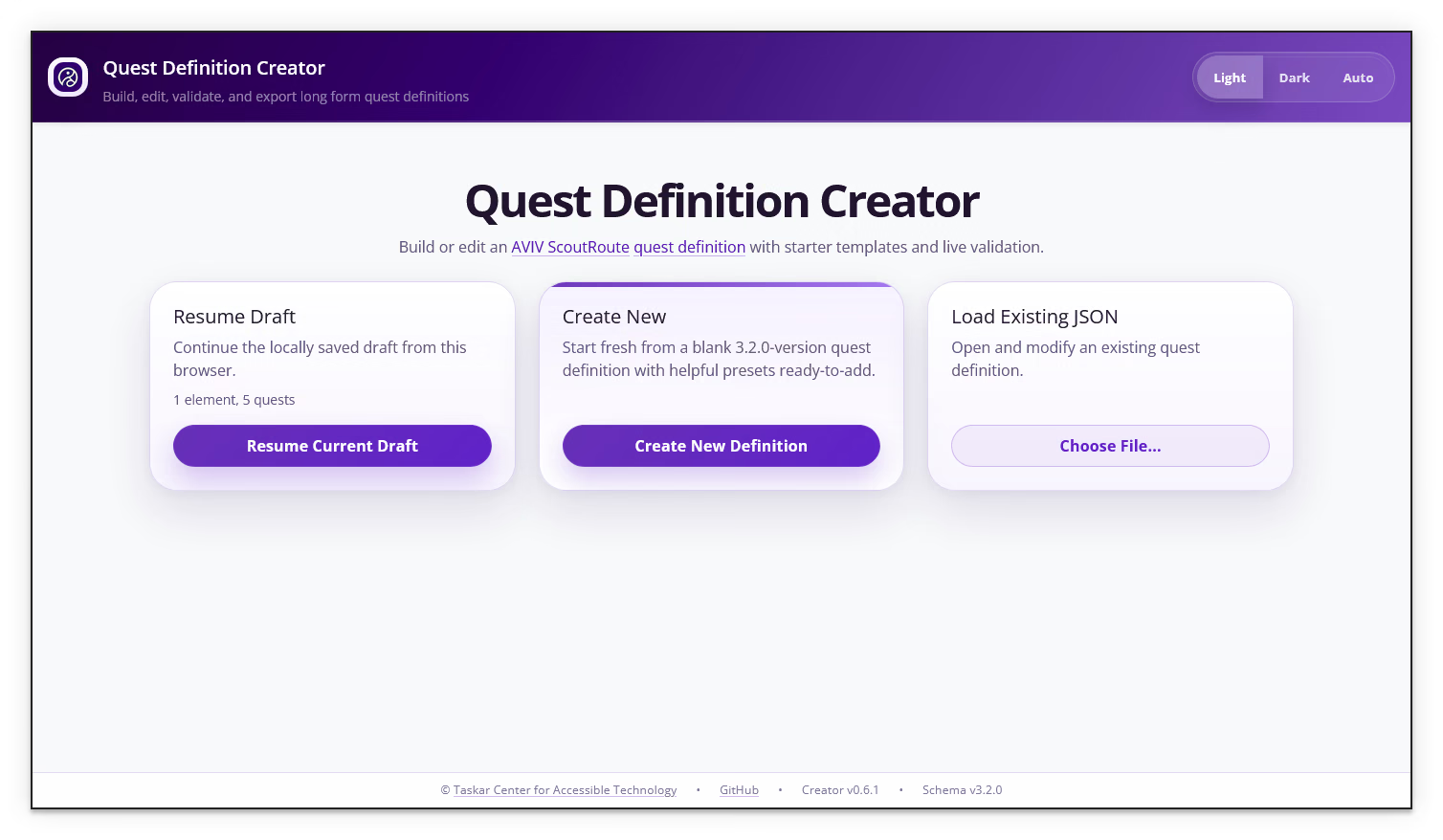
- Review the welcome-page options and the Creator and schema versions shown in the footer
Choose a Starting Point⚓︎
Choose the option that matches your task:
| Welcome-page option | Use it when |
|---|---|
| Resume Current Draft | You want to continue a saved draft in this browser; the card appears only when a draft exists |
| Create New Definition | You want to start with a blank definition using the Creator's latest-supported schema version |
| Choose File... | You want to load an existing JSON definition from a file |
| From Clipboard | You want to load a valid JSON definition copied to the clipboard |
Create a New Definition⚓︎
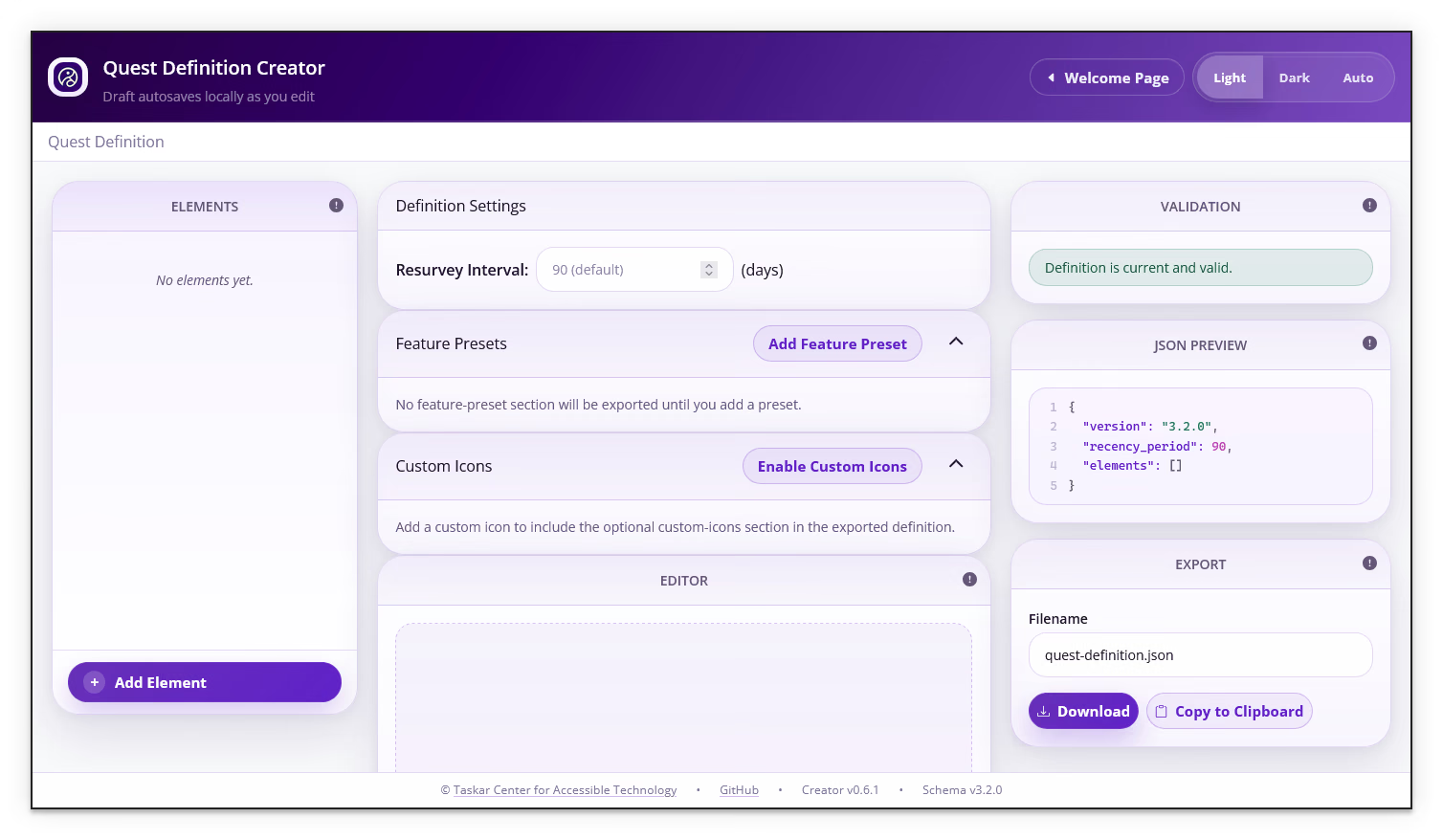
- Select Create New Definition
- Review the layout of the empty editor, the default
recency_periodvalue, and the schema version in the JSON Preview - Continue to Add Element
Load an Existing Definition⚓︎
Choose how to load the definition:
- Choose File... — select a Long Form Quest Definition JSON file from the file picker
- From Clipboard — copy valid definition JSON to the clipboard, then select this option; allow clipboard access if the browser requests it
Review the loaded structure in the editor, the schema version in the footer, and the Validation panel. When loading a file, keep the original unchanged until you have reviewed and exported the edited definition.
If the Creator identifies a compatible schema upgrade, follow the upgrade steps in Validation and Export.
Resume a Draft⚓︎
The Creator autosaves edits in the browser's local storage. When a saved draft is available, the welcome page shows a Resume Draft card with a summary of its elements and quests. To continue:
- Open the Creator in the same browser and on the same device used to edit the draft
- Select Resume Current Draft when it is available
- Review the definition and validation status before continuing
A locally saved draft is not a shared or centrally stored copy. Export the definition when you need a backup or need to move it to another device.
Choose a Color Theme⚓︎
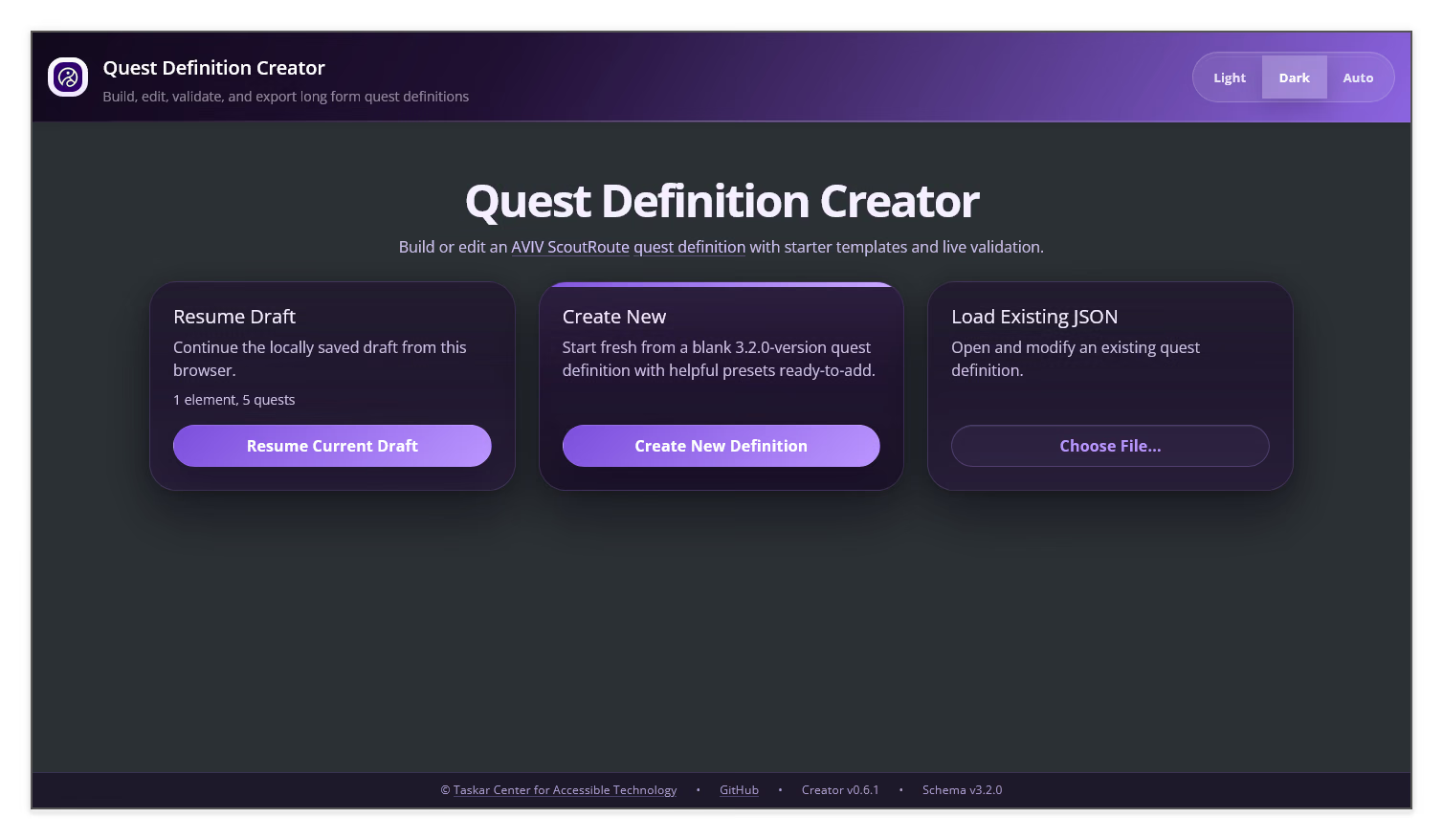
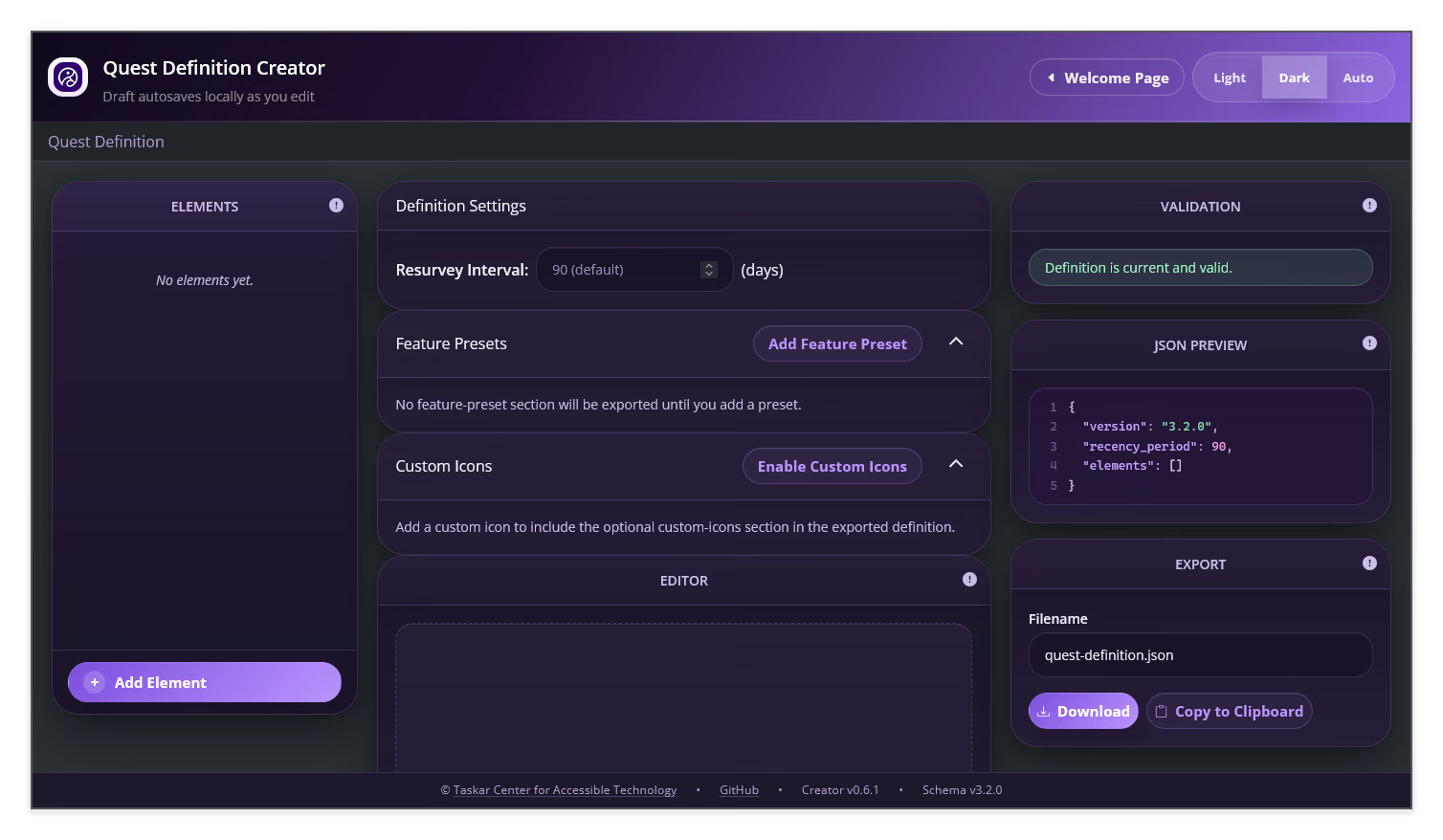
Use the theme controls in the header to select light, dark, or auto. The theme changes the Creator's appearance; it does not change the definition data.
Next Steps⚓︎
Continue to Editor Overview to learn how the Creator is organized, or go directly to Elements to begin building a quest definition.