Presets and Custom Icons
Presets and Custom Icons⚓︎
This section explains how to use Feature Presets, Element Presets, Quest Presets, and custom icons in a quest definition.
For a list of all guides on the TCAT Wiki, refer to the Guides List.
Differentiation⚓︎
These preset types serve different purposes:
- Feature Presets define the point features that contributors can create in AVIV ScoutRoute.
- Element Presets help authors add common elements to a quest definition in the Creator.
- Quest Presets help authors add common quests to an element in the Creator.
Add a Feature Preset⚓︎
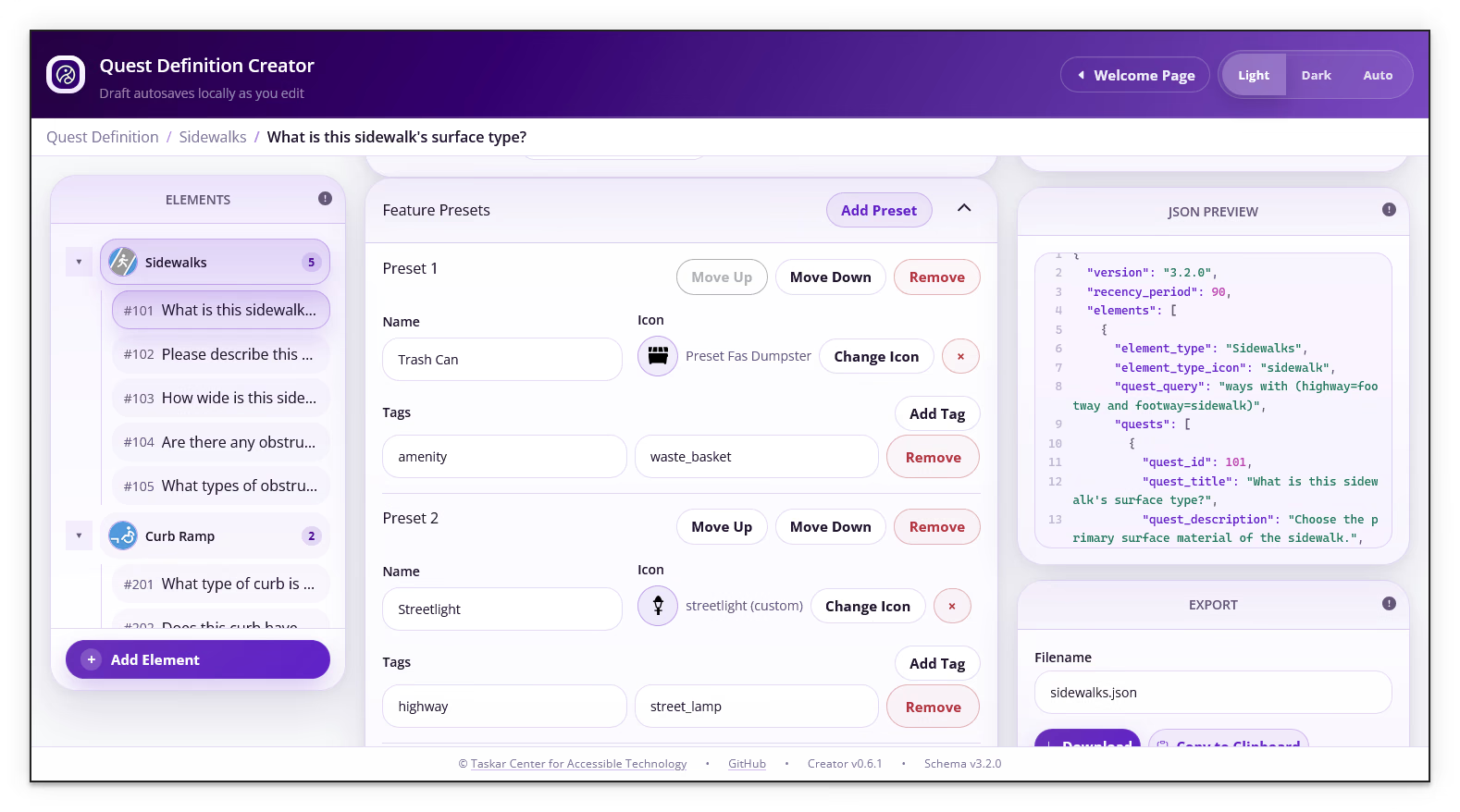
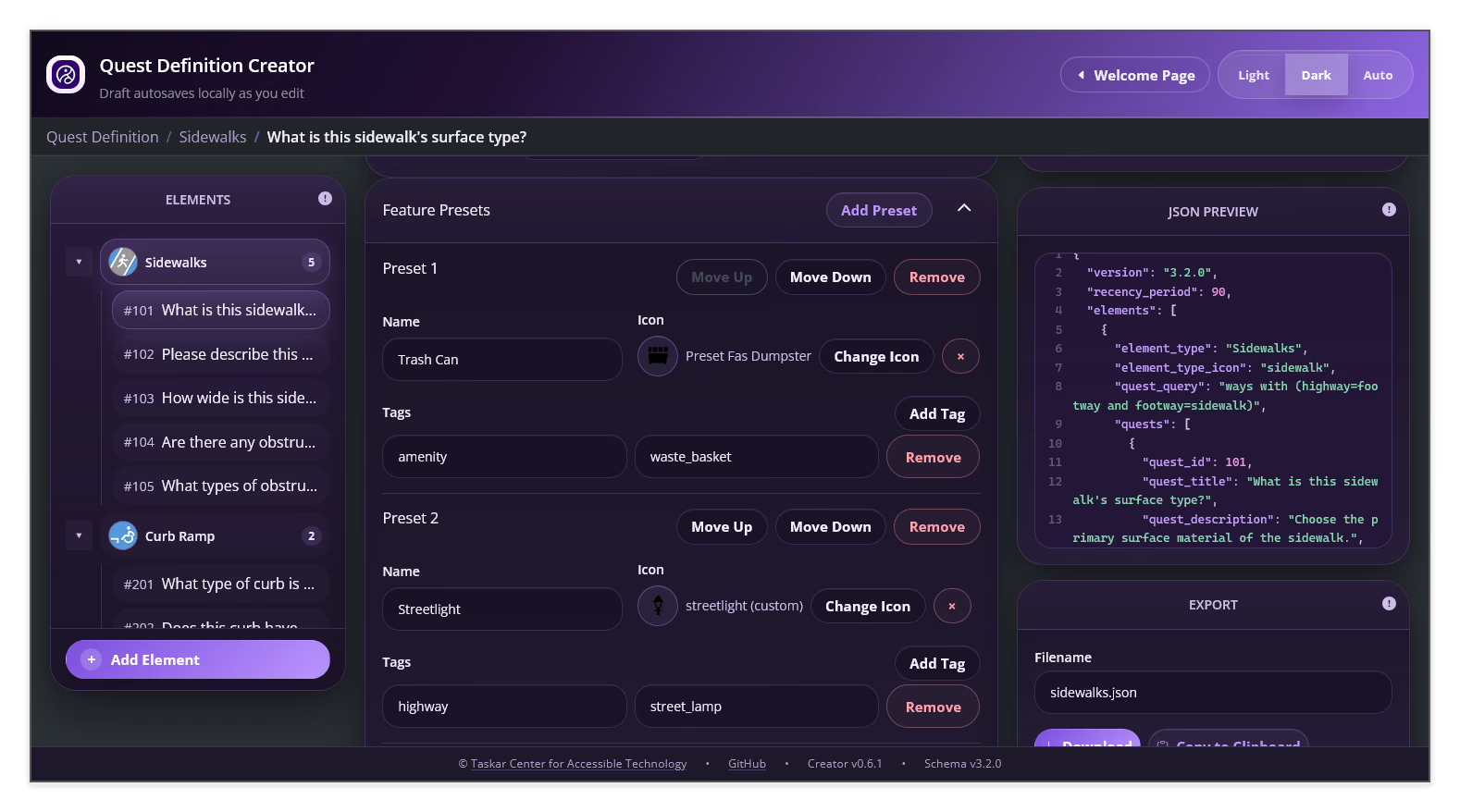
A Feature Preset defines a predefined point feature that contributors can create from AVIV ScoutRoute. It supplies a name, an icon, and one or more tags. This is a configuration for the field-collection app, not a shortcut for adding content to the definition in the Creator.
- Select Add Feature Preset in the Feature Presets panel
- Enter the feature name in Name
- Select Pick Icon and choose a feature-preset icon
- Enter a tag key and value in the Tags fields
- Select Add Tag to add additional tag pairs when needed
- Review the generated tags and icon in the JSON Preview
Use Move preset up, Move preset down, and Remove preset to organize the list. Configure only point features that the field workflow needs.
Enable Custom Icons⚓︎
Custom icons are separate from question images and answer-choice images. They can identify a quest or a feature preset when a built-in icon is not sufficient.
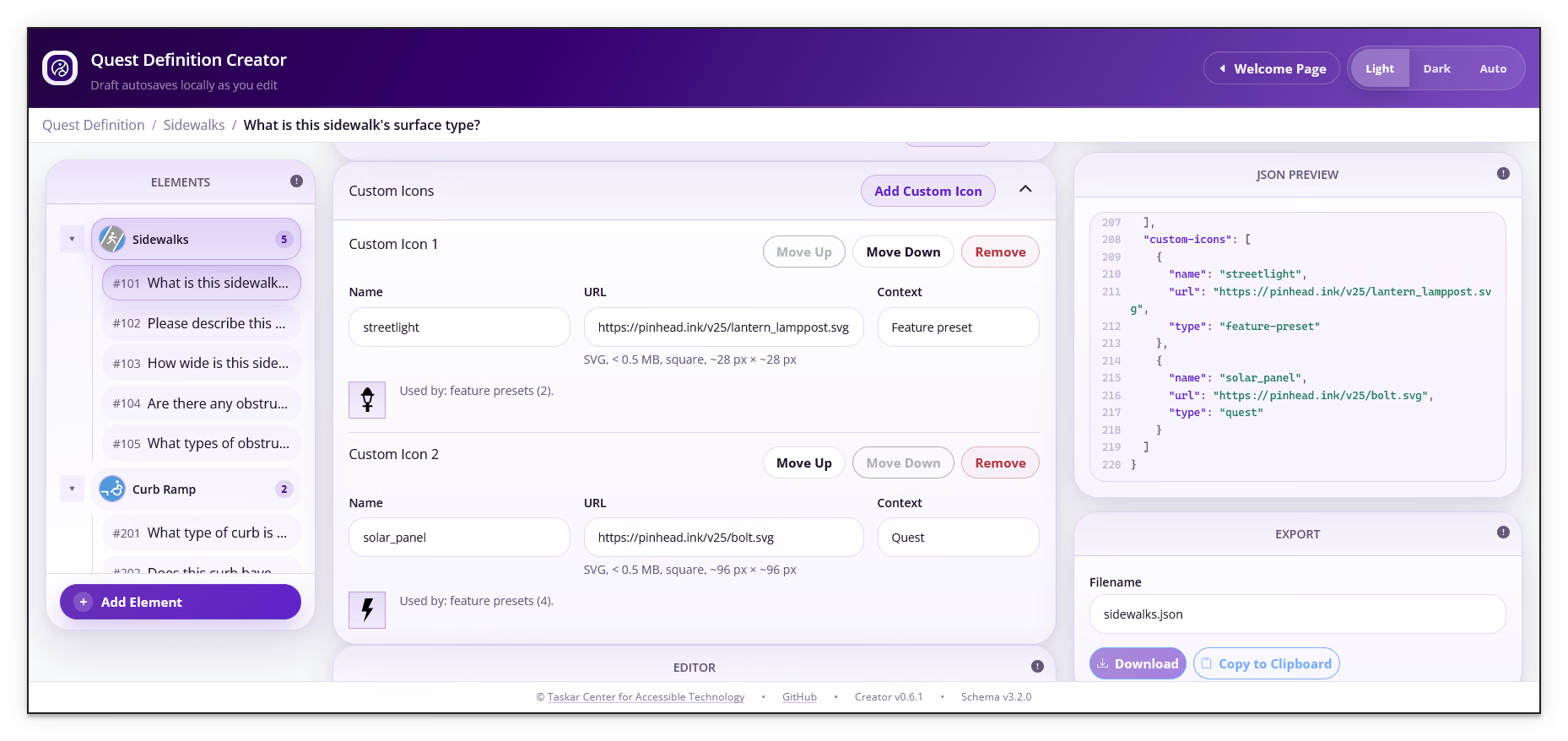
- Select Enable Custom Icons in the Custom Icons panel
- Select Add Custom Icon
- Enter a unique name in Name
- Enter an absolute
httporhttpsURL in URL - Select Quest or Feature preset in Context
- Review the preview and reference status
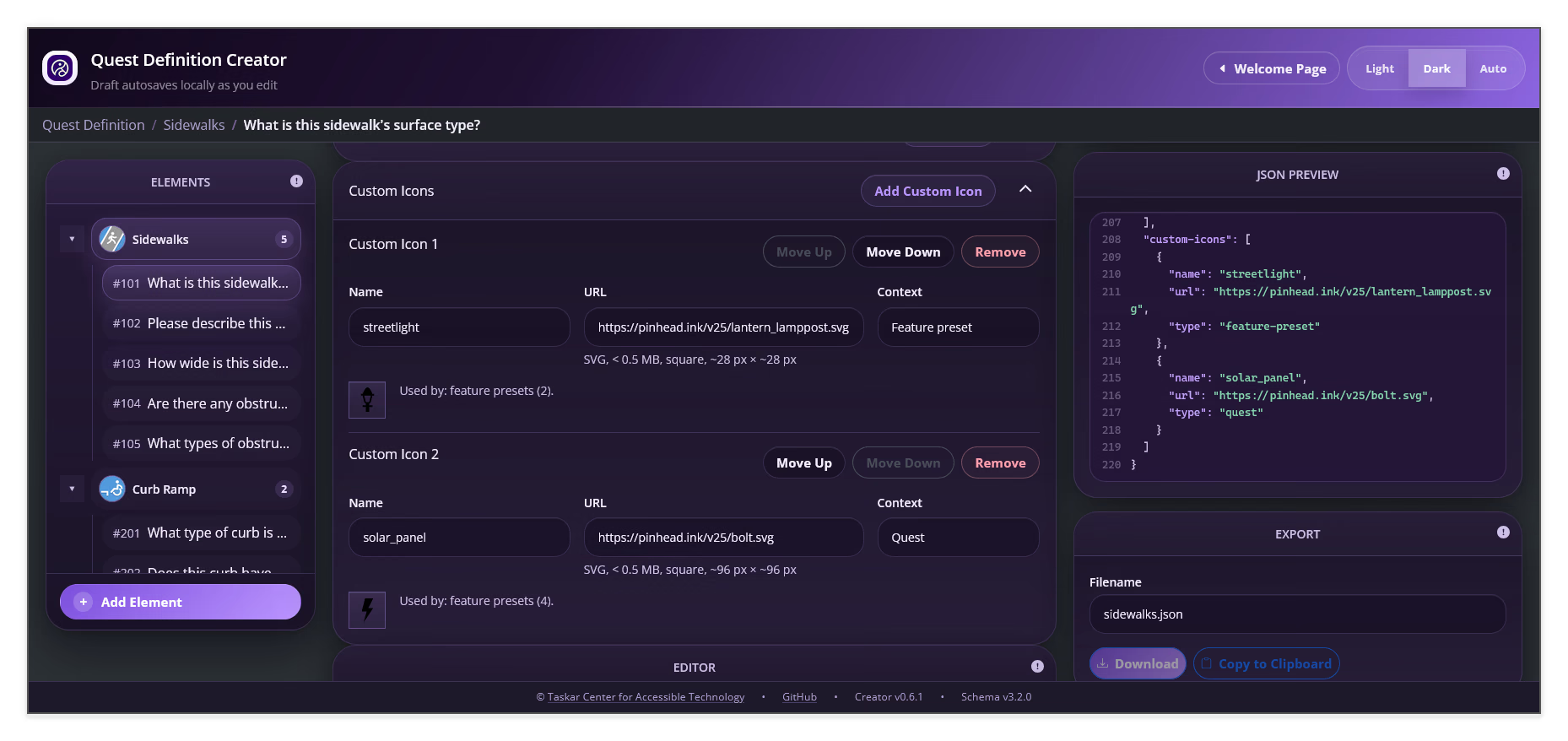
The current interface displays these custom-icon hints: SVG, less than 0.5 MB, square, and approximately 96 px x 96 px. Use a stable URL and resolve any URL, name, or icon-reference validation issue before exporting.
Match an Icon to Its Context⚓︎
Use a custom icon only in the context selected for that entry:
- A Quest custom icon can be selected as an element or quest icon
- A Feature preset custom icon can be selected for a feature preset
If the same graphic is needed in both contexts, create one custom-icon entry for each context and select the matching entry where it is used. A custom icon does not replace a Quest Image URL or an answer-choice Image URL.
Use Element Presets⚓︎
Element Presets help authors add common elements to the quest definition in the Creator. An element groups the quests for a mapped feature type and includes its element type, quest query, and element icon.
- Select Element Presets in the element editor
- Choose a matching element preset
- Review the generated Element Type, Quest Query, and Element Icon values
- Adjust the generated values when they do not match the intended workspace data
- Add quests to the element or continue to Use Quest Presets
Element Presets make it easier to add a common element structure to the definition. They do not define a feature that contributors can create in AVIV ScoutRoute; use a Feature Preset for that purpose.
If no matching element preset is available, enter the element values manually as described in Elements.
Use Quest Presets⚓︎
Quest Presets scaffold questions to help authors add common quests to an element in the Creator.
- Enter or select the element type that should receive the preset
- Select Quest Presets in the element's Quests section when a matching preset is available
- Choose the preset to add its questions
- Review every generated ID, title, description, type, tag, choice, and dependency
If the editor says that no quest presets are configured for the element type, add the quests manually by following Quests.
Next Steps⚓︎
Continue to Validation and Export to check the completed optional sections and produce the JSON file.